Fix “You need a codec to play this video” on Windows (saved short dramas)
Windows won’t play a saved episode? It’s usually HEVC. Three fixes: Microsoft’s HEVC Video Extensions, a player with HEVC support, or convert.
Written with AI assistance and reviewed by the ShortDrama Downloader team before publication. How we make guides
In short
- Short answer: Your episode is most likely HEVC: install Microsoft’s HEVC Video Extensions, play it in a player with its own HEVC support such as VLC, or convert the series to H.264.
- What you get: the files you already saved play as they are. Nothing needs to be downloaded again.
- Limits: Microsoft sells HEVC Video Extensions in the Microsoft Store, and the price depends on your country. Converting makes extra copies that need more disk space.
You saved a short drama, double-clicked an episode, and Windows told you that you need a codec to play this video. Other versions of the same problem: the Photos app says you need an extension to use this file, Media Player shows an error code such as 0xc00d5212, or you hear sound over a black picture.
Applies to: TikTok ShortDrama Downloader and PineDrama Downloader (the same app) 1.5.0 on Windows 10 and 11 (64-bit). Tested on Windows 11 Pro 25H2, 30 September 2026.
Usually the file itself is fine. Windows is missing the decoder for HEVC (H.265), the format TikTok uses for 720p and 1080p episodes, and Windows’ own video apps can’t decode HEVC without HEVC support, which usually means Microsoft’s extension (some PC makers preinstall a version).
Before you start
- A 64-bit Windows 10 or 11 PC.
- At least one saved episode that won’t play.
- Any one of the fixes below is enough. Fixes 1 and 2 take a few minutes; converting takes longer.
Why it happens
Episodes you saved at 1080p or 720p are HEVC, because that is the only format TikTok serves at those tiers. Episodes saved at 540p with H.264 selected, and copies in a series’ H264 subfolder, are H.264, which Windows plays without extra software.
Windows includes common codecs, but Microsoft’s Codecs FAQ says you can add support for formats such as HEVC by installing a codec extension from the Microsoft Store. The app’s Play button in the Library opens your default Windows video player, so it runs into the same message.
For the background on the two formats, see HEVC vs H.264 for short dramas.
Fix 1: Install Microsoft’s HEVC Video Extensions
- Check whether it is already installed. In Windows 11, open Settings, then Apps, then Installed apps, and search for
HEVC. (In Windows 10: Settings, Apps, Apps & features.) - If nothing is listed, open the Microsoft Store, search for
HEVC Video Extensions, and choose the one published by Microsoft Corporation. - Check the price the Store shows for your country, then buy and install it.
- Close your video player, open it again, and play the episode.
When we checked on 30 September 2026, the US Microsoft Store listed HEVC Video Extensions at US$0.99, the same price Microsoft’s own Photos help page gives. Some PCs already have HEVC support from the PC maker; it shows in your installed apps as HEVC Video Extensions from Device Manufacturer.
Warning
Get codecs only from the Microsoft Store or the maker’s official site. Microsoft’s Codecs FAQ warns that “codec packs” from download sites can cause playback problems and even damage your Windows setup.
Fix 2: Use a player with its own HEVC support
Some players decode HEVC themselves, so they don’t need Microsoft’s extension. VLC media player is a common choice: it is free and open source, and VideoLAN’s release notes for VLC 3.0 list HEVC hardware decoding on Windows.
- Install VLC from VideoLAN’s official website, videolan.org.
- Right-click an episode, choose Open with, then VLC media player.
- Optional: make it your default video player in Settings, Apps, Default apps. The Library’s Play button then opens episodes in it too.
Tested on 30 September 2026
VLC 3.0.24 played a 1080p HEVC episode saved with version 1.5.0, with picture and sound, and Tools > Codec Information named the codec as MPEG-H Part2/HEVC (H.265).
Fix 3: Convert the series to H.264
If the file has to play on a device that can’t handle HEVC, such as an older TV, make H.264 copies in the app.
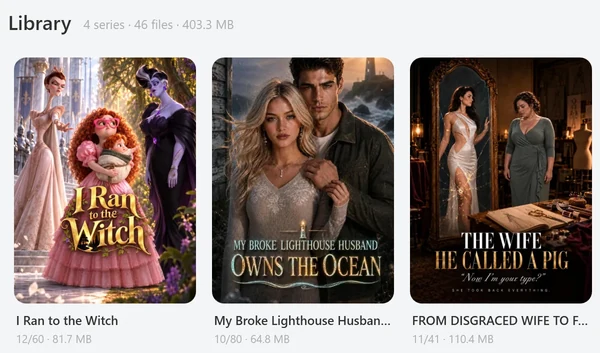
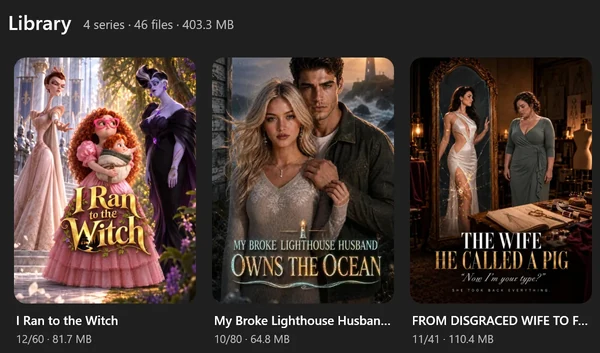
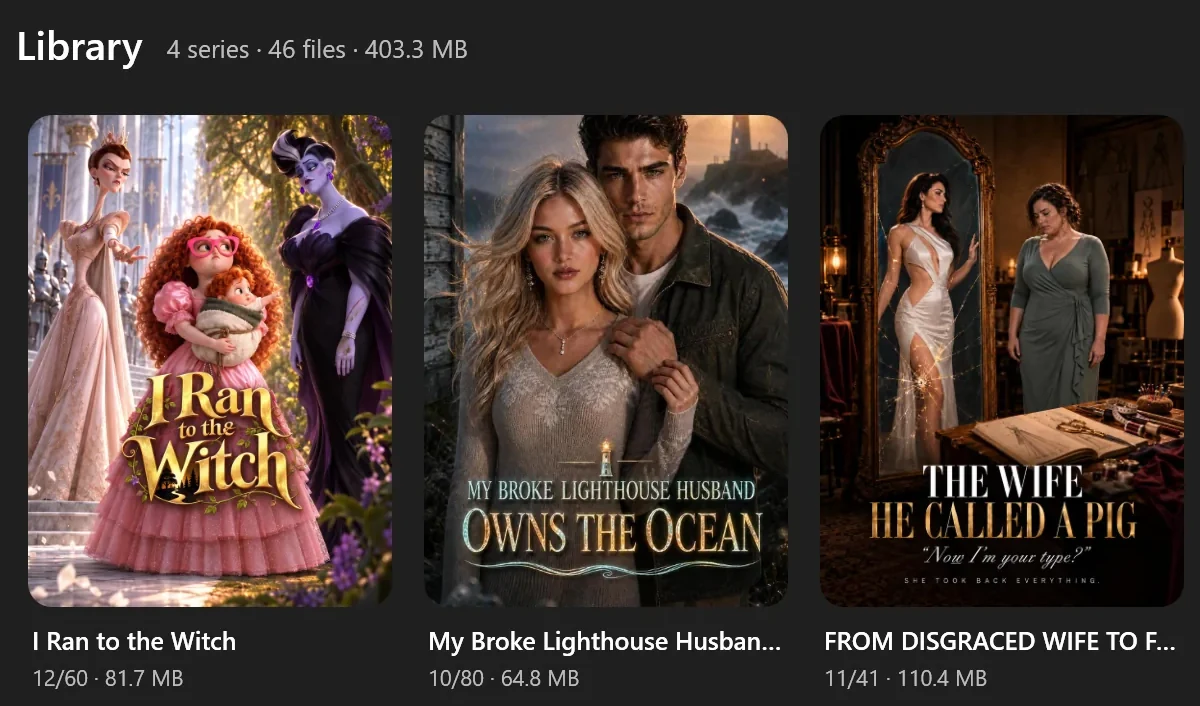
- Open Library, right-click the series cover and choose Convert to H.264.
- Read the note and click OK. Progress appears in Queue.
- When it finishes, right-click the cover, choose Open folder, and open the H264 subfolder. Play the copies from there.
 Open the full-size pictureOpen the full-size picture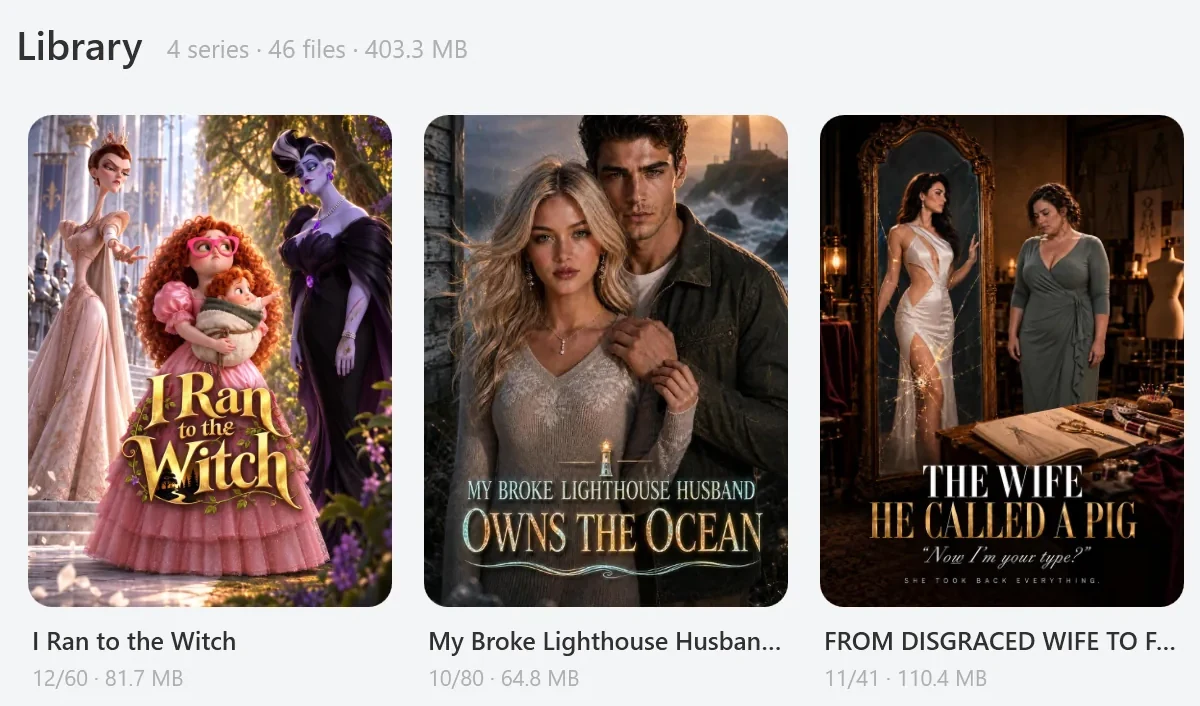
A few things to know before you convert:
- Your originals stay in place. The app’s note says this roughly doubles the space the series uses, but plan for more: in our test the H.264 copies were 2.2 to 2.6 times the size of the HEVC originals, so the series took 3.3 to 3.5 times its original space.
- It can take a while, because every HEVC episode is re-encoded.
- The Library’s Play button still opens the original files. Play the copies from the H264 folder, or use Merge H.264 in the series window to join them into one file.
The copies are plain H.264 video with AAC sound at the same resolution as the originals (we checked two converted 1080p episodes on 30 September 2026), the kind of file Windows plays without an extension.
For next time: save in H.264 from the start
If 540p is enough for the screen you watch on, choose 540p under Quality and H.264 under Codec in the episode picker. Those files play almost anywhere with no extra step.
What about the preview in the app?
Preview EP 1 plays the first 60 seconds of episode 1 inside the app, using Windows’ own video support. If Windows can’t decode the clip because it is HEVC, the app opens the clip in your default video player and shows this message: Couldn't play H.265 in-app (Windows needs the free "HEVC Video Extensions" from the Microsoft Store). Opened the preview in your default video player instead.
The app’s message calls the extension free. When we checked on 30 September 2026, the US Microsoft Store listed HEVC Video Extensions at US$0.99, and some PCs come with a version from the PC maker already installed (see Fix 1).
A preview that plays is not proof that your saved episodes will. The preview uses the lowest-quality version of the episode, which may not be HEVC, while 720p and 1080p episodes always are.
Troubleshooting
I installed the extension and it still won’t play
Restart the player, or restart Windows. Check Installed apps again to confirm the extension is there.
VLC won’t play it either
Then the file itself may be damaged. In the Library, click the series cover to open the series window. If that episode’s row has an orange dot and the word incomplete (the dot’s tooltip reads Incomplete — use Update to re-download), click Update. If the file is full-size but still won’t play, delete that episode’s file from the series folder first (Open folder shows it), then click Update to download it again. Update only fetches episodes that are missing or marked incomplete.
It plays, but stutters
Microsoft’s Store description notes that on PCs without HEVC hardware support, playback depends on the video’s resolution and the PC’s speed. Try VLC, or convert the series.
The TV or phone still won’t play the file
The device can’t decode HEVC. Convert the series, or save it again at 540p with H.264.
FAQ
Is HEVC Video Extensions free?
Microsoft sells it in the Microsoft Store; on 30 September 2026 the US Store price was US$0.99, and prices differ by country. Some PCs come with HEVC support from the PC maker already installed.
Why doesn’t the app save everything in H.264?
TikTok serves these dramas in H.264 only up to 540p. To get 720p or 1080p at all, the file has to be HEVC. You can still make H.264 copies later with Convert to H.264.
Do I need to download the episodes again?
Usually not. In most cases the files are fine and Windows just needs a way to decode them, so all three fixes work on the episodes you already have. Only if VLC can’t play an episode either is it worth downloading it again: see VLC won’t play it either for how, because Update leaves a full-size file alone.
Sources
- Codecs FAQ (Microsoft Support), support.microsoft.com
- HEVC Video Extensions (Microsoft Store listing), apps.microsoft.com
- VLC 3.0.0 release notes (VideoLAN), videolan.org