How to download short dramas for offline viewing on Windows (where permitted)
What offline really means for short dramas, which services this Windows app supports, and how to keep, play and manage the series you save.
Written with AI assistance and reviewed by the ShortDrama Downloader team before publication. How we make guides
In short
- Short answer: Offline viewing here means real MP4 files on your PC: this app saves TikTok short-drama series and PineDrama episodes into one folder per series, and they play in your usual video player without internet.
- What you get: every available episode, or only the ones you pick, up to 1080p where TikTok offers it, plus a Library to play, update, merge and convert your series. The same app is also offered as PineDrama Downloader.
- Limits: the app runs on Windows 10 and 11 (64-bit) only, works with TikTok short dramas and PineDrama links only, and needs internet and your own TikTok sign-in to download. Save only where you’re permitted to, for your own viewing.
“Offline” can mean two different things for short dramas, and it’s worth knowing which one you want before you pick a short drama downloader for your PC. This guide explains the difference, what this app can and can’t save, and what you can do with a series once it’s on your computer. For click-by-click steps, see how to download a TikTok short-drama series or how to save PineDrama episodes to your PC.
Applies to: TikTok ShortDrama Downloader and PineDrama Downloader (the same app) 1.5.0 on Windows 10 and 11 (64-bit). Tested on Windows 11 Pro 25H2, 30 September 2026.
Two kinds of offline: in-app downloads and your own files
Many streaming apps have a download or offline option that keeps episodes inside the app. You watch them only in that app, and what you can keep, and for how long, follows that app’s rules.
This app saves ordinary MP4 files to a folder on your PC:
- They play in the video player you already use, with the app closed and no internet.
- They stay until you delete them. Uninstalling the app leaves your videos where they are.
- Each series gets its own folder, with the episodes numbered in order (EP 01, EP 02 and so on).
Having a file isn’t the same as having the right to share it. Keep saved series for your own viewing, where that’s permitted. Saving short dramas responsibly explains the difference.
What you can save, and what you can’t
| Source | Supported? | How it works |
|---|---|---|
| TikTok short dramas | Yes | Browse TikTok’s short-drama shelves, search by title or paste a link |
| PineDrama | Yes, from links | Paste a PineDrama share or episode link. The app has no PineDrama browse or search. |
| A TikTok creator’s profile | Their short dramas only | Paste the @profile link to get the dramas on its Short dramas tab |
| Ordinary TikTok videos, photo posts and sounds | No | See which kind of downloader you need |
| Other short-drama apps, such as ReelShort or DramaBox | No | Only TikTok and PineDrama links are opened |
Some PineDrama page links only open in certain countries, and a particular drama may not be offered everywhere. If a PineDrama page link doesn’t open, copy that drama’s share link instead; saving PineDrama episodes to your PC has the details.
Note
Want an app to stream short dramas on your phone? This isn’t one: it’s a Windows app that saves episodes as files. PineDrama, TikTok’s own short-drama app for phones, is on the App Store and Google Play in the countries where it’s offered.
Before you start
- Windows: the app supports Windows 10 and 11 (64-bit). There’s no Mac, phone or web version.
- The app. The download box at the end of this guide links to both editions, which use the same installer.
- Your own TikTok account. You sign in once, on TikTok’s own login page inside the app, and PineDrama links use the same sign-in. You don’t need an account with us.
- An internet connection while you download.
- Free disk space. For a rough idea, the Library in the screenshot further down holds 4 series and 46 episodes in 403.3 MB. Your sizes depend on episode length and quality.
How saving works, in five steps
- Open the app and sign in: Settings ▸ ACCOUNT ▸ Log in to TikTok. You only do this once; Step 1 of the TikTok series guide shows each screen.
- Find a drama: pick a shelf on Browse, type a title in Search dramas, or paste a TikTok or PineDrama link on the Download tab and click Go.
- Click a poster, or paste a single link, to open the episode picker. Every episode starts selected; use All, Clear or a range such as
1-20, 25with Apply to change that. Choose a Quality and a Codec, and tick any Subtitles you want. - Click Add to queue, then follow the progress on the Queue tab.
- When the series is done, you’ll find it in Library.
To queue several dramas in one go, see batch-downloading TikTok short dramas.
What the Library does with your saved series
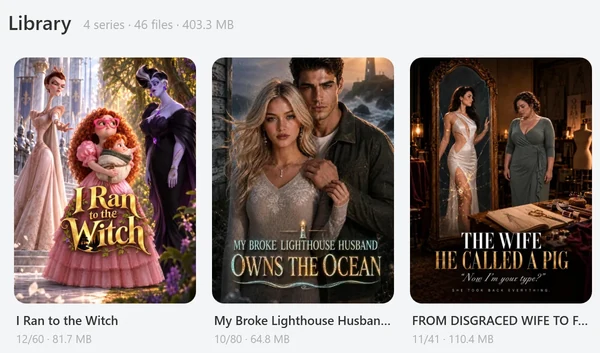
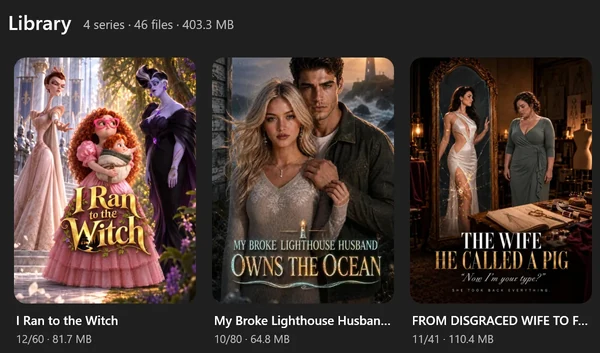
 Open the full-size pictureOpen the full-size picture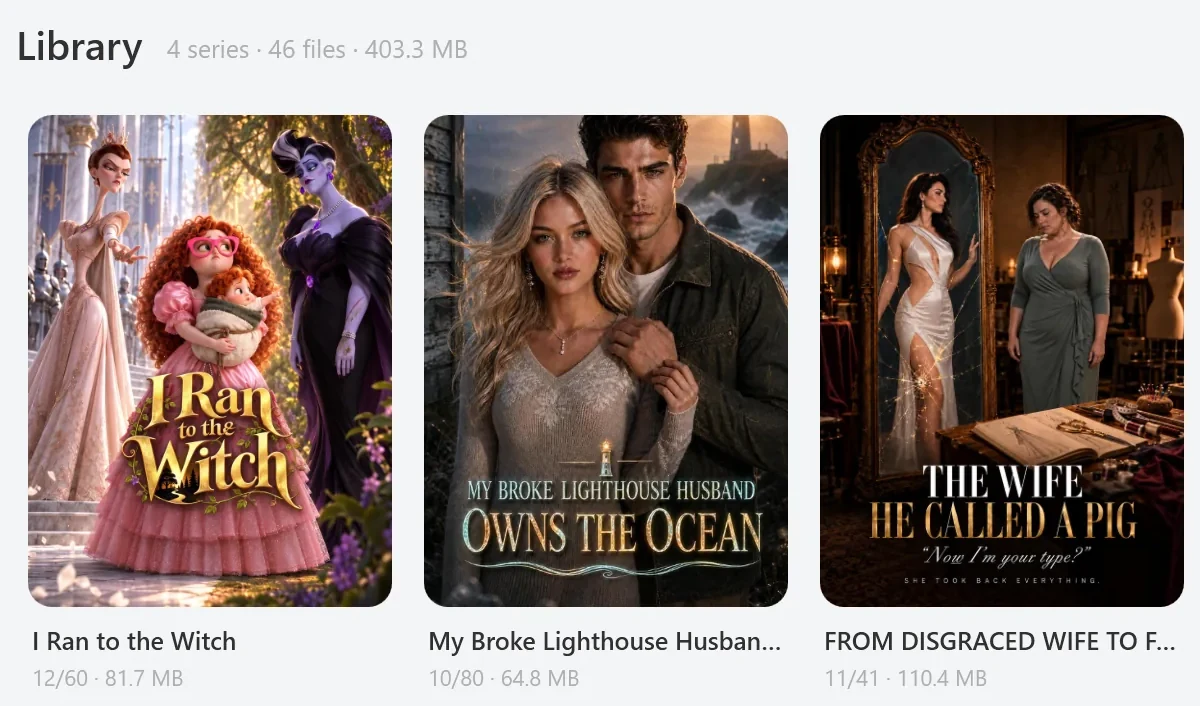
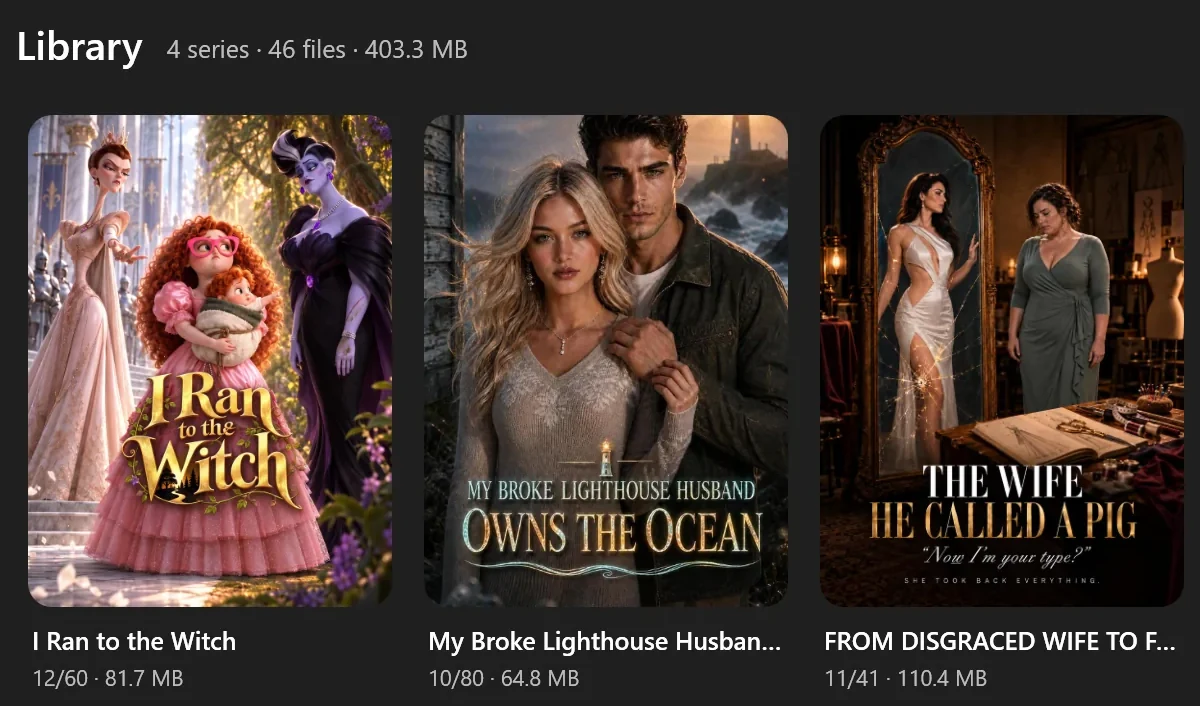
- Play opens the series in your default Windows video player: the merged file if you’ve made one, otherwise episode 1.
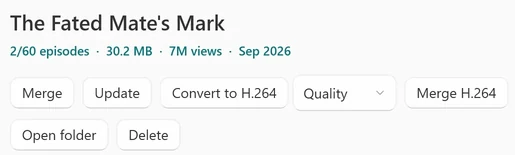
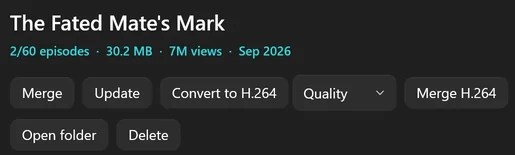
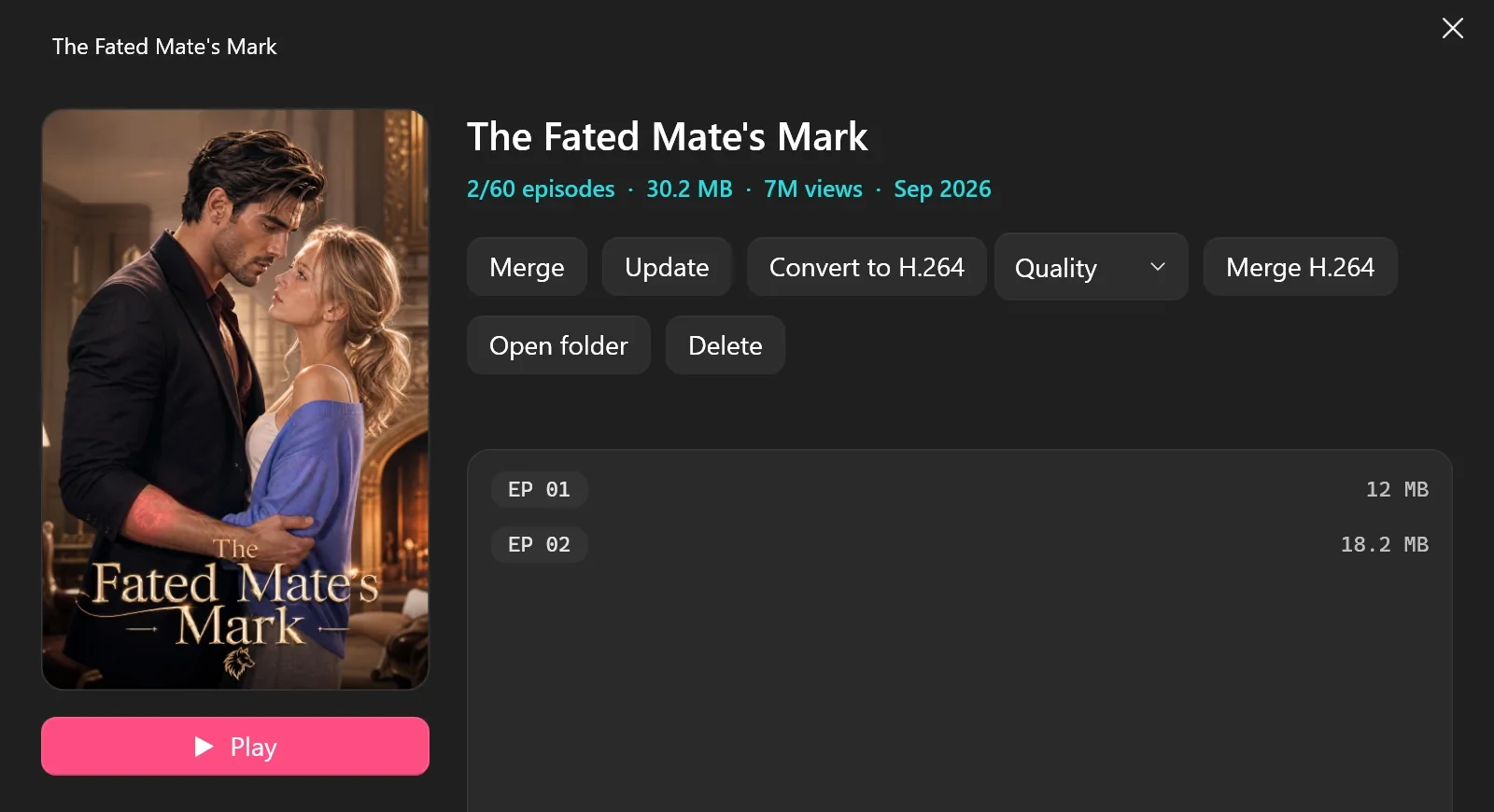
- Click a cover to open the series window, with its episode list and Play, Merge, Update, Convert to H.264, Merge H.264, Open folder and Delete. Right-click a cover for the main actions.
- Update checks TikTok again and queues any episodes you’re missing, including new ones, and any that didn’t finish. It runs only when you click it.
- Merge joins a series into one file named
<Title> (merged).mp4. When the episodes match, the picture isn’t re-encoded; the sound is converted to one AAC track. Episodes that differ from most of the series in size or codec are re-encoded to match, which adds no detail: in our test, an 8-episode series whose episodes came in three tiers became one 1080 × 1920 file, with its 3 lower-tier episodes re-encoded. - Convert to H.264 makes H.264 copies in an
H264subfolder, for TVs and older devices that can’t play HEVC. Your originals stay, and the copies are bigger than the HEVC files: in our test they were 2.2 to 2.6 times the size of the originals, so a converted series took 3.3 to 3.5 times its original space. In the series window, pick Quality, Balanced or Fast before you convert. - Sort: Newest cycles through Newest, Oldest, Most views, Most episodes and A–Z. Select lets you Update, Merge or Delete several series at once, and Delete moves a series folder to the Recycle Bin.
- Open folder shows the files in File Explorer. New installs save to
Videos\TikTok ShortDrama; to use another folder, go to Settings ▸ Downloads ▸ Download folder and click Change….
Tested on 30 September 2026
We converted two saved episodes of a series, then opened its series window. It showed Play, Merge, Update, Convert to H.264 with its preset box (Quality, Balanced or Fast), Merge H.264, Open folder and Delete. Merge H.264 only appears once a series has converted copies.
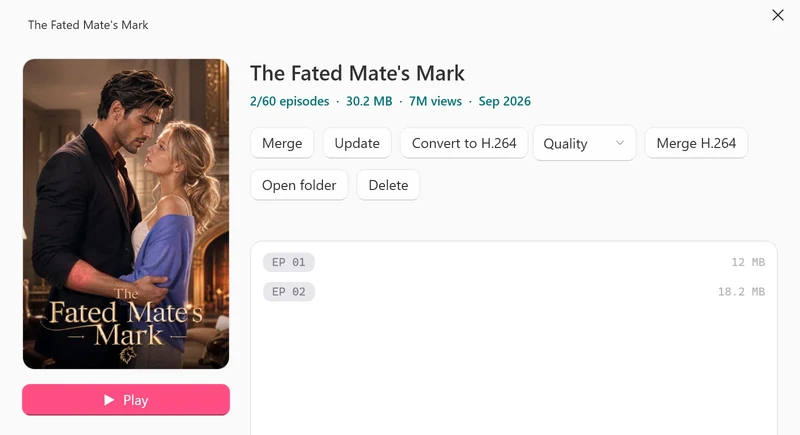
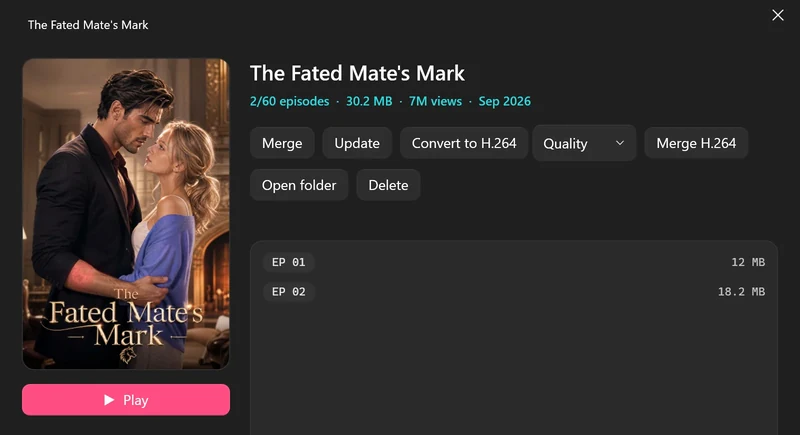
 Open the full-size pictureOpen the full-size picture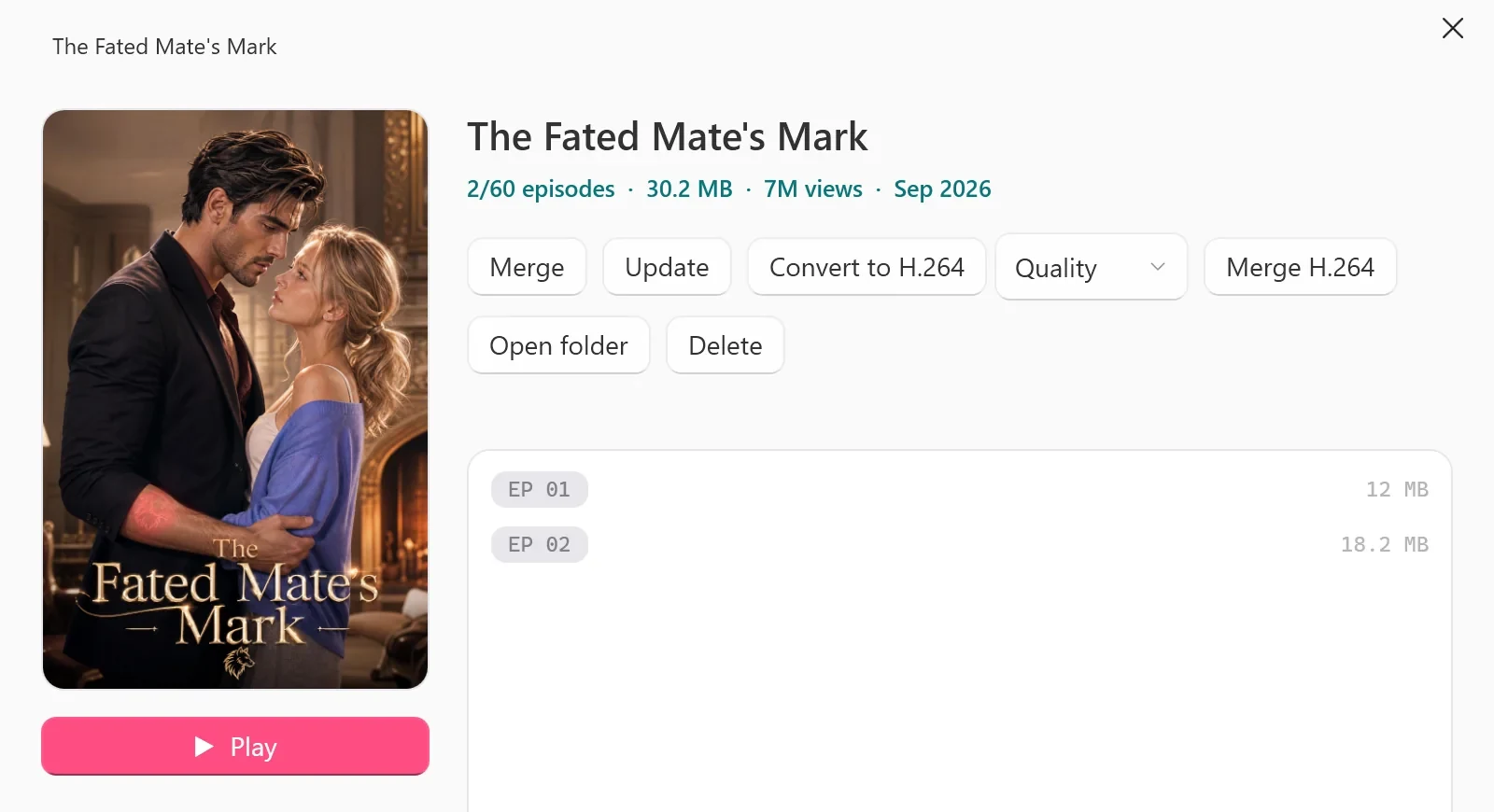
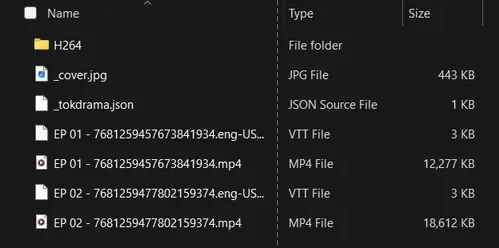
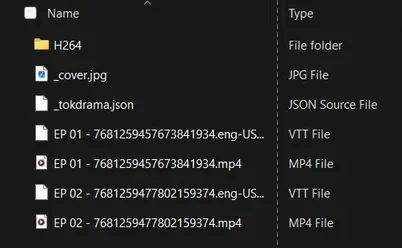
In File Explorer, the same series folder holds EP 01 - <episode id>.mp4 and EP 02 - <episode id>.mp4, a .eng-US.vtt subtitle file next to each (eng-US subtitles were added to these two episodes), the poster _cover.jpg, a small _tokdrama.json file the app uses, and the H264 folder with the converted copies.
 Open the full-size picture
What works without internet
- Watching: saved episodes play offline in your video player, with or without the app. HEVC episodes need a player or Windows extension with HEVC support (see the last troubleshooting item).
- Library tools: Merge and Convert to H.264 work on the files already on your PC and don’t contact TikTok, and Play hands the file to your own video player. We didn’t take our test PC offline, but with the app cut off from our licence server on 30 September 2026, Merge and Convert to H.264 both still ran.
- Needs internet: downloading, Browse, search, Preview EP 1 and Library Update, because they all talk to TikTok.
About your plan: a paid plan keeps working offline for a while. In the same test, the plan card in Settings said You're offline — your plan keeps working for up to 72 hours without internet. Downloading always needs internet, and the Free plan checks your daily count online, so it needs a connection before a new drama can start.
What to expect
- Quality varies by episode. The quality you choose is a ceiling. An episode that doesn’t have it comes in the next best, so one series can mix qualities, and nothing comes above 1080p. What quality can you download TikTok short dramas in? explains the tiers.
- HEVC by default. HEVC is used at every quality; H.264 is offered at 540p only. For H.264 at full resolution, use Convert to H.264 in the Library.
- Subtitles only when you ask. You get the subtitle tracks TikTok provides for that drama, and only the ones you tick in the episode picker. One-click queueing from Browse, Download all and Library Update skip subtitles.
- One card per series in the Queue. A range at the end of its line, such as
540p-1080p, means the finished episodes came in different qualities, because TikTok’s versions vary from episode to episode.
Troubleshooting
For the sign-in message, Couldn't find a drama from that link and links to other websites, see troubleshooting in the TikTok series guide. Two more come up when you save for offline viewing.
Couldn't reach the licence server — free downloads need an internet connection.
This notice appears on the PLAN & LICENCE card in Settings. The Free plan checks your daily count online, so reconnect, then try again.
An episode won’t play in Windows
Episodes are HEVC unless you chose H.264 at 540p. If your player can’t play HEVC, install Microsoft’s HEVC Video Extensions from the Microsoft Store, use a player with its own HEVC support, or make H.264 copies with Convert to H.264 in the Library.
FAQ
Do saved episodes expire?
No. They’re ordinary MP4 files, not in-app downloads, so they stay in your folder until you delete them, even if you uninstall the app.
Can I watch on my phone or a Mac?
The app runs on Windows 10 and 11 (64-bit) only; there’s no Mac, iPhone, Android or web version. On a phone, watch in TikTok or PineDrama themselves.
What about ReelShort, DramaBox and other short-drama apps?
They aren’t supported. Only TikTok short dramas and PineDrama links work, and links to other sites aren’t opened.
Is there a Free plan?
Yes. On the Free plan you can start 2 new dramas per PC per day, each with every available episode in any quality TikTok offers for it. The count resets at 00:00 UTC, and a drama you’ve started stays free to finish. Every paid plan unlocks unlimited new dramas.
Sources
- PineDrama on the App Store (US), apps.apple.com
- PineDrama on Google Play, play.google.com