Batch-download several TikTok short dramas at once
Queue several short-drama series in one go: paste many TikTok or PineDrama links, or select posters in Browse, then set how many download at once.
Written with AI assistance and reviewed by the ShortDrama Downloader team before publication. How we make guides
In short
- Short answer: paste several TikTok or PineDrama links into the Download box, one per line, click Go, then Download all, or select several posters in Browse and click Add to queue.
- What you get: every available episode of every series in one queue, up to 8 series side by side and at most 16 episodes at once in total, with each series in its own folder.
- Limits: short-drama series only, not ordinary videos, liked videos, collections or playlists. Download all takes the best tier available in your default codec and skips subtitles. On the Free plan you can start 2 new dramas per PC per day.
When you follow several dramas at once, saving them one series at a time gets slow. You can batch download TikTok short dramas with TikTok ShortDrama Downloader instead: many links in one paste, several posters picked in Browse, or all the dramas on a creator’s Short dramas tab. For a single series, start with the full walkthrough.
Applies to: TikTok ShortDrama Downloader and PineDrama Downloader (the same app) 1.5.0 on Windows 10 and 11 (64-bit). Tested on Windows 11 Pro 25H2, 30 September 2026.
Note
Batch in this app is for short-drama series. It doesn’t batch-download ordinary TikTok videos, and liked videos, favorites, collections, playlists and a creator’s regular posts aren’t supported either. If that’s what you need, read video downloaders vs short-drama downloaders.
Way 1: Paste several links at once
This works for TikTok and PineDrama links alike, and it’s the only batch route for PineDrama.
- Open the Download tab.
- Paste your links into the box, one per line. Enter works like Go, so press Shift+Enter if you type a new line yourself. Links separated by spaces, commas or semicolons work too, TikTok and PineDrama links can be mixed, and duplicates are dropped.
- Click Go. The app loads each series in turn and shows a counter such as
Loading [2/5]…. - Check the posters that appear. The Pasted links bar underneath says how many are ready, for example
5 series ready to queue, or5 series ready · 1 couldn't loadwhen a series couldn’t be loaded. A link that doesn’t lead to a drama is left out without a message, so count the posters against your list. - Click Download all. The app queues every available episode of every series, reports something like
Queued 312 episode(s) from 5 series.and switches to the Queue.
A creator’s profile link (https://www.tiktok.com/@name) works the same way: it lists every drama on that profile’s Short dramas tab, ready for Download all.
Download all decides for you: it takes the best tier TikTok has for each episode, with no ceiling, in your default codec from Settings (if that’s H.264, you get 540p), and it doesn’t include subtitles. To set a quality ceiling or tick subtitles for one series, click its poster instead; that opens the episode picker for that series alone. What the one-click buttons use lists every quick button’s quality.
Tested on 30 September 2026
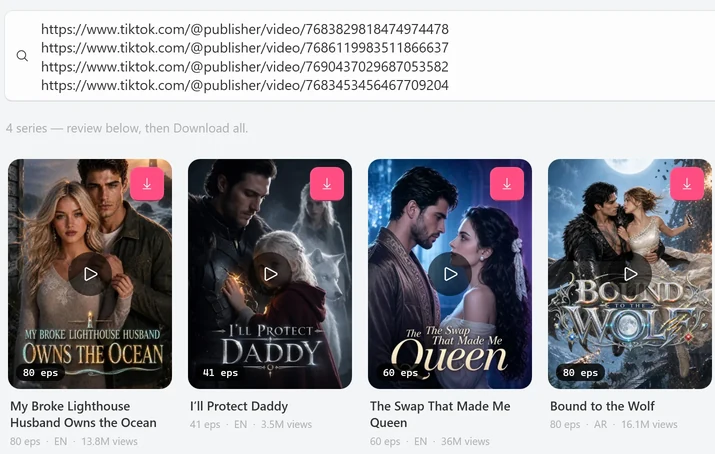
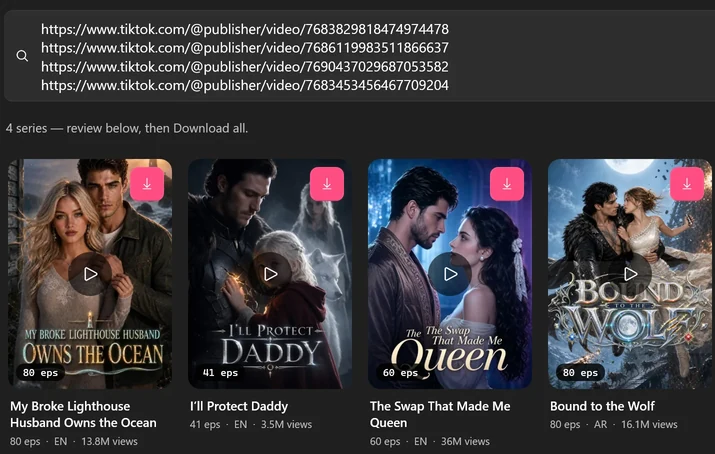
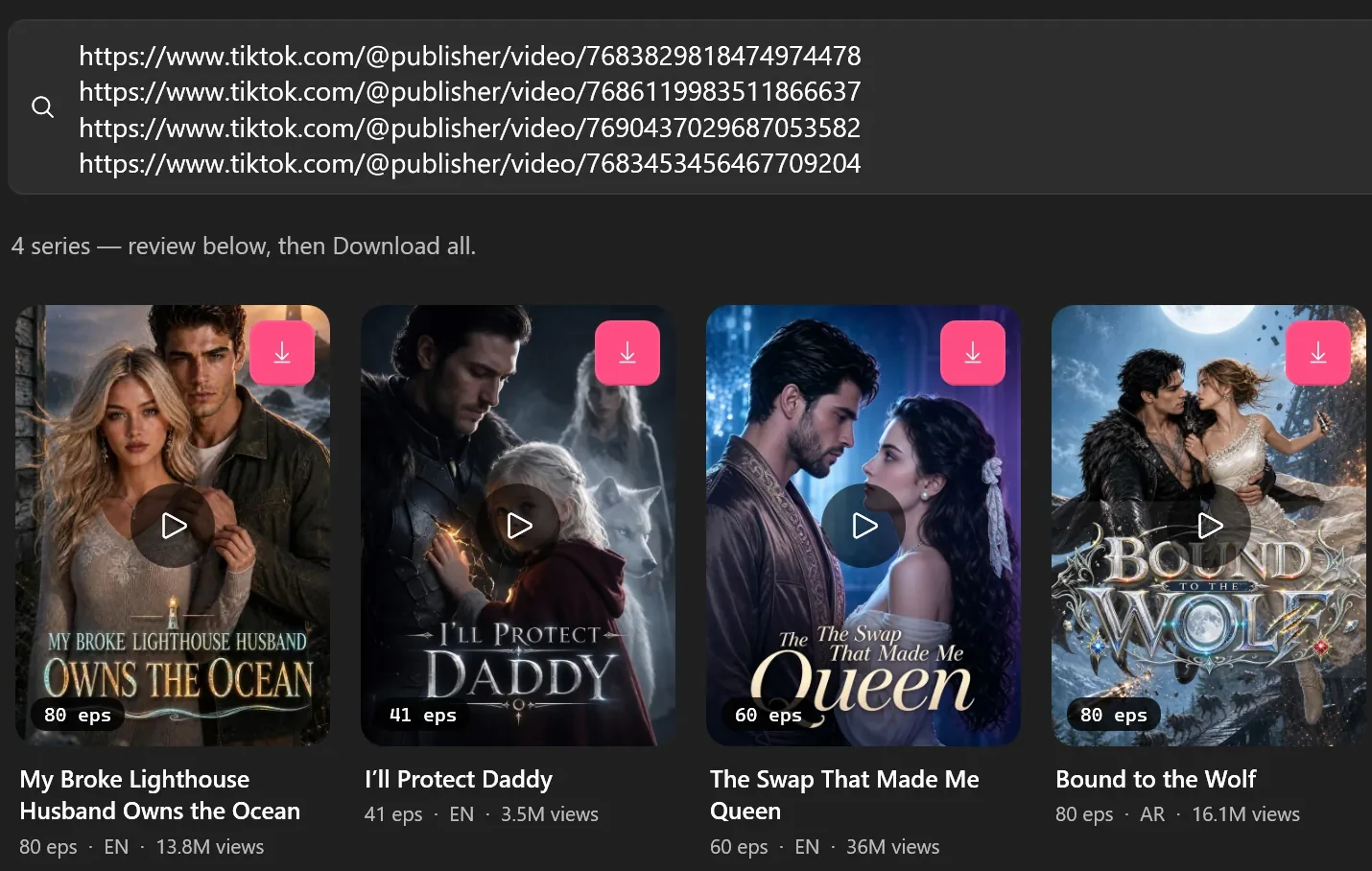
We pasted four drama links, one per line. The line under the box counted Loading [1/4]… up to Loading [4/4]… and then read 4 series — review below, then Download all. The bar at the bottom said 4 series ready to queue, next to Download all. In a second paste, an ordinary video link mixed in with two drama links was left out without a message of its own, as described in step 4.
 Open the full-size pictureOpen the full-size picture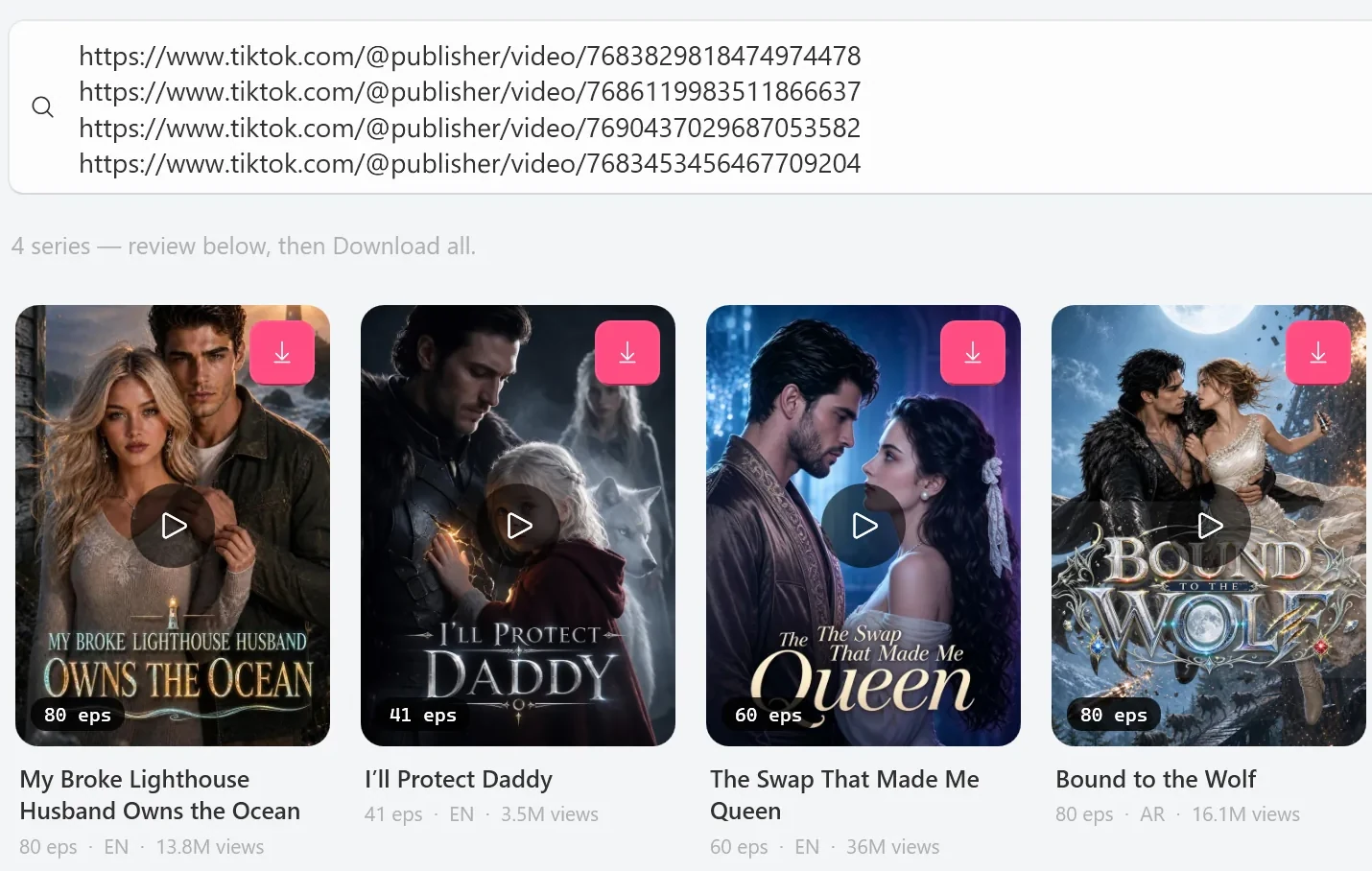
Way 2: Select several dramas in Browse
- Open Browse and find the dramas you want, on any shelf, in a search or under More like this.
- Point at a poster and click the round mark in its top-left corner, or right-click the poster and choose Select.
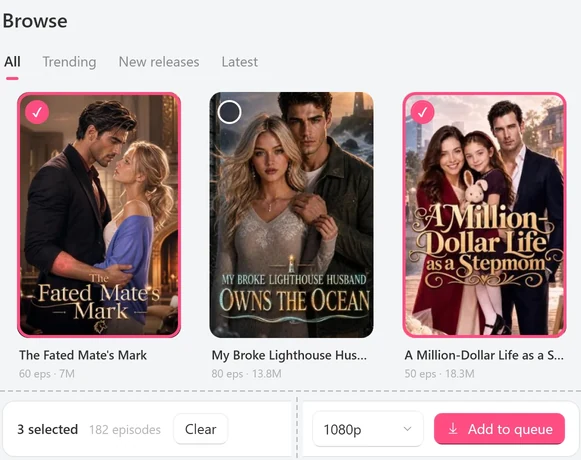
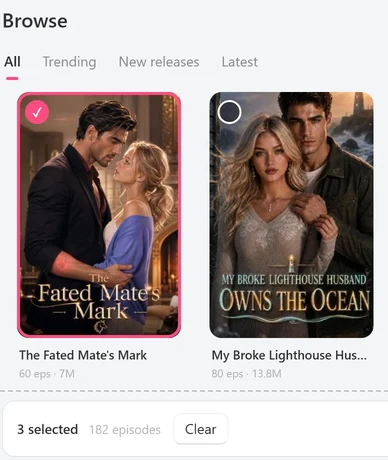
- Select more posters. The bar at the bottom counts them, for example
3 selected, with the total number of episodes next to it. - In the quality box next to Add to queue, choose 1080p, 720p or 540p. It’s a ceiling:
Highest quality to download. Episodes without it drop to the next best. - Click Add to queue. A line such as
Queued 182 episodes from 3 dramas at up to 1080p.confirms it; click View queue to watch.
Tested on 30 September 2026
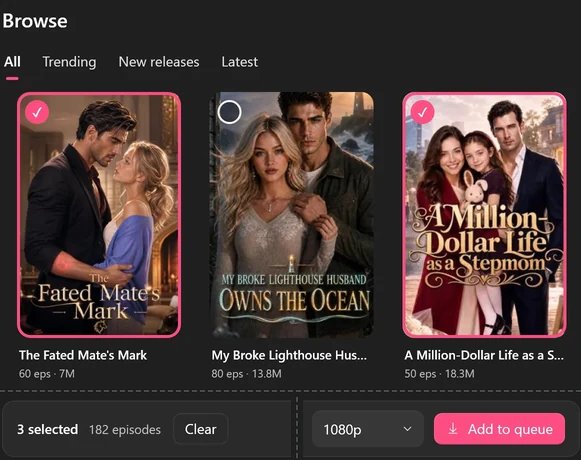
With three posters selected on the All shelf, the bar read 3 selected and 182 episodes, followed by Clear, the quality box set to 1080p and Add to queue.
 Open the full-size pictureOpen the full-size picture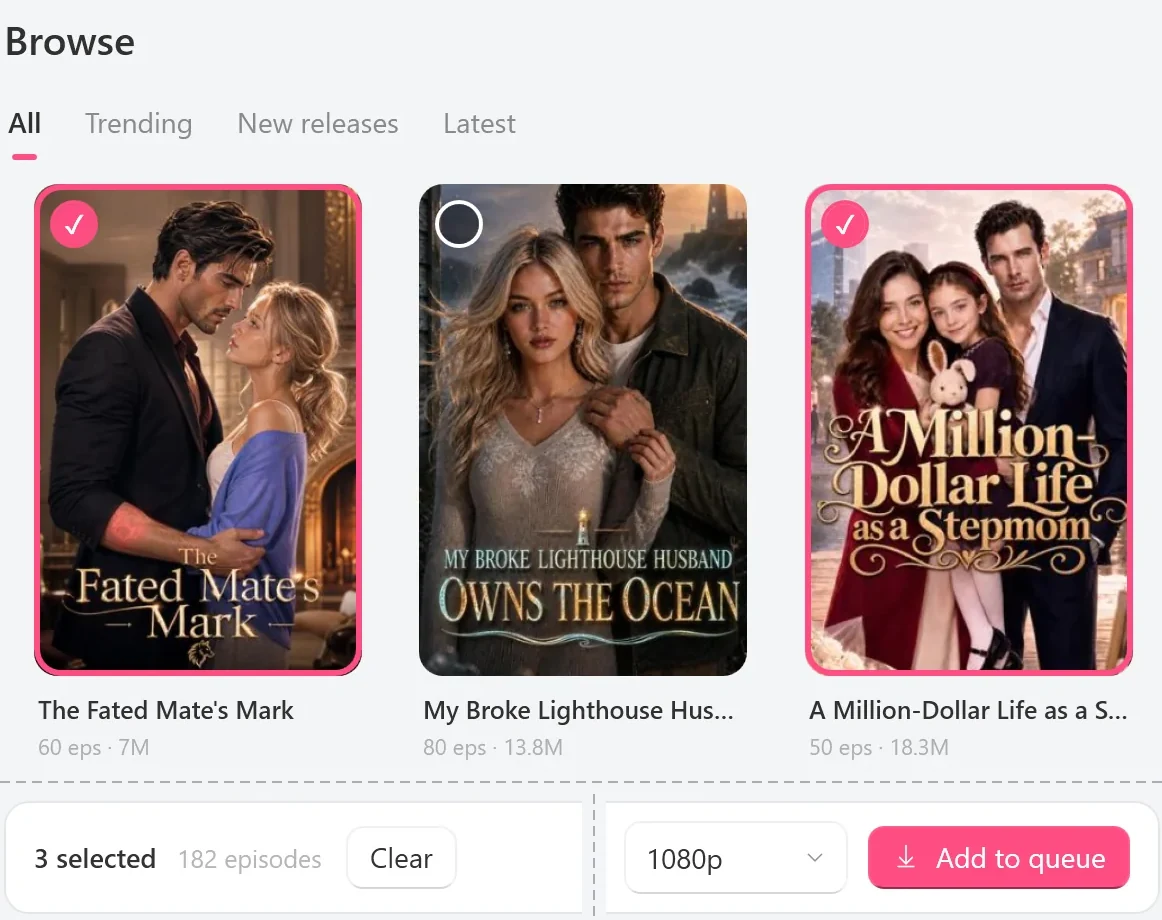
To queue one drama from Browse without selecting, use the download button on its poster (Download all episodes). It uses your default quality from Settings.
Choose how many download at once
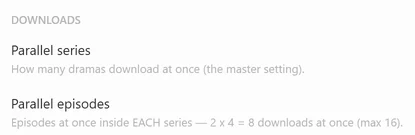
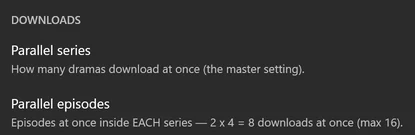
Two sliders in Settings > Downloads set how much runs side by side:
- Parallel series:
How many dramas download at once (the master setting).From 1 to 8; the default is 2. - Parallel episodes: episodes at once inside each series. From 1 to 8; the default is 4.
The two numbers multiply, and the total is capped at 16. The line under the sliders does the sum for you; with the defaults it reads Episodes at once inside EACH series — 2 x 4 = 8 downloads at once (max 16). Raising one slider lowers the other’s limit, so the total never goes past the cap:
| Parallel series | Most parallel episodes per series | Downloads at once |
|---|---|---|
| 1 | 8 | 8 |
| 2 | 8 | 16 |
| 4 | 4 | 16 |
| 8 | 2 | 16 |
More at once means more downloads share your connection and your PC. If episodes start failing, lower the numbers and click Retry on the series card. Merge and Convert to H.264 jobs from the Library run one at a time and don’t take any of these slots.


 Open the full-size pictureOpen the full-size picture

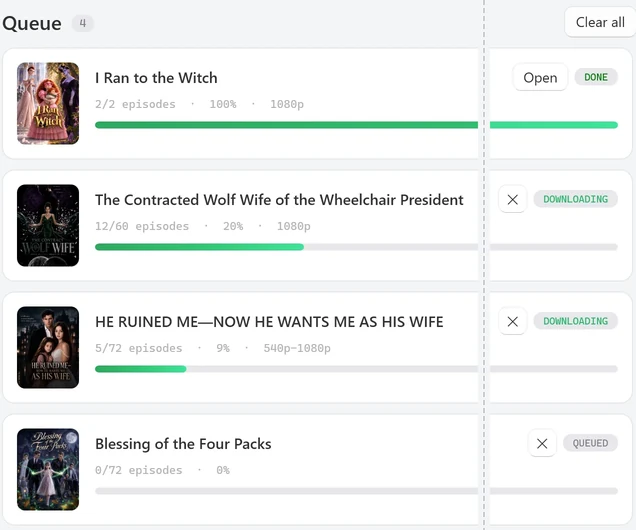
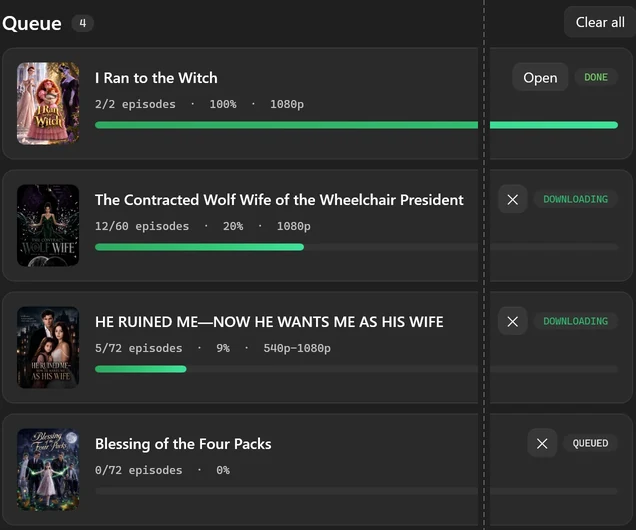
Watch the batch in the Queue
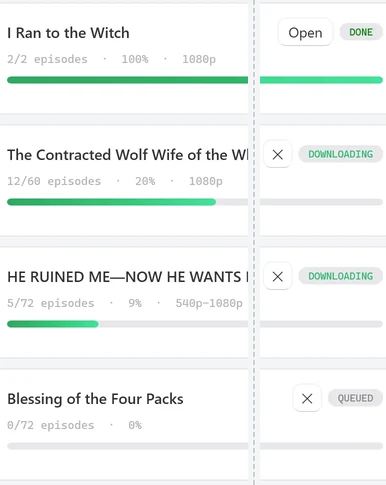
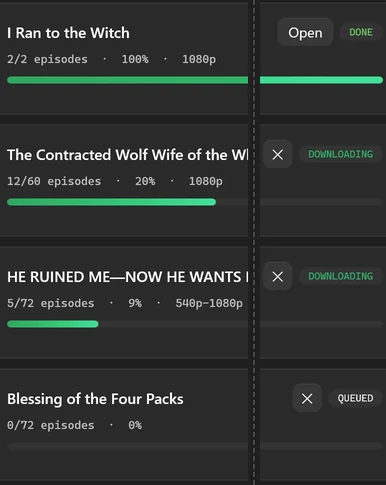 Open the full-size pictureOpen the full-size picture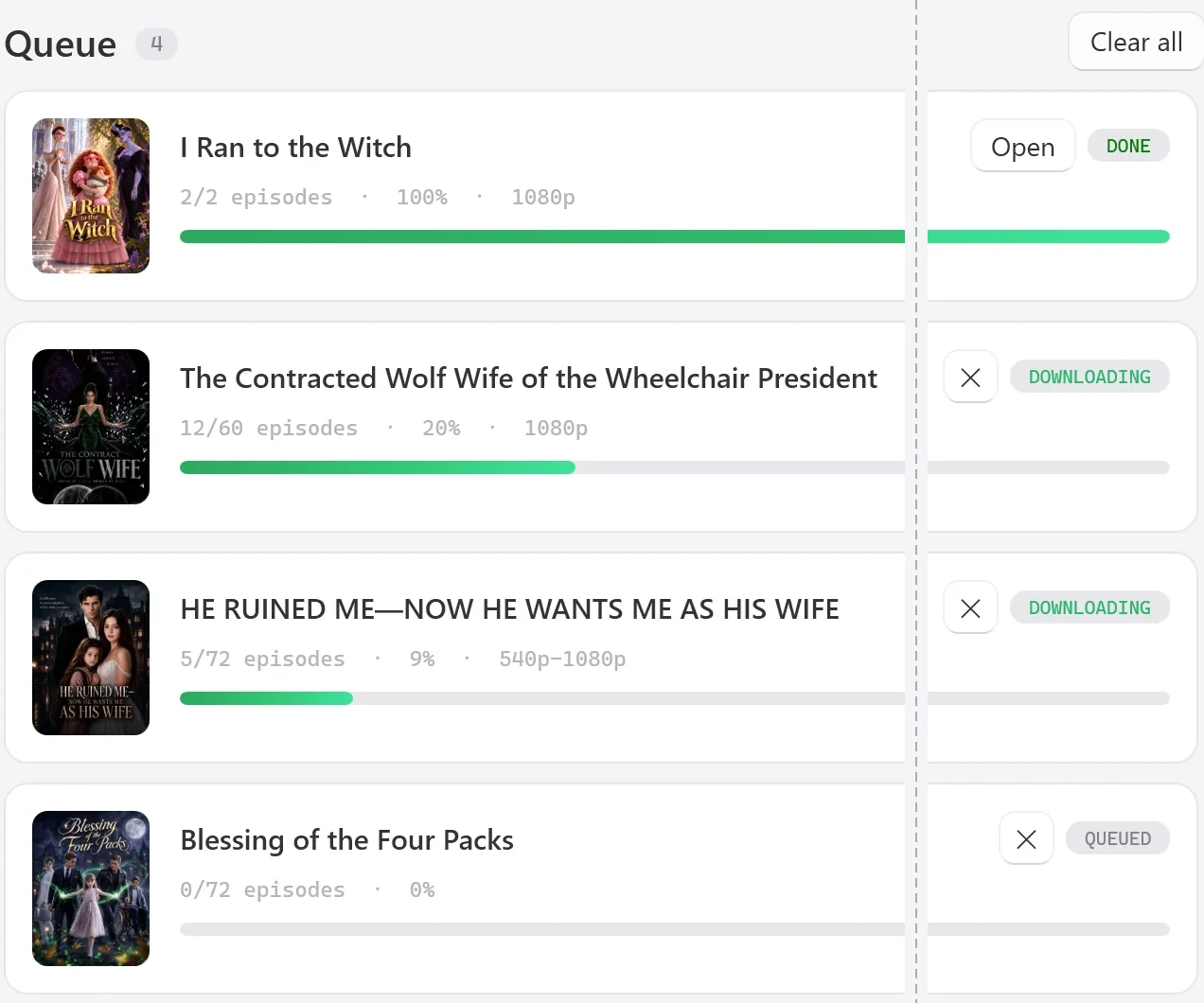
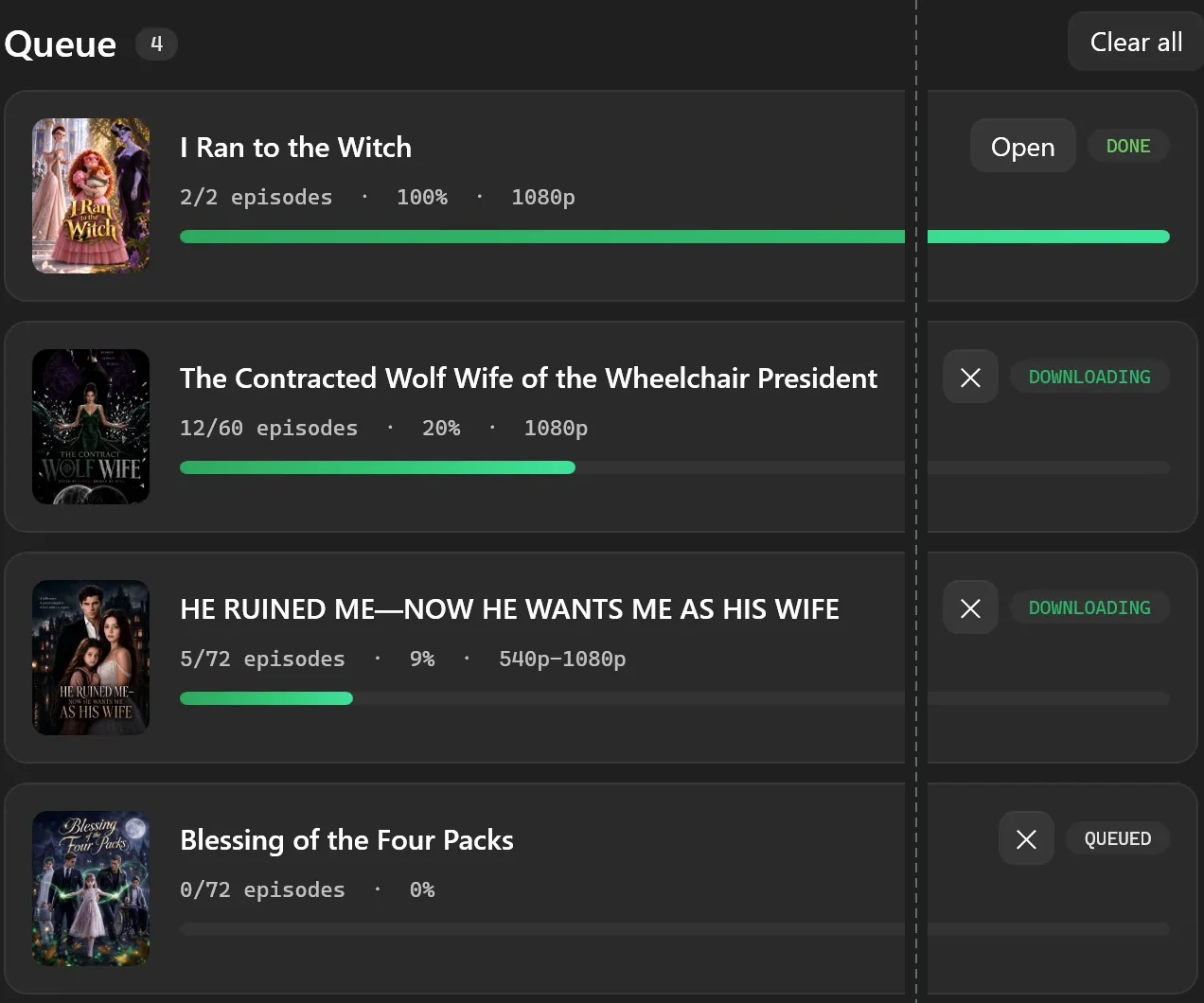
- Series start in the order you queued them. A series waits as
QUEUEDuntil a series slot frees up. - ✕ on a card cancels that series, Retry re-queues its failed episodes, and Open opens its folder once it’s done.
- Clear all at the top cancels everything in the queue, including downloads in progress, and empties the list. Use it only when you want to start over.
- An episode that’s already in the queue isn’t added twice, so pasting a list that overlaps an earlier one is fine.
If you close the app in the middle of a batch
When you close the app, it remembers the episodes that haven’t finished: the queued ones, the ones downloading and the ones that failed. The next time you open it:
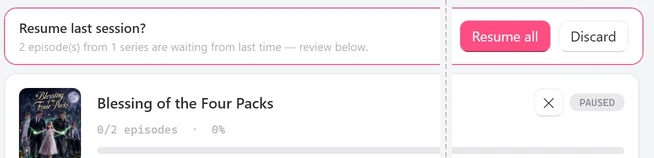
- The app opens on the Queue with a banner,
Resume last session?, and a line such as2 episode(s) from 1 series are waiting from last time — review below. - The waiting cards show
PAUSED. Look through them and cancel any series you no longer want with ✕. - Click Resume all to start the rest of your queue with the same quality, codec and subtitle choices, or Discard to drop all of them.
If an episode is still missing or incomplete afterwards, open the series in the Library and click Update; it queues missing and incomplete episodes again.
Tested on 30 September 2026
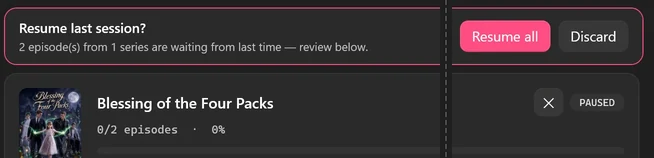
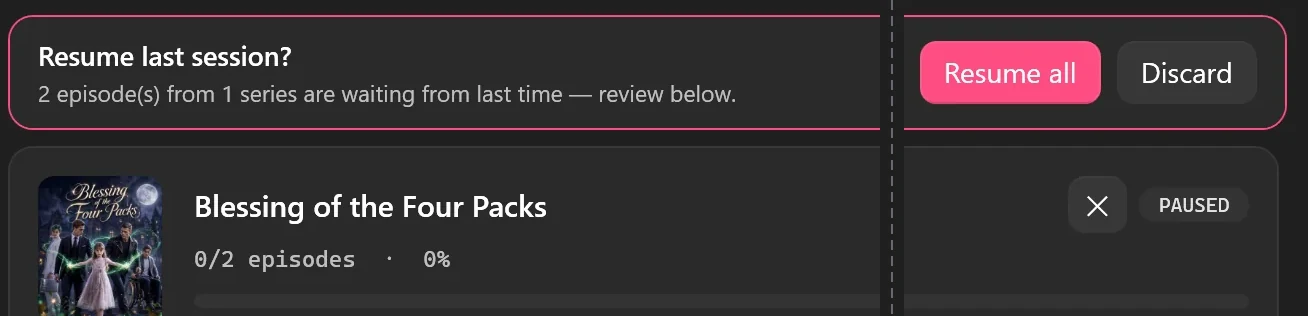
We closed the app with its own close button while a batch of two dramas was downloading, then opened it again. The Queue showed the banner above, and the unfinished drama came back as PAUSED at 0/2 episodes · 0%. The drama that had already finished wasn’t offered again, and Discard removed the waiting card.

 Open the full-size pictureOpen the full-size picture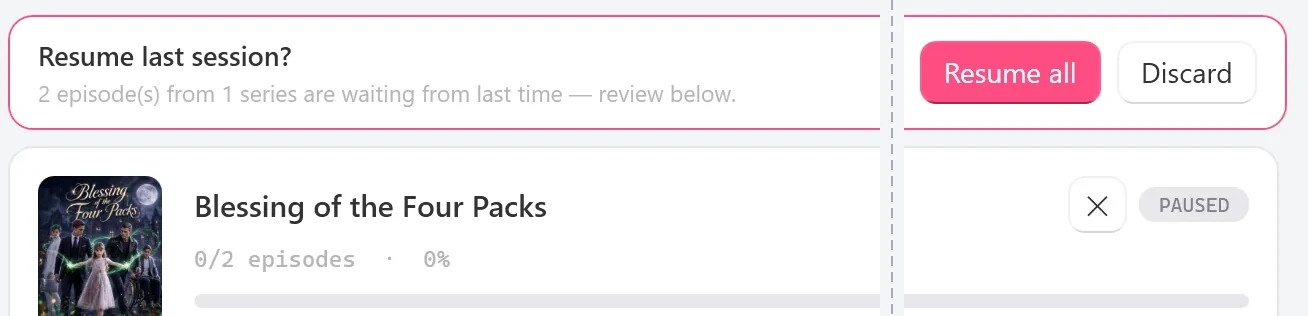
Batches on the Free plan
- On the Free plan you can start 2 new dramas per PC per day, each with every available episode in any quality TikTok offers for it. If a batch holds more new dramas than you have left today, the first ones in the list start and the others don’t.
- The app then names the dramas that didn’t start:
You've used today's 2 free dramas, so … didn't start.It also tells you when more are available; the count resets at 00:00 UTC, shown in your local time. From Browse, a batch that can’t start at all reportsNothing queued — free daily limit reached. - A drama already counted on your PC stays free to finish, so resuming or re-queuing it doesn’t use another slot.
- Monthly (US$9.99), Yearly (US$29.99) and Lifetime (US$59.99, one-time) have no daily limit on new dramas.
Troubleshooting
5 series ready · 1 couldn't load
The app found one series but couldn’t load its details, for example because of a connection problem. The rest of the batch is unaffected, so click Download all for the ones that loaded. The bar doesn’t say which one failed: compare the posters with your list, then paste the missing link on its own and click Go to see its message. The same goes for a link that doesn’t lead to a drama at all: it’s left out of the list without being counted here.
Only TikTok and PineDrama links work here — 2 links (e.g. “example.com”) weren't, so they weren't opened.
Some lines in your paste were links to other websites. The app skips them without opening them and still loads the TikTok and PineDrama links.
Every episode of those series is already in your queue.
Everything in the paste was queued earlier, so there’s nothing new to add. Open the Queue to follow it.
Some episodes show an error
Once the rest of that series has finished, its card shows ERROR and a Retry button. Click Retry. If it keeps happening during big batches, lower Parallel series or Parallel episodes in Settings and try again.
FAQ
Can I batch-download every drama from one creator?
Yes, if they’re on the creator’s Short dramas tab. Paste the creator’s profile link, click Go, check the list and click Download all. Regular posts on the profile aren’t included.
Can each series in a batch have its own quality?
Yes. Open each series’ episode picker, choose its quality, codec and subtitles, and click Add to queue; the queue holds them all. Download all and Browse’s Add to queue apply one setting to every series.
Does batch work with PineDrama links?
Yes. Paste them on their own or mixed with TikTok links, as in Way 1. See saving PineDrama episodes to your PC for where to find the links.
What quality does a batch download in?
Download all takes the best tier TikTok has for each episode, in your default codec from Settings (if that’s H.264, you get 540p). Browse’s Add to queue uses the ceiling you pick next to it. What quality you can get explains the tiers.