How to save short-drama subtitles (.vtt) and play them on Windows
Tick a language in the episode picker to save the subtitle tracks TikTok provides for a drama, then show them in VLC or load the .vtt in Media Player.
Written with AI assistance and reviewed by the ShortDrama Downloader team before publication. How we make guides
In short
- Short answer: In the drama’s episode picker, click a language chip in the Subtitles row, then Add to queue: each episode is saved with that track inside the MP4 and as a
.vttfile. - What you get: Only the subtitle languages TikTok provides for that drama, as soft subtitles you can switch on or off in VLC, or in Media Player once you load the
.vttfile. - Limits: Nothing to save when the row says
None available. No captions made from the audio, no translation and no SRT files. The one-click download buttons and Library Update save episodes without subtitles.
You can download TikTok short dramas with subtitles, and PineDrama episodes too, whenever TikTok provides a subtitle track for the drama. Subtitles are optional and start unticked: you choose them in the episode picker, one drama at a time. This guide shows where that choice is, what lands in your folder and how to switch the subtitles on in two common Windows players.
Applies to: TikTok ShortDrama Downloader and PineDrama Downloader (the same app) 1.5.0 on Windows 10 and 11 (64-bit). Tested on Windows 11 Pro 25H2, 30 September 2026.
Before you start
- A 64-bit Windows 10 or 11 PC with the app installed from the download page.
- You are signed in to your TikTok account in the app. The Subtitles row can only check a drama’s languages once you are. PineDrama links use the same sign-in.
- A video player. VLC 3.0 or later shows the track stored inside the video and reads
.vttfiles. Media Player on Windows 11 can load the.vttfile.
Step 1: Open the drama’s episode picker
- In Browse, click the drama’s poster. Or, in Download, paste one TikTok or PineDrama link: a single link opens the picker straight away.
- If you searched for a title or pasted several links, click the drama’s card in the results to open its picker.
Step 2: Tick a subtitle language
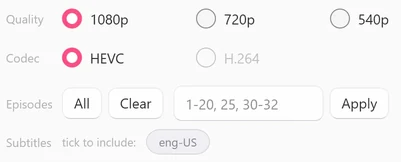
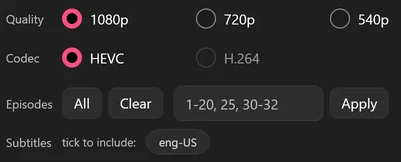
- Look at the Subtitles row, under the episode controls. It shows
Checking…for a moment, then eithertick to include:followed by one chip per language, orNone available. - Click each language chip you want, for example
eng-US. You can tick more than one language. - Set Quality, Codec and the episodes as usual, then click Add to queue. Your subtitle choice applies to every episode you add from this picker.
 Open the full-size pictureOpen the full-size picture
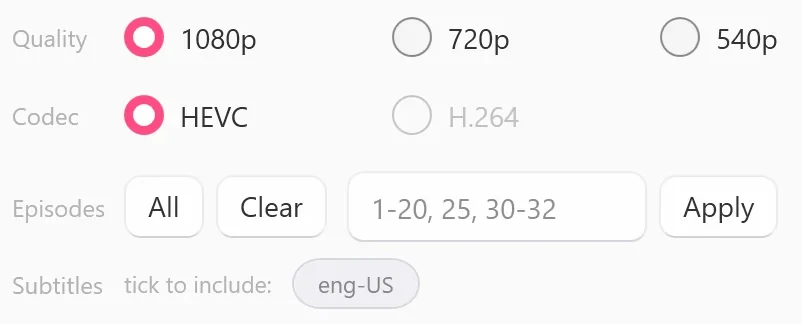
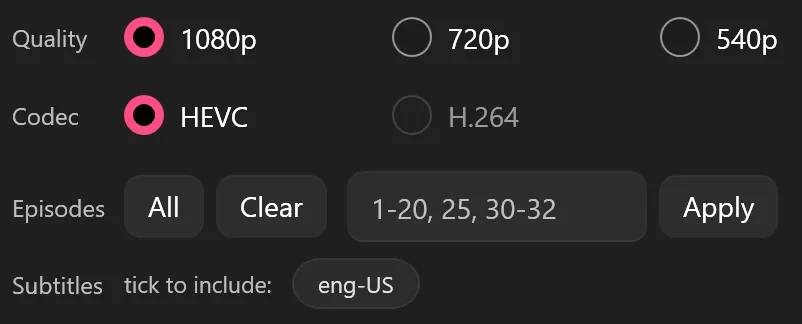
A ticked chip turns solid coral with white text; an unticked one is outlined in gray.

 Open the full-size pictureOpen the full-size picture


The chips show TikTok’s own language codes. The app reads the list from episode 1 of the drama, so it shows the tracks TikTok has for that episode.
Which download buttons skip subtitles
Only the episode picker saves subtitles. Every quick way of queuing a whole drama leaves them out:
| Where | Button or menu | Subtitles |
|---|---|---|
| Browse | The download button on a poster, and Download all episodes in the right-click menu | Not saved |
| Browse | Add to queue in the selection bar | Not saved |
| Download | Download all under Pasted links, and the download button on each card (Queue every episode) | Not saved |
| Library | Update | Not saved for the episodes it adds |
| Episode picker | Add to queue with a language ticked | Saved |
Following an ongoing series? Update adds new episodes without subtitles. If you want them, open the drama’s picker instead, tick the language, type the new episode numbers in the range box (for example 41-60), click Apply, then click Add to queue.
Step 3: Find the subtitle files
- When the series card in Queue shows
DONE, click Open on the card. Or, in Library, right-click the series and choose Open folder. - Next to each episode, such as
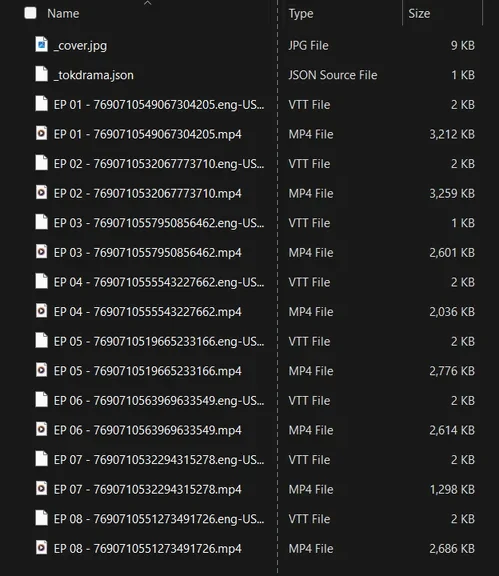
EP 01 - <episode id>.mp4, look forEP 01 - <episode id>.eng-US.vtt. You get one.vttfile per language you ticked.
The MP4 also carries the subtitle track inside it, so a player that reads embedded tracks can show it even if you move the video on its own.
Tested on 30 September 2026
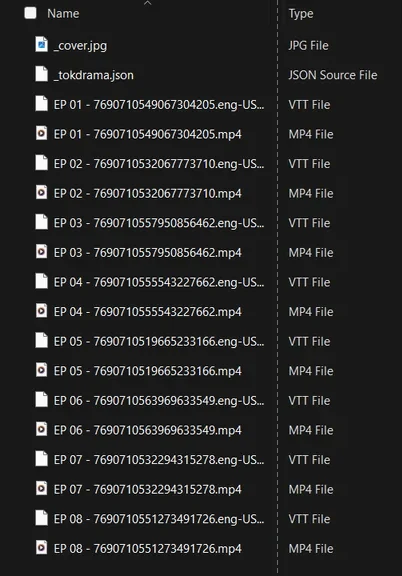
An 8-episode drama saved with eng-US ticked had exactly one .eng-US.vtt file next to every MP4 (a WebVTT file of 0.7 to 1.4 KB, which File Explorer shows as 1 or 2 KB), and every MP4 carried the English track inside it.
 Open the full-size picture
Step 4: Switch the subtitles on in your player
Play in the Library opens the episode in your default Windows video player. VLC lists the subtitle track once the episode is open; in Media Player, you load the .vtt file yourself.
VLC
- Open the episode in VLC 3.0 or later.
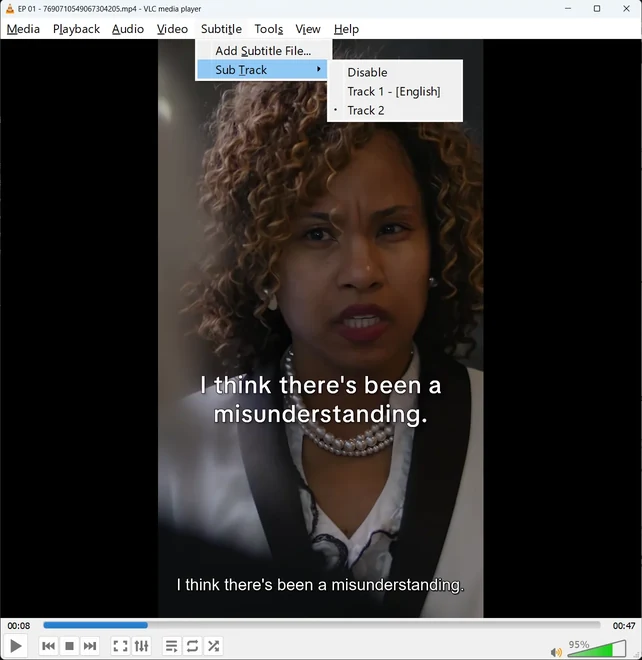
- Open the Subtitle menu, point to Sub Track and pick the track. The track inside the MP4 shows as Track 1 - [English] for an English track.
- If no track is listed, choose Subtitle > Add Subtitle File… and pick the matching
.vttfile from the series folder.
Tested on 30 September 2026
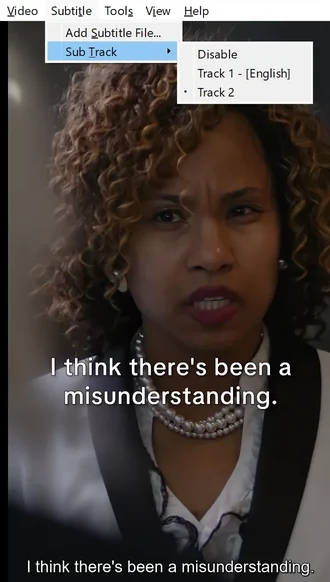
VLC 3.0.24 had also picked up the episode’s .vtt file from the folder by itself and listed it as Track 2, already selected.
 Open the full-size picture
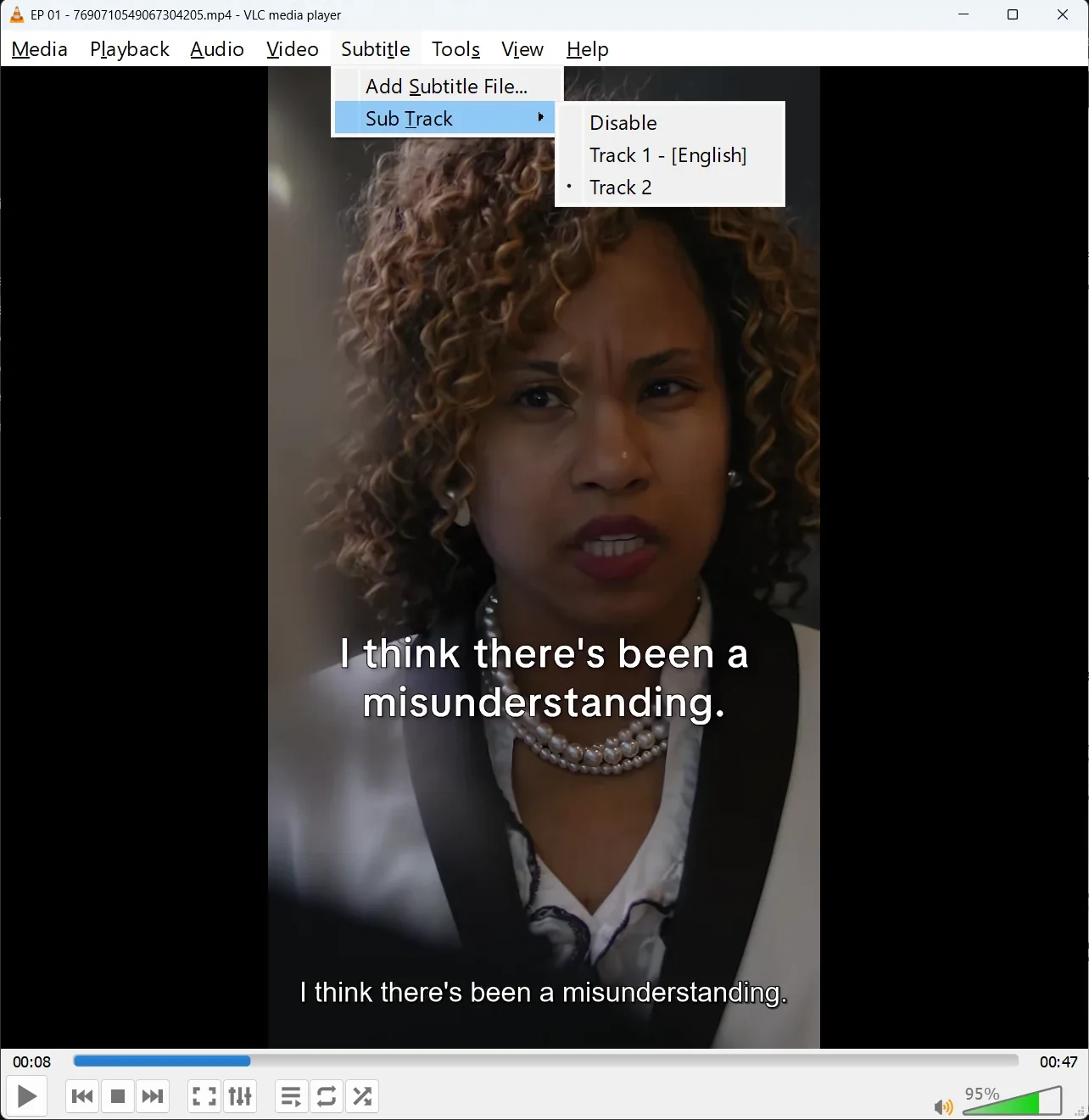
To make the text bigger, go to Tools > Preferences > Subtitles / OSD, change Font size and click Save. The new size applies the next time you open the video.
Media Player (Windows 11)
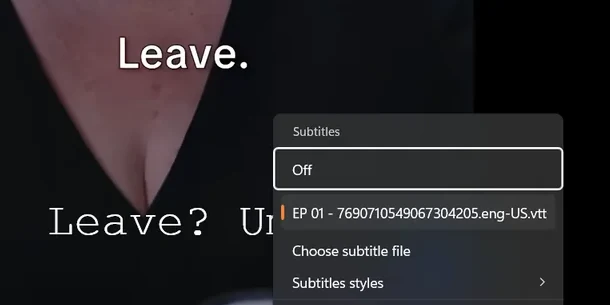
In our test with Media Player 11.2607.16.0 on Windows 11 (30 September 2026), the player didn’t list the track stored inside the MP4: its menu offered only Off, Choose subtitle file and Subtitles styles. Load the .vtt file instead:
- Open the episode in Media Player.
- Click the video to show the controls, then click Languages and subtitles, the button at the bottom right, just left of the volume button.
- Click Choose subtitle file and pick the episode’s
.eng-US.vttfile from the series folder. It then appears in the menu, selected, and the subtitles show on the video.
 Open the full-size picture
To change how the text looks, open Settings > Accessibility > Captions (Win+U opens Accessibility), pick a Caption style, or click Edit to set the size and colors. Windows applies this style in some apps; if your player ignores it, use the player’s own subtitle settings, such as Subtitles styles in Media Player.
What to expect
- WebVTT, not SRT. The app saves WebVTT (
.vtt) files, not SRT; VLC reads both. - Only what TikTok provides. The languages are the tracks TikTok has for the drama. If a later episode has no track in the language you ticked, there is nothing to save for that episode.
- Soft subtitles. The app never draws the text into the picture, so you can switch it off in your player. Some dramas already have the producer’s own captions in the picture: in our test, both dramas we checked did, so a ticked eng-US track showed the same lines a second time.
- No new subtitles. The app does not make subtitles from the audio and has no translation feature. Wording and timing come from TikTok’s track.
- Merge and Convert make new files without subtitles. The merged file and the copies that Convert to H.264 makes hold only the picture and sound (we checked both on 30 September 2026). For a converted copy, use Add Subtitle File… in VLC to load the
.vttfrom the series folder (one level above theH264folder). The.vttfiles are timed per episode, so they line up with a merged file only for its first episode.
Troubleshooting
The Subtitles row says None available
TikTok provides no subtitle track for this drama (the app checks episode 1). There is nothing to tick, and the app cannot create one.
The Subtitles row says (log in + tools to detect)
You are not signed in to TikTok, or the app’s downloader tools are not ready. Sign in, then open Queue: if a banner there names missing tools (for example Missing yt-dlp — needed to download.), click Get tools in it. Close the picker and open the drama again.
Already in the queue. when you add episodes with subtitles
The picker does not queue an episode twice: it skips episodes that are already queued, downloading or done in this session, for example after a one-click download.
To add subtitles to episodes you already saved without them:
- In Queue, click Clear all. It empties the list and also cancels anything still downloading, so wait until other downloads are done.
- Open the drama’s episode picker again. A picker you open again in the same session keeps your earlier episode selection, so check it, or type the episodes you want in the range box and click Apply.
- Tick the language and click Add to queue.
Tested on 30 September 2026
We did this with two saved 1080p episodes. They finished again within seconds, without downloading the video again: a .eng-US.vtt file appeared next to each MP4, and each MP4 gained the English track.
VLC shows no subtitles
Check Subtitle > Sub Track first and pick the track if one is listed. If nothing is listed, use Add Subtitle File… and choose the .vtt file. If subtitles never appear for any video, go to Tools > Preferences > Subtitles / OSD and make sure Enable subtitles is ticked. If the folder has no .vtt file at all, the episode was queued from a quick button or without a ticked language.
FAQ
Can I download TikTok short dramas with English subtitles?
Yes, when TikTok provides an English track for that drama. It shows as a chip such as eng-US in the picker. If the row says None available, there is no track to save.
Are the subtitles part of the picture?
No. They are separate text that your player can show or hide. The app never draws them into the video.
Does this work with PineDrama links?
Yes. A pasted PineDrama share or episode link opens the same episode picker, with the same Subtitles row.
Can I save several languages at once?
Yes, if TikTok provides them. Tick each chip before you click Add to queue, and you get one .vtt file per language.