Manage your licence: activate, move to a new PC, renew, upgrade or cancel
Find and activate your TikTok ShortDrama Downloader licence key, check your plan, move it to a new PC, and renew, upgrade or cancel a subscription.
Written with AI assistance and reviewed by the ShortDrama Downloader team before publication. How we make guides
In short
- Short answer: Your licence key arrives by email right after you pay. Paste it under Have a licence key? in the app, click Activate, and manage everything else from Settings ▸ PLAN & LICENCE.
- Your key email: it comes from TikTok ShortDrama Downloader with the subject
Your TikTok ShortDrama Downloader Yearly licence key(or Monthly, or Lifetime). Keep it: the app only ever shows the last 4 characters of your key. - One PC at a time: A paid licence key is active on one PC at a time and can be moved to another PC once every 7 days. To move it, click Deactivate this PC on the old PC first, then activate the key on the new one.
- Subscriptions: Manage subscription emails a secure billing link to the address you used at checkout. On that billing page you update your card, see invoices or cancel.
- Refunds: All sales are final, except where the law requires a refund. Questions go to support@shortdramadownloader.com or @M4st3r0 on Telegram.
You bought a plan, and a licence key came with it. This page is the reference for everything you can do with your TikTok ShortDrama Downloader licence key: where to find it, how to activate it, how to read your plan in the app, and how to manage, change, cancel or move it. Each section stands on its own, so jump straight to the one you need.
Applies to: TikTok ShortDrama Downloader and PineDrama Downloader (the same app) 1.5.0 on Windows 10 and 11 (64-bit). Tested on Windows 11 Pro 25H2, 4 October 2026.
Note
Bought PineDrama Downloader? It’s the same app as TikTok ShortDrama Downloader, with the same plans and licence keys. That’s why your key email, the page you see after paying and the app’s title bar all say TikTok ShortDrama Downloader, and why your key starts with TSD- like every other key. Everything on this page applies to you.
Your plan at a glance
| Plan | Price | Renewal | What you get |
|---|---|---|---|
| Free plan | US$0 | Nothing to renew, no card | 2 new dramas per PC per day, each with every available episode |
| Monthly | US$9.99 a month | Every month, until you cancel | Unlimited new dramas, one PC at a time |
| Yearly | US$29.99 a year | Every year, until you cancel | Unlimited new dramas, one PC at a time |
| Lifetime | US$59.99 once | None: one-time payment, for the life of the product | Unlimited new dramas, one PC at a time |
A PC without an active key is on the Free plan: 2 new dramas per PC per day, each with every available episode, and a drama you start stays free to finish. The count resets at 00:00 UTC, and the Free plan needs an internet connection.
Before you start
- Your key email, or the key itself. Every key looks like
TSD-XXXXX-XXXXX-XXXXX-XXXXX-XXXXX. - The app on a 64-bit Windows 10 or 11 PC. The key email has no download link, so if the app isn’t installed yet, get it from the download page. Our walkthrough of the app covers installing it and signing in.
- An internet connection. Activating a key, moving it and getting a billing link all need one.
Find your licence key
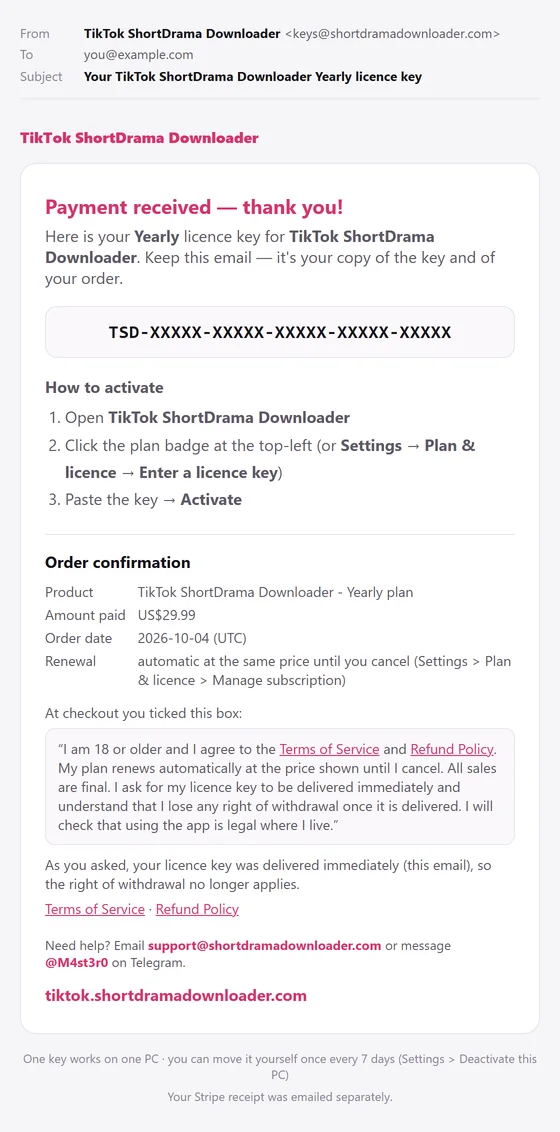
- Search your inbox for the subject
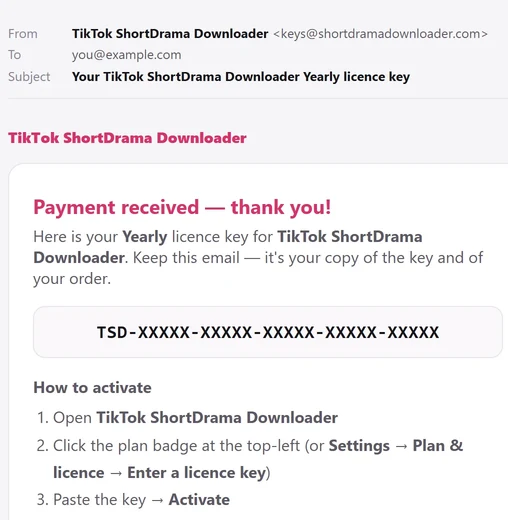
Your TikTok ShortDrama Downloader Yearly licence key, with Monthly or Lifetime in place of Yearly if that’s your plan. Look in your spam or promotions folder too. - Open the email. It comes from TikTok ShortDrama Downloader (keys@shortdramadownloader.com), with the heading
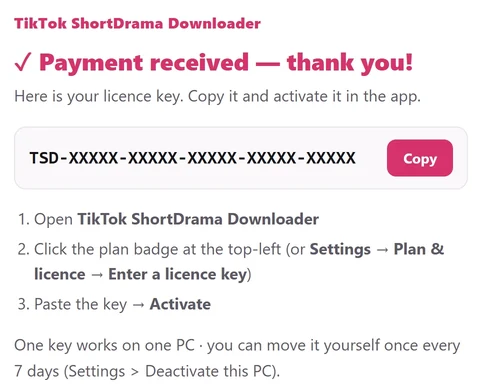
Payment received — thank you!, and replies go to support@shortdramadownloader.com. - Copy the key from the box under
Here is your Yearly licence key for TikTok ShortDrama Downloader.You can also copy the whole line around it: the app picks the key out of whatever you paste.
 Open the full-size picture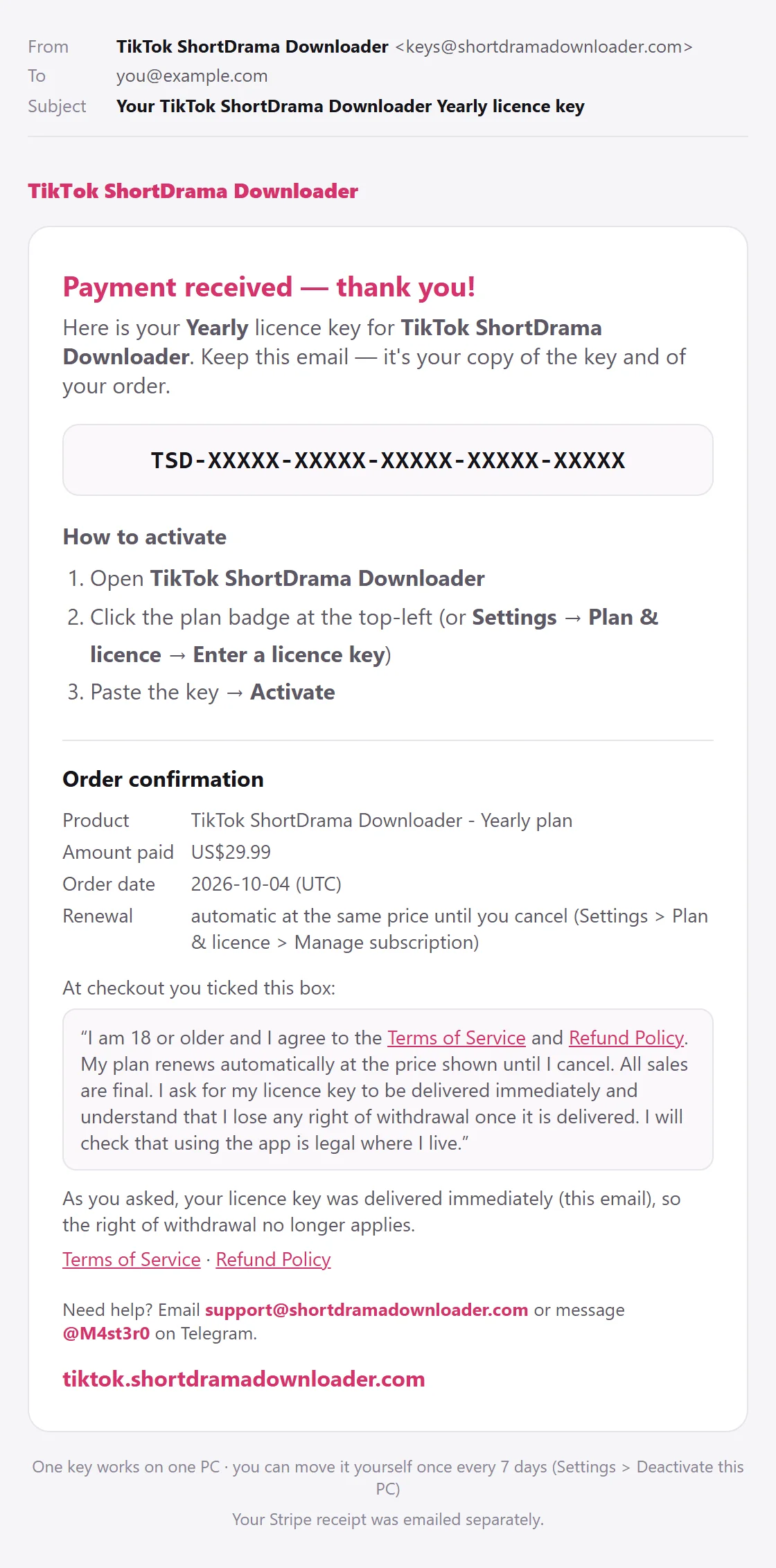
Keep that email. The app never shows your full key, only ••••- followed by its last 4 characters, and the email is also your order confirmation: the plan, the amount paid, the order date and, for Monthly and Yearly, how renewal works. Stripe sends your receipt in a separate email.
Two other places show the key:
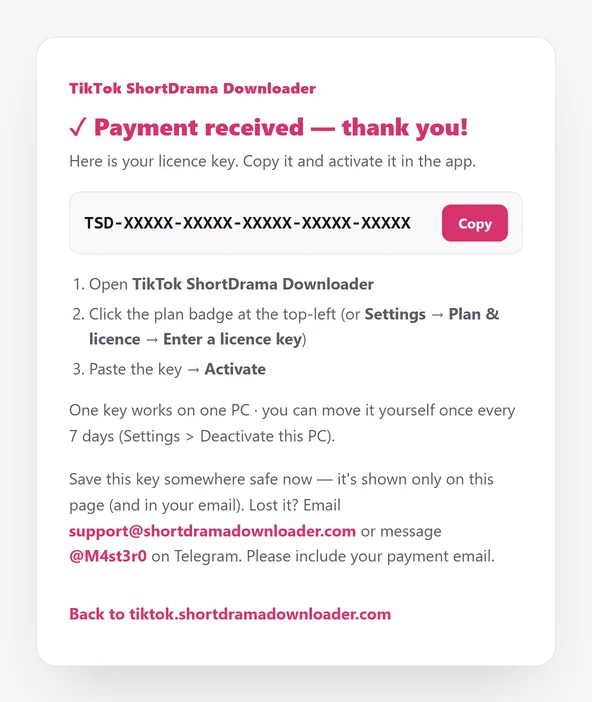
- The page you see right after paying. It says
Payment received — thank you!and shows your key with a Copy button for 3 hours after checkout; after that, it only says the key was emailed. If it saysFinalizing your purchase…, wait a few seconds while it reloads. If it saysPayment processing…, your bank is still confirming the payment, and the key is emailed as soon as the payment clears. - The app, if you bought inside it. Keep the Upgrade window open while you pay in your browser. It waits for the payment for about 10 minutes, activates the new key on that PC by itself and says
Payment received — unlimited downloads unlocked on this PC!If you close it or click Stop waiting first, paste the emailed key instead.
 Open the full-size picture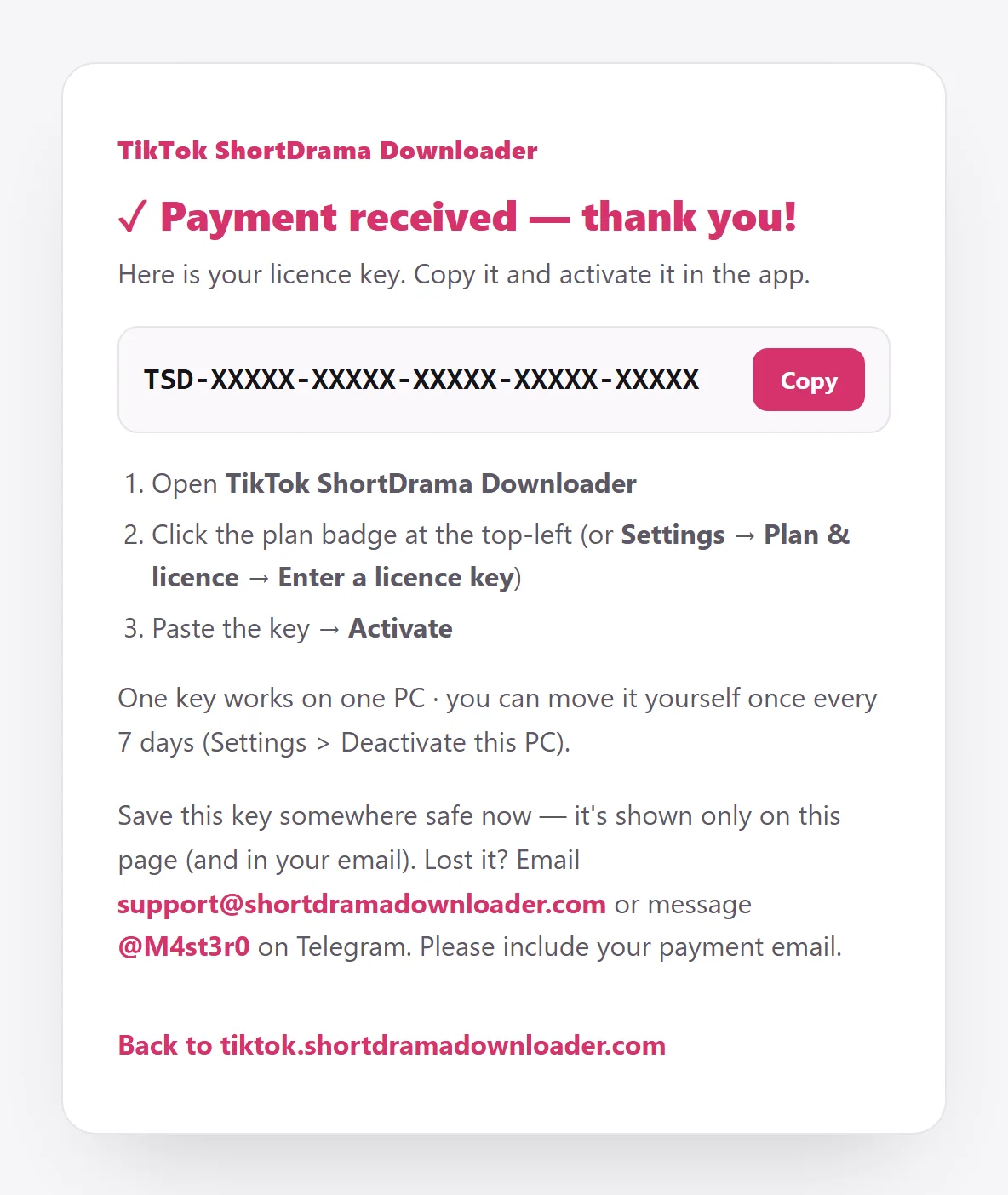
No key email after a few minutes? See Lost key, changed email and support.
Activate your key
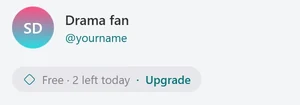
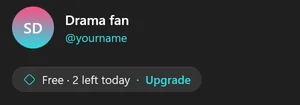
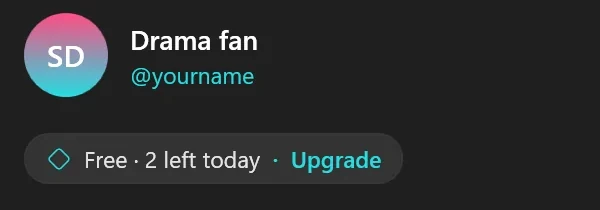
- Open the app. On the Free plan, the plan badge under your account name at the top-left reads something like
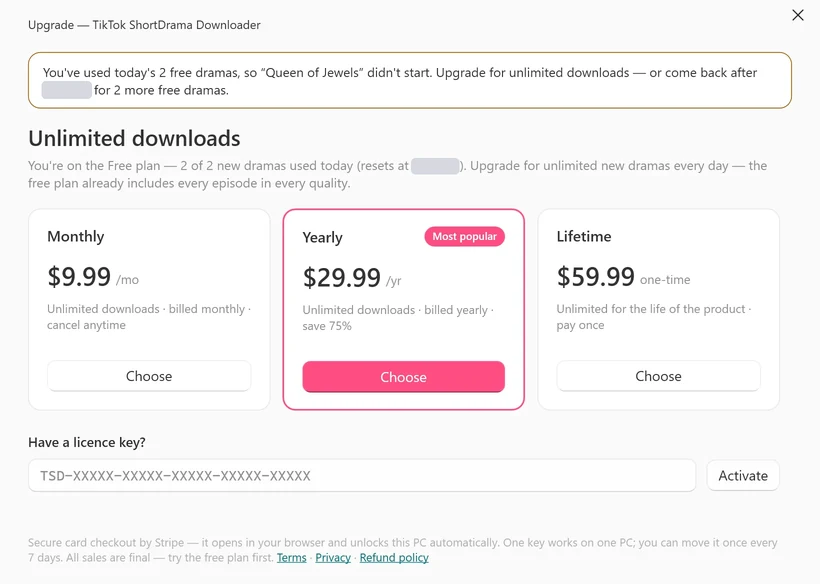
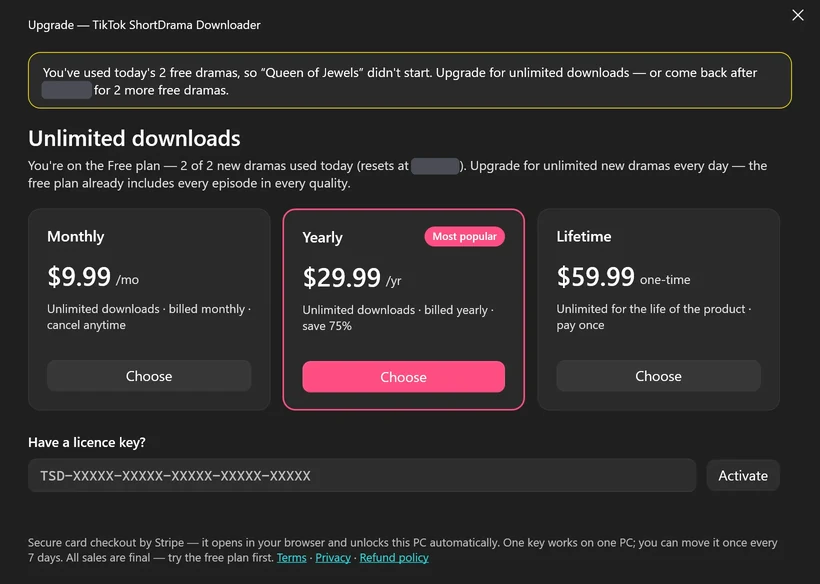
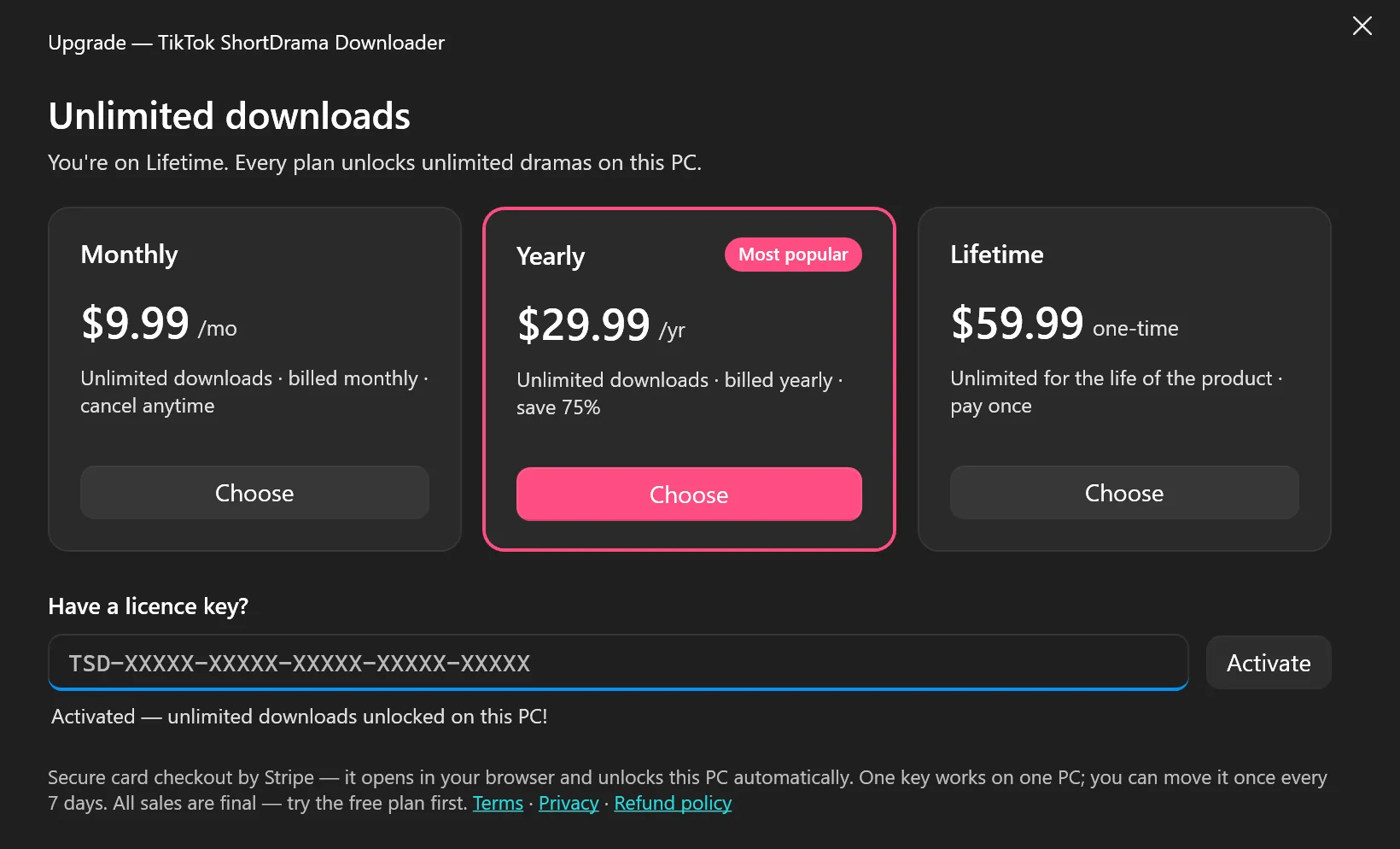
Free · 2 left today, followed by Upgrade. Click it. (Or open Settings ▸ PLAN & LICENCE and click Enter a licence key.) - The Upgrade window opens. Paste your key into the box under Have a licence key? with Ctrl+V. Capitals, dashes and spaces don’t matter.
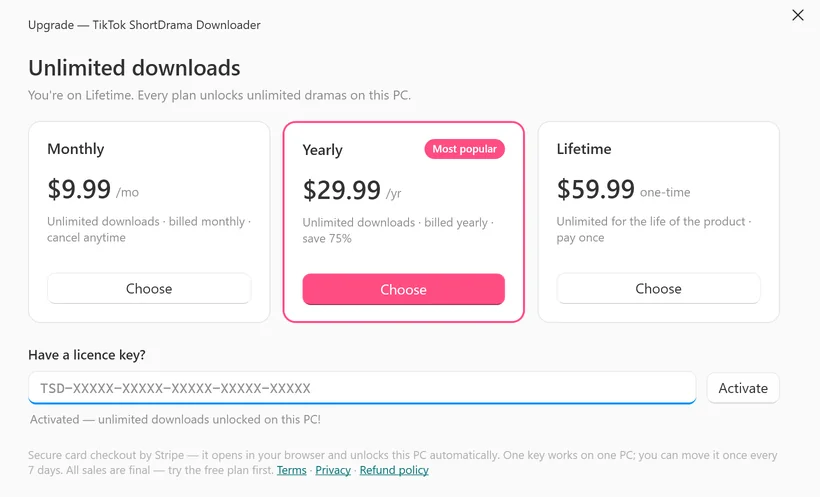
- Click Activate, or press Enter. The box says
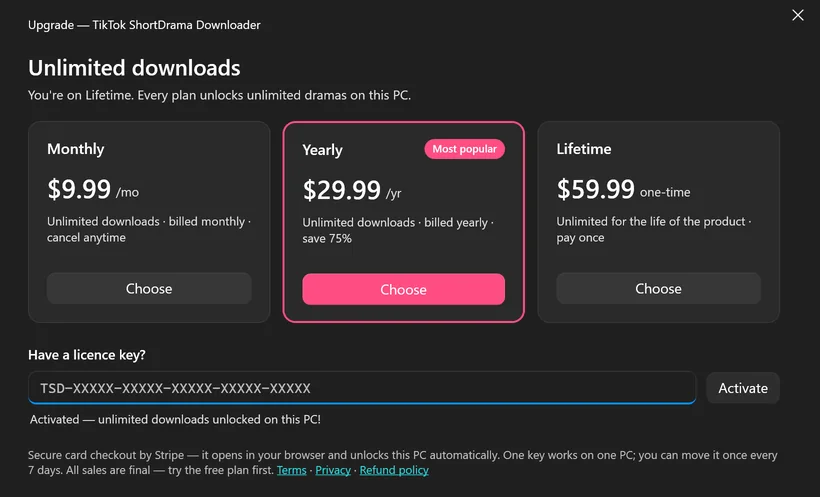
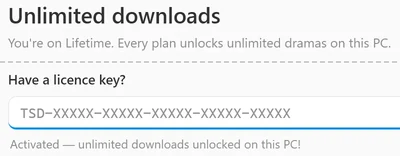
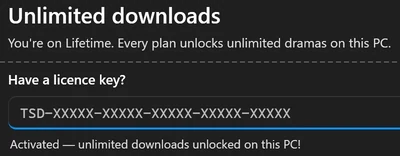
Activating…, thenActivated — unlimited downloads unlocked on this PC!, and the window closes a moment later. - Check the plan badge: it now shows your plan’s name, such as
Yearly, with a tick. Dramas that the free daily limit had stopped start again by themselves.
 Open the full-size pictureOpen the full-size picture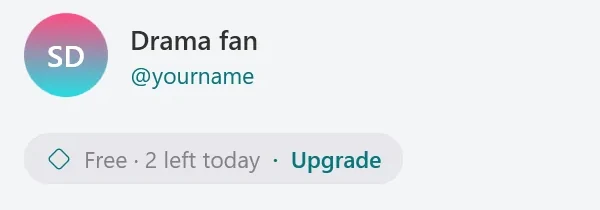
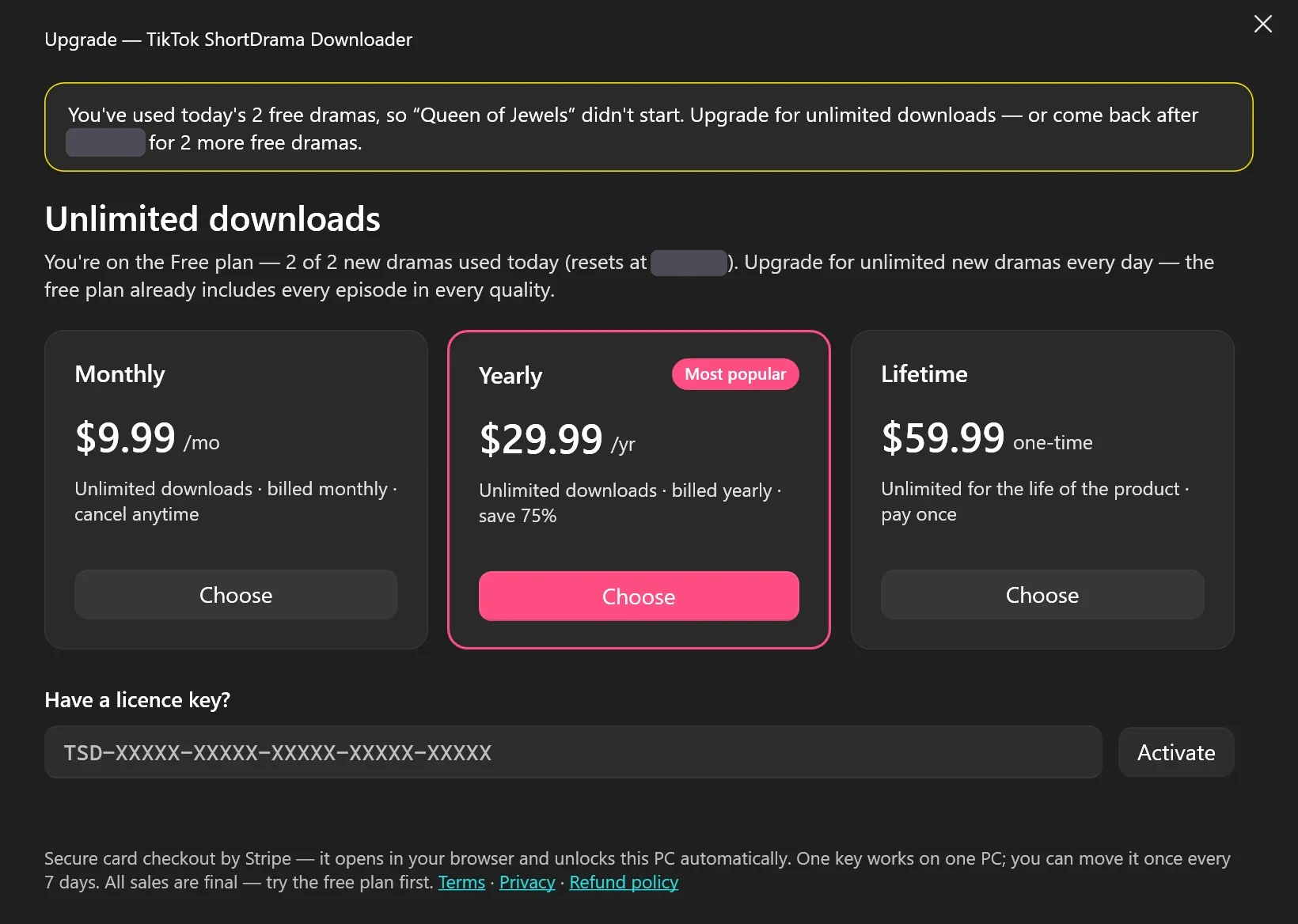
The Upgrade window may already be open when you get to the app: it opens by itself when the free daily limit stops a drama, with a banner that says so. Either way, the key box is at the bottom.

 Open the full-size pictureOpen the full-size picture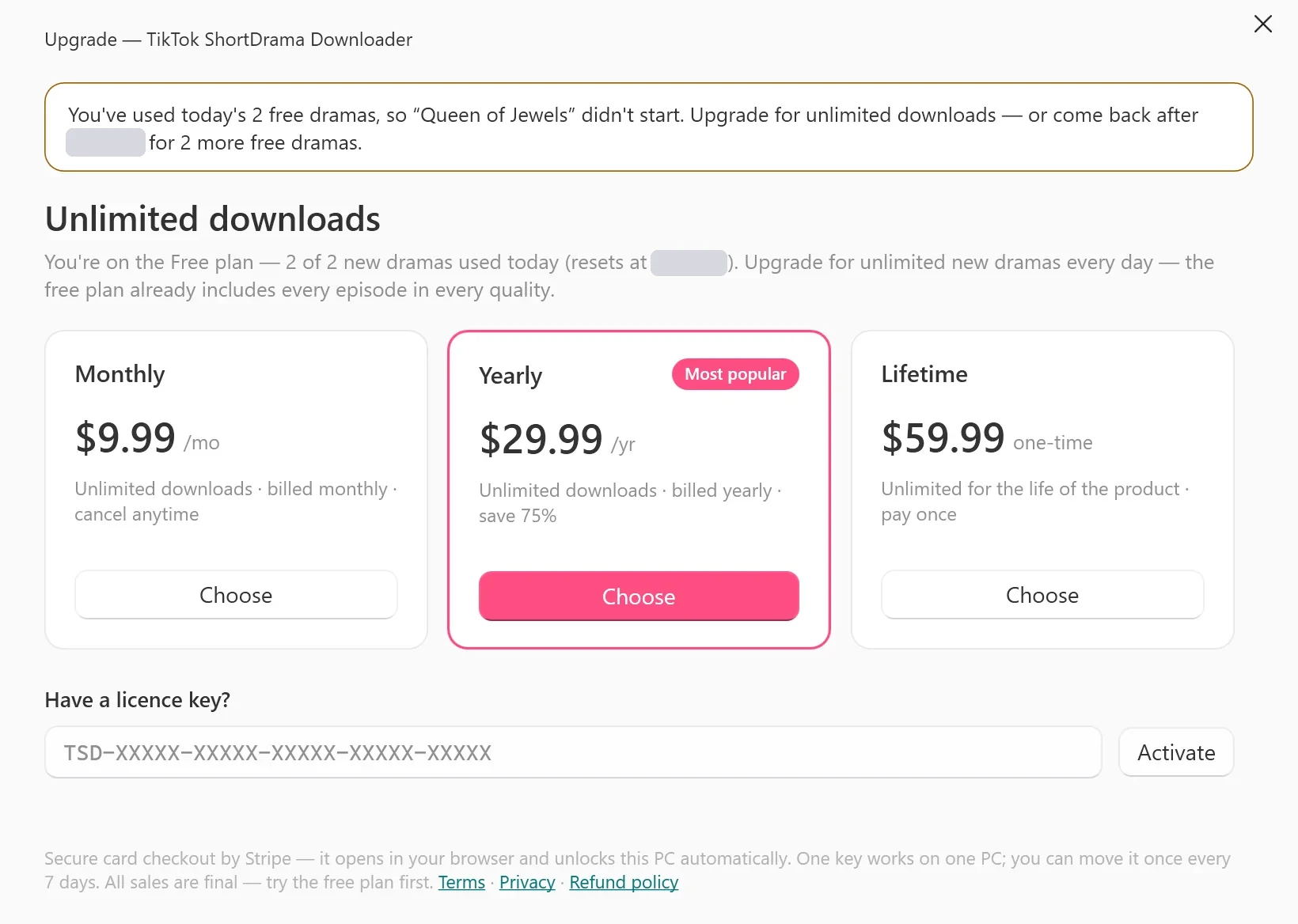
 Open the full-size pictureOpen the full-size picture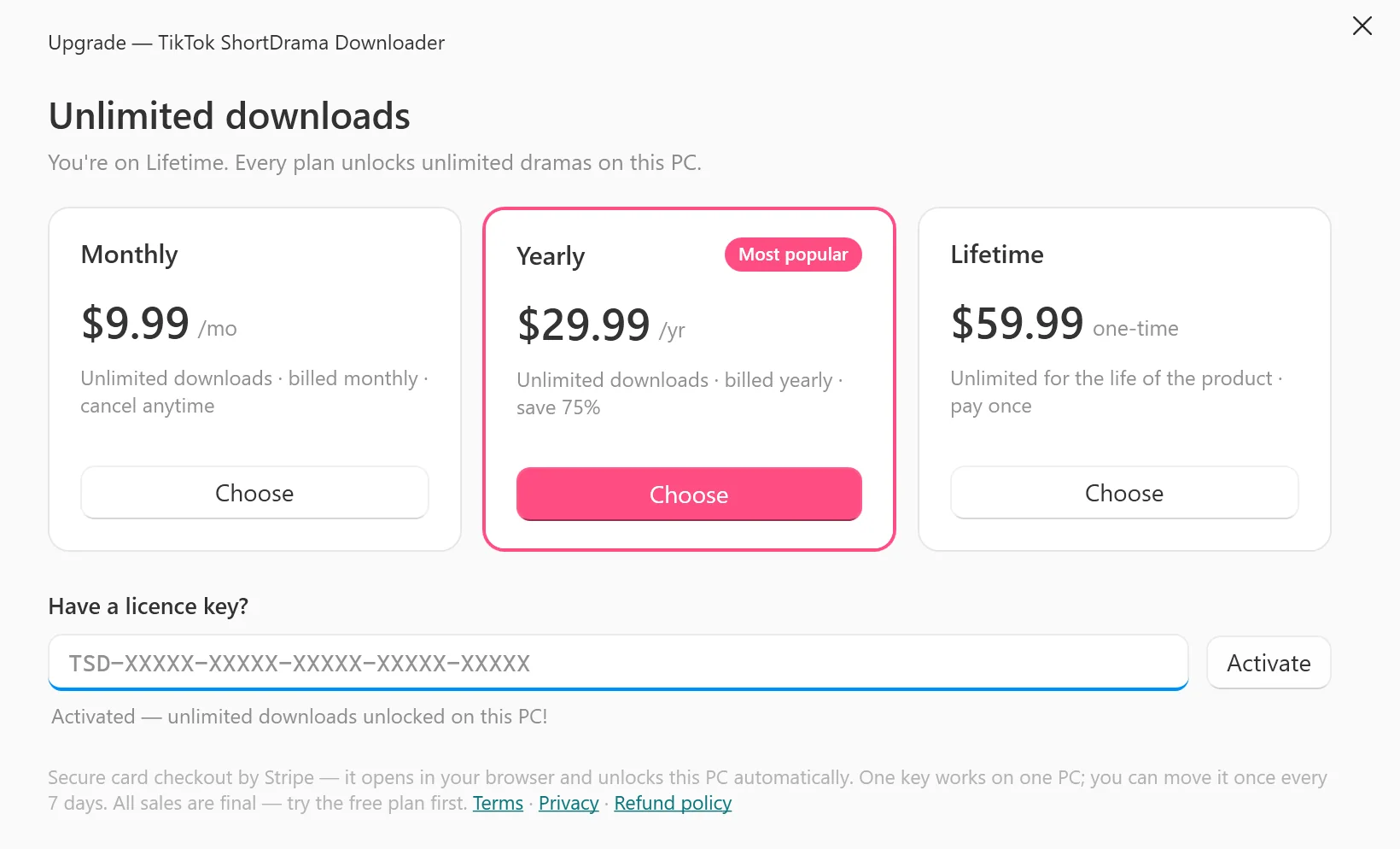
Activating needs an internet connection. Already on a paid plan and adding a new key? Use Settings ▸ Enter a licence key: on a paid plan, the plan badge opens Settings instead of the Upgrade window.
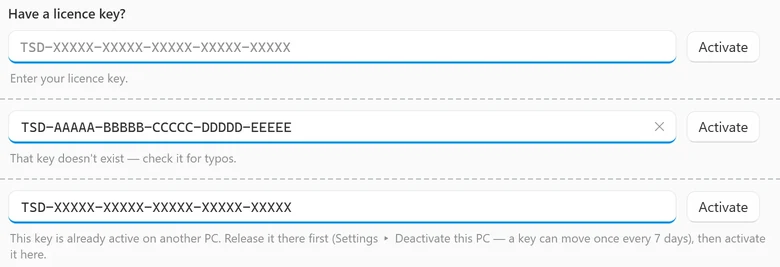
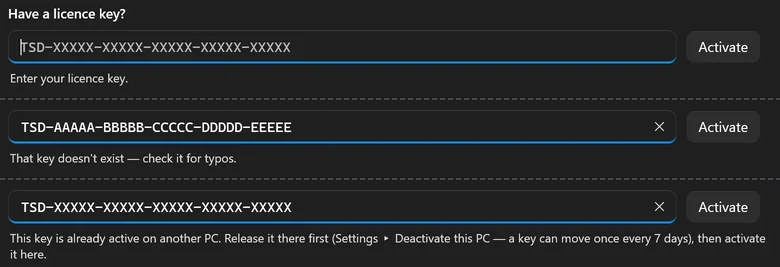
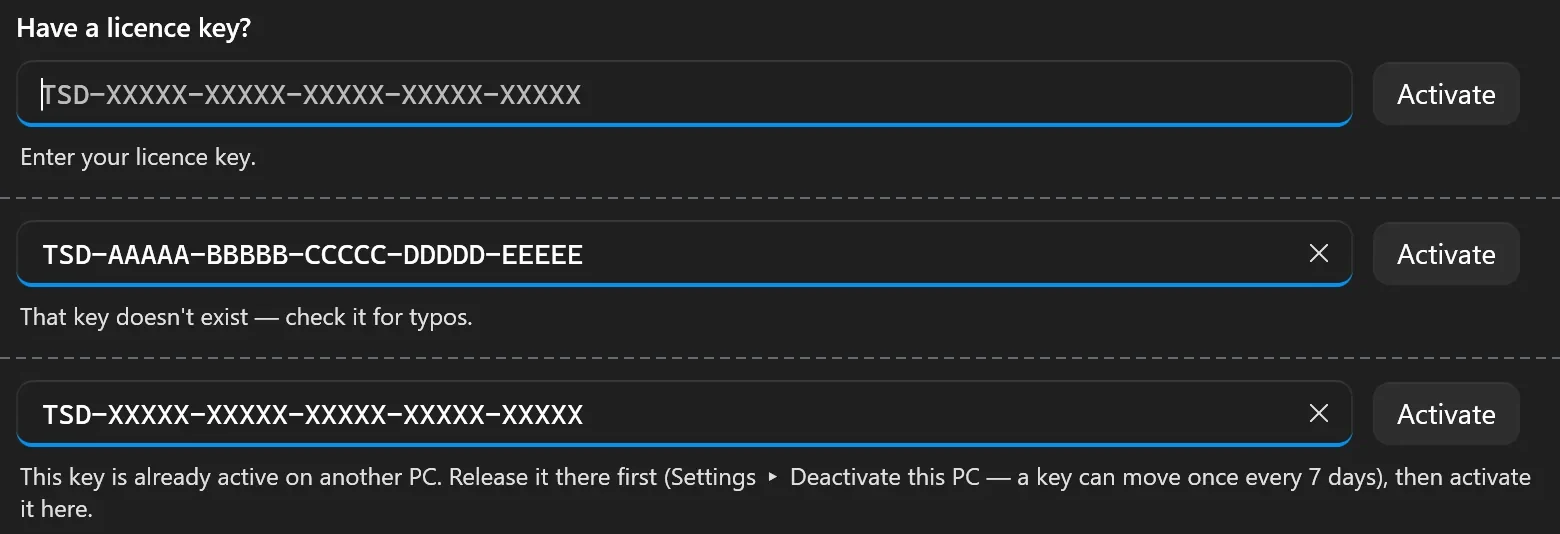
If the key doesn’t activate, the line under the box says why. The two you’re most likely to see are That key doesn't exist — check it for typos. (copy the key again from the email) and This key is already active on another PC. Release it there first… (see Move your key to a new PC). The troubleshooting table lists every message with its fix.
 Open the full-size pictureOpen the full-size picture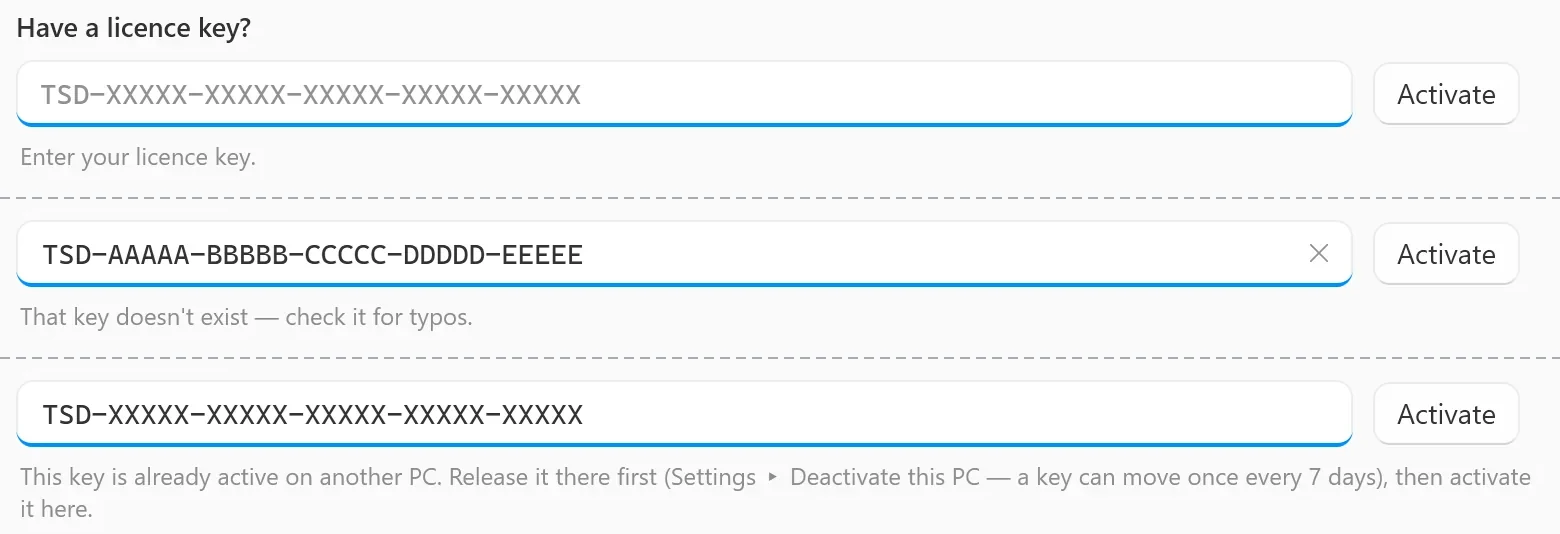
Check your plan
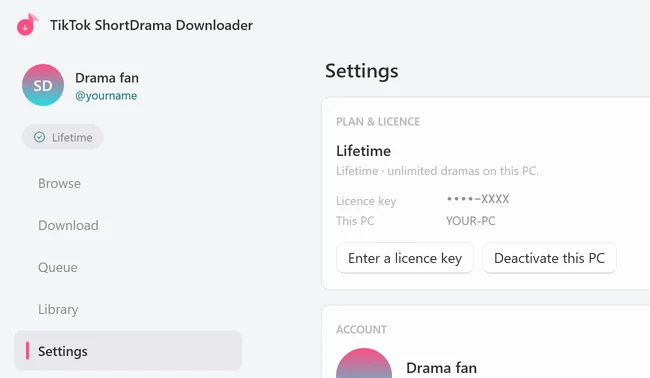
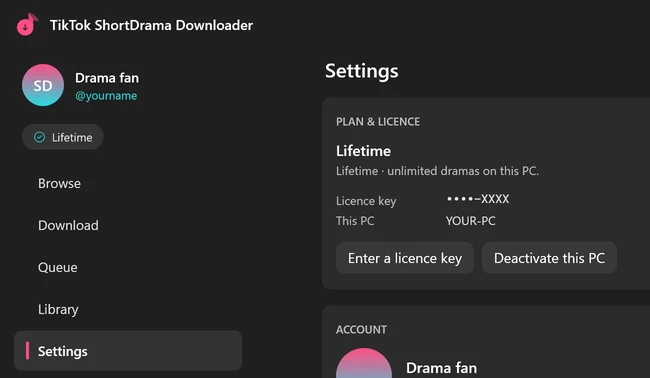
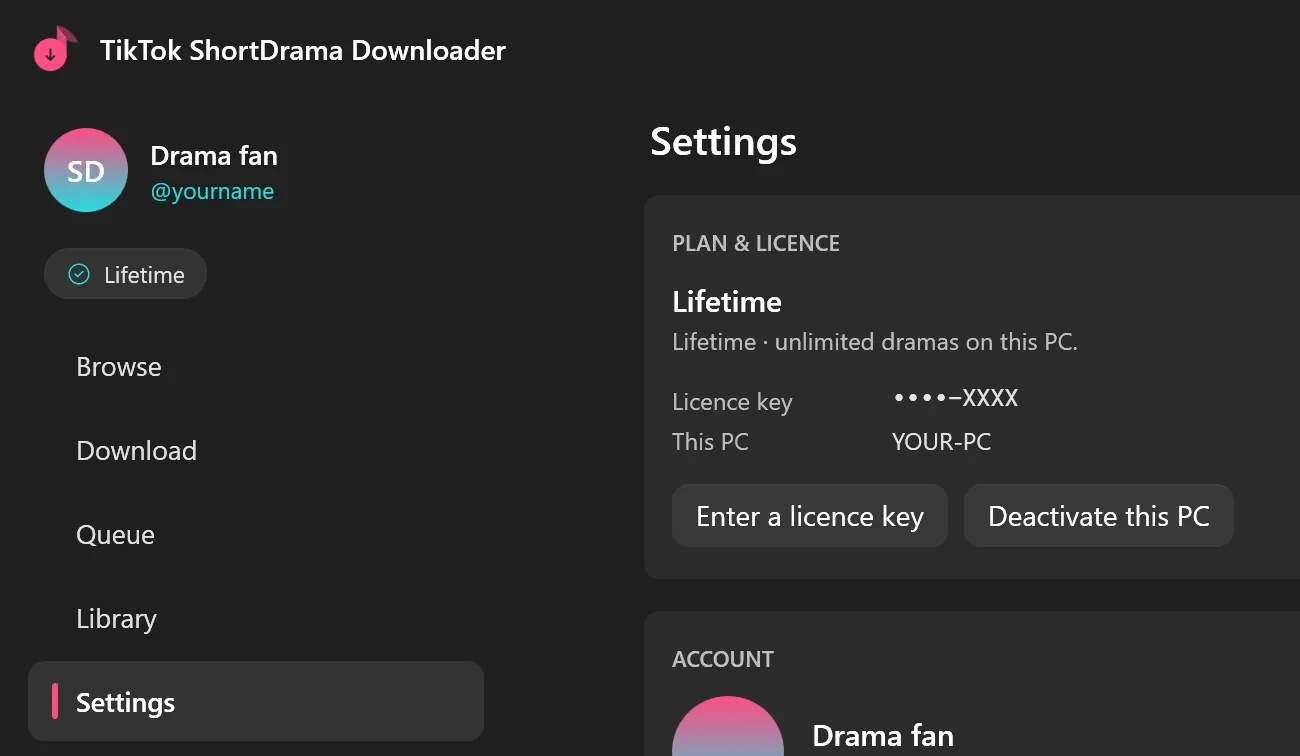
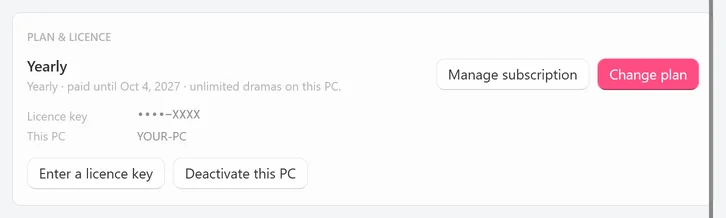
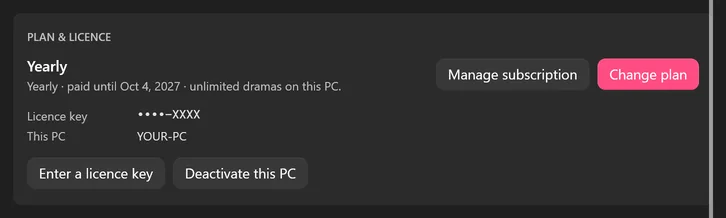
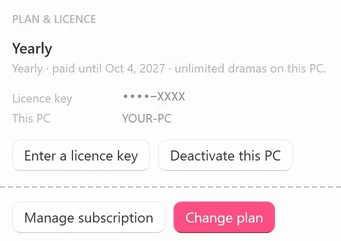
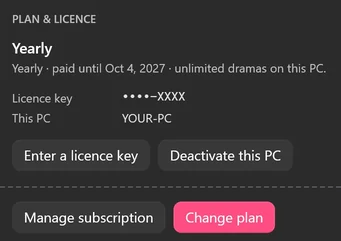
Your plan shows in two places: the plan badge at the top-left, and the PLAN & LICENCE card at the top of Settings.
- Look at the plan badge under your account name. A paid plan shows its name with a tick:
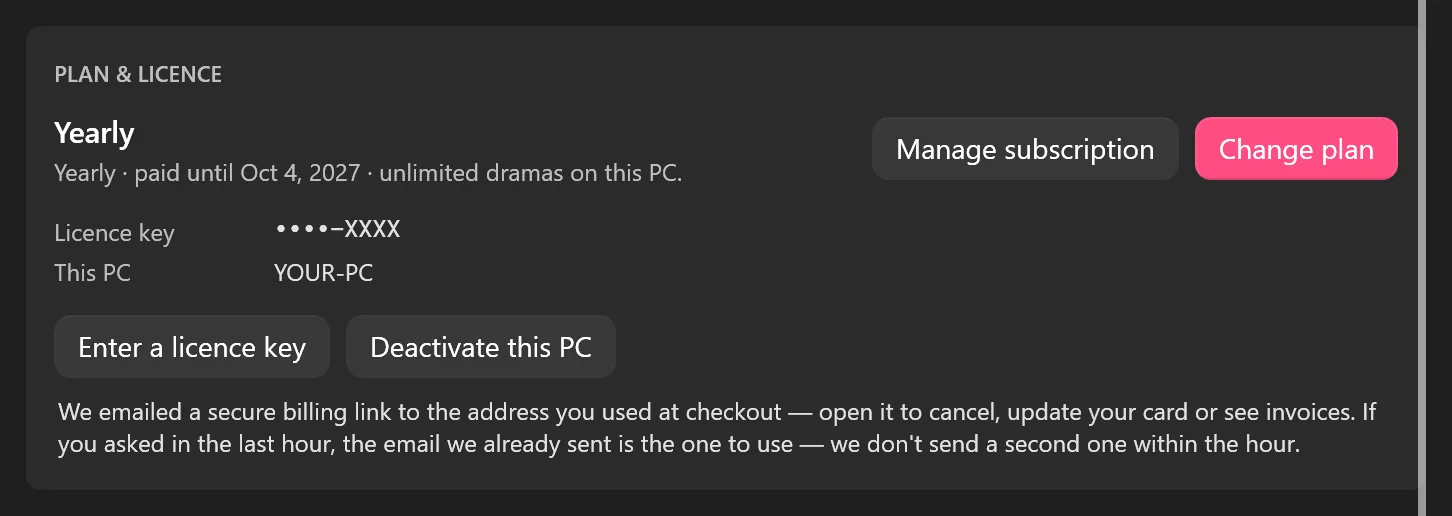
Monthly,YearlyorLifetime.Free · 2 left todaymeans this PC is on the Free plan, and…means the app is still checking. Hover over the badge for a one-line summary. - For the details, click Settings in the left sidebar, or click the badge if you’re on a paid plan. The first card, PLAN & LICENCE, shows your plan, a line about it,
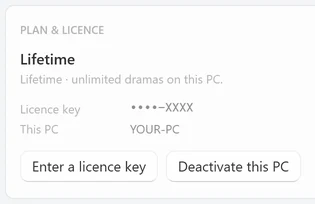
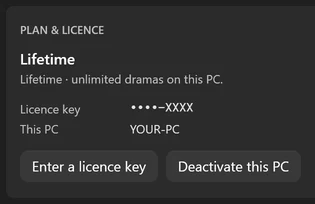
Licence keywith••••-and the last 4 characters of your key, andThis PCwith your computer’s name. - Read the line under the plan’s name with the table below.
| The line under the plan | What it means |
|---|---|
Yearly · paid until <date> · unlimited dramas on this PC. | A Monthly or Yearly plan that’s active. The date is the end of the period you’ve paid for, which is also your next renewal date. |
Yearly · renewal due · works until <date> · unlimited dramas on this PC. | The renewal payment hasn’t been collected yet. The plan keeps working until that date, up to 72 hours after the renewal date, while the payment goes through. |
Monthly · valid until <date> · unlimited dramas on this PC. | No card renewal is coming, for example because support ended the subscription at your request. The plan works until that date. |
Lifetime · unlimited dramas on this PC. | Lifetime: no date, and nothing to renew. |
0 of 2 new dramas used today · resets at <time>. Upgrade for unlimited. | This PC is on the Free plan: no plan is active on it. |
 Open the full-size pictureOpen the full-size picture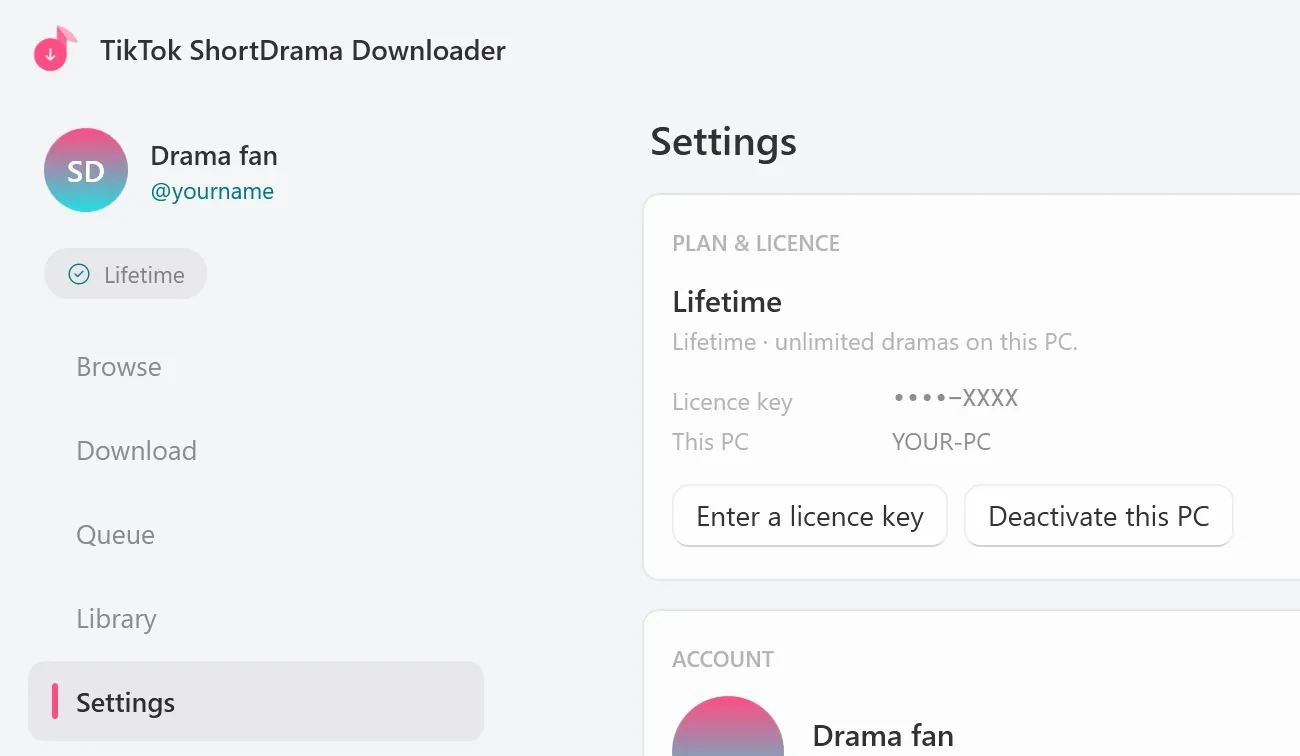
 Open the full-size pictureOpen the full-size picture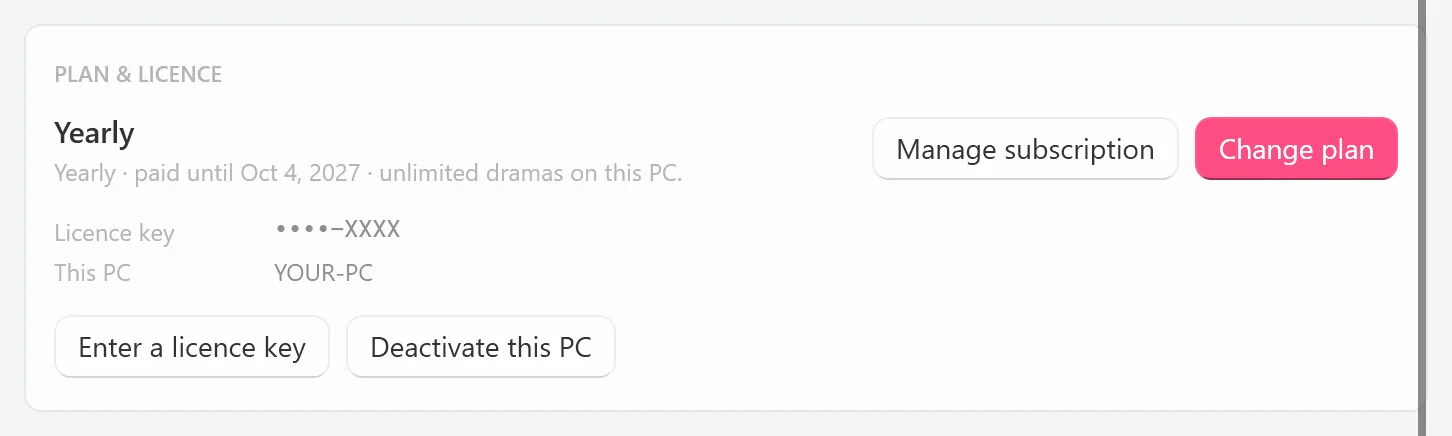
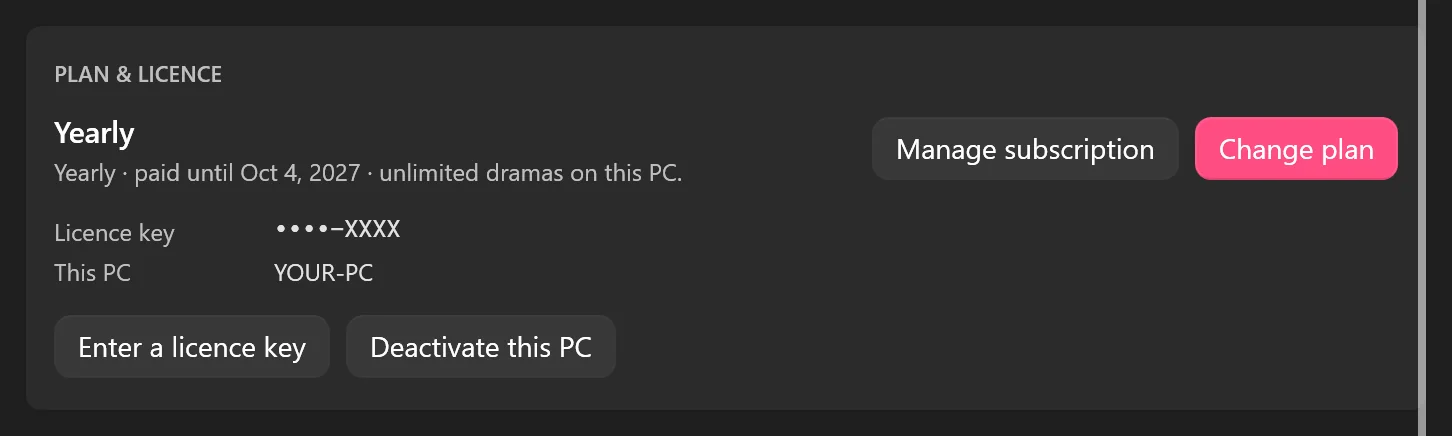
The buttons on the card depend on your plan:
- Monthly or Yearly: Manage subscription and Change plan at the top right, Enter a licence key and Deactivate this PC below.
- Lifetime: Enter a licence key and Deactivate this PC only. There’s no subscription to manage.
- Free plan: Upgrade and Enter a licence key.
The app checks your plan when it starts and about every 5 minutes while it runs, so a renewal or any other change shows up within a few minutes. Your renewal date is normally the same day of the month (Monthly) or of the year (Yearly) as your first purchase.
Manage your subscription (Monthly and Yearly)
Billing for Monthly and Yearly runs through Stripe. The app doesn’t open your billing page directly: for your security, it emails a secure link to the address you used at checkout.
- Open Settings ▸ PLAN & LICENCE and click Manage subscription.
- The line under the buttons says
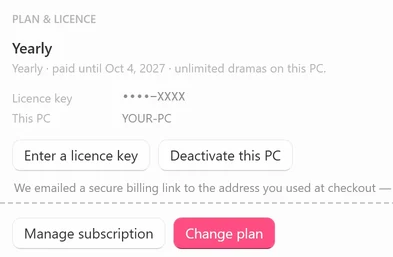
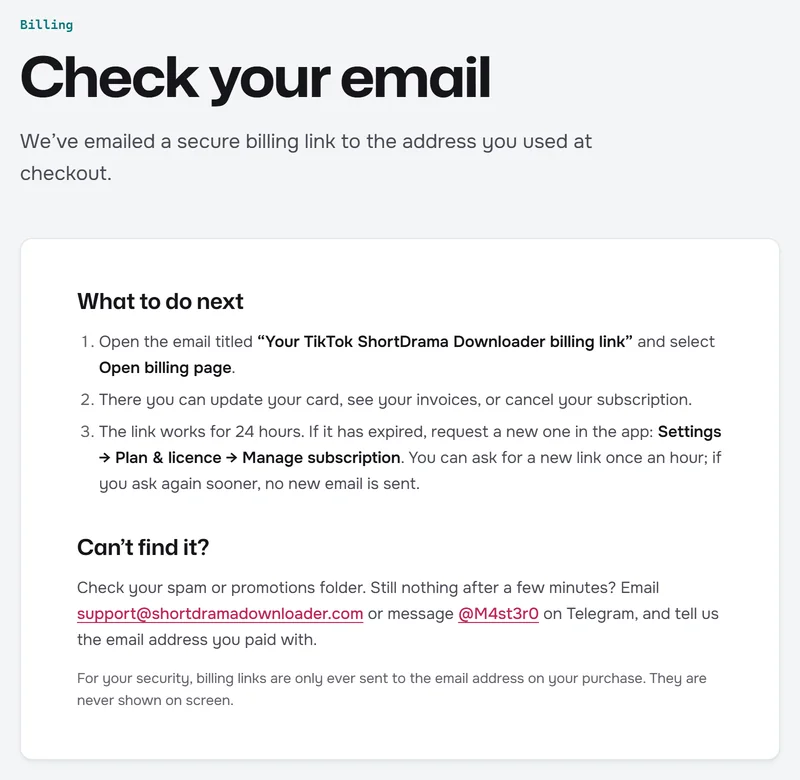
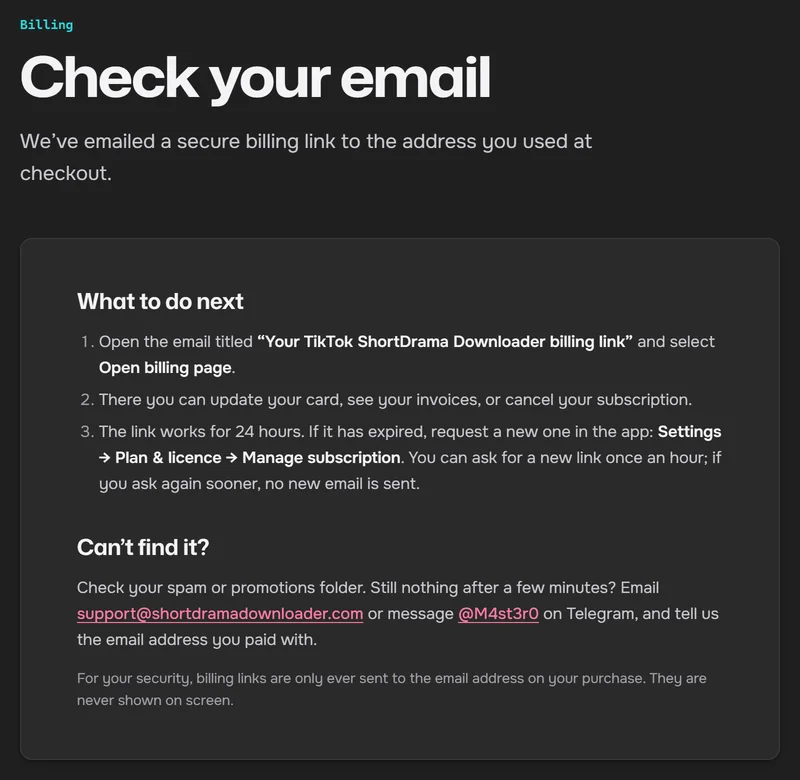
Opening billing…, thenWe emailed a secure billing link to the address you used at checkout — open it to cancel, update your card or see invoices. If you asked in the last hour, the email we already sent is the one to use — we don't send a second one within the hour.At the same time, your browser opens a Check your email page. - Open the email
Your TikTok ShortDrama Downloader billing link(the subject saysbilling linkswhen it holds more than one). Under the headingManage your subscription, click Open billing page. - Stripe’s billing page opens. There you can update your card, see your invoices, or cancel.
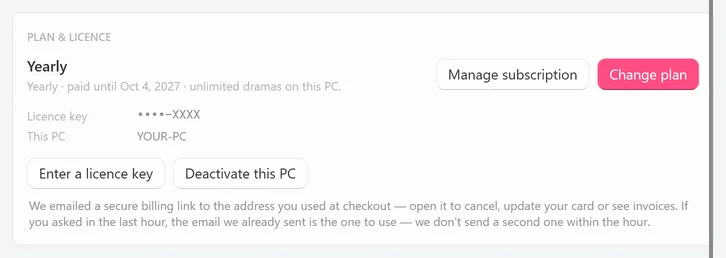
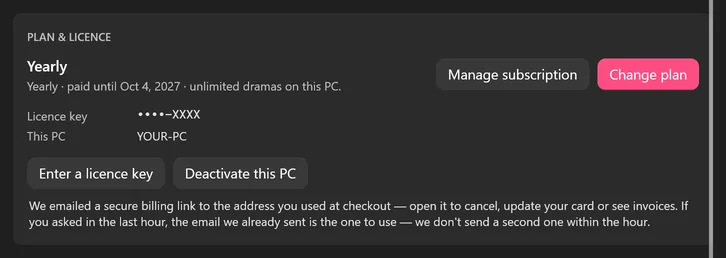
 Open the full-size pictureOpen the full-size picture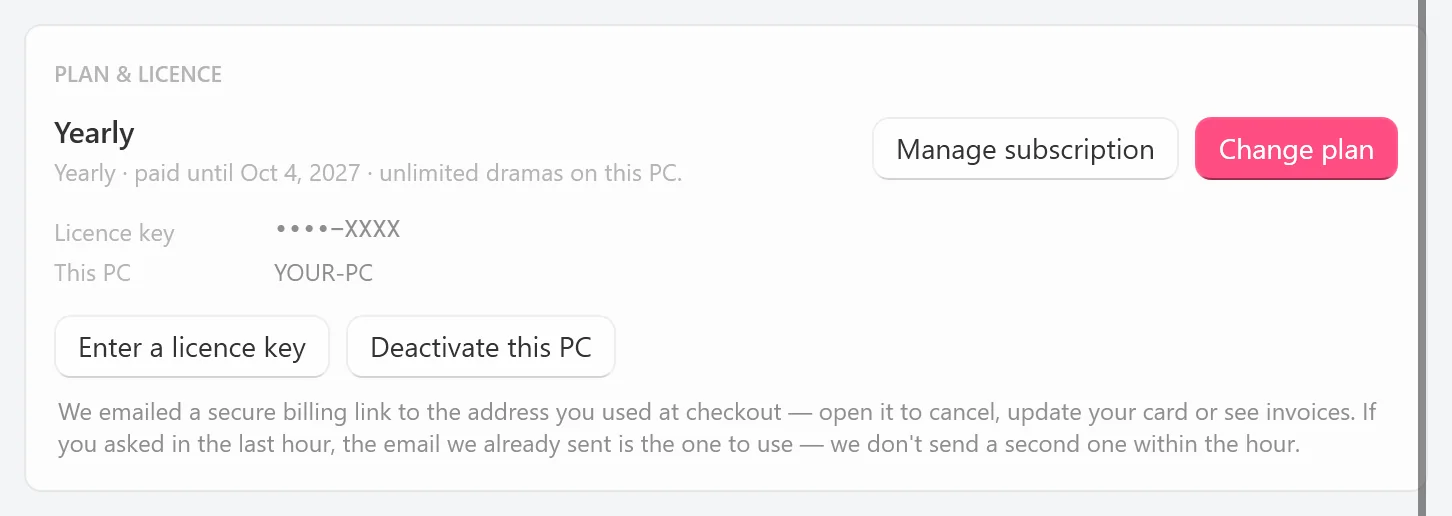
 Open the full-size pictureOpen the full-size picture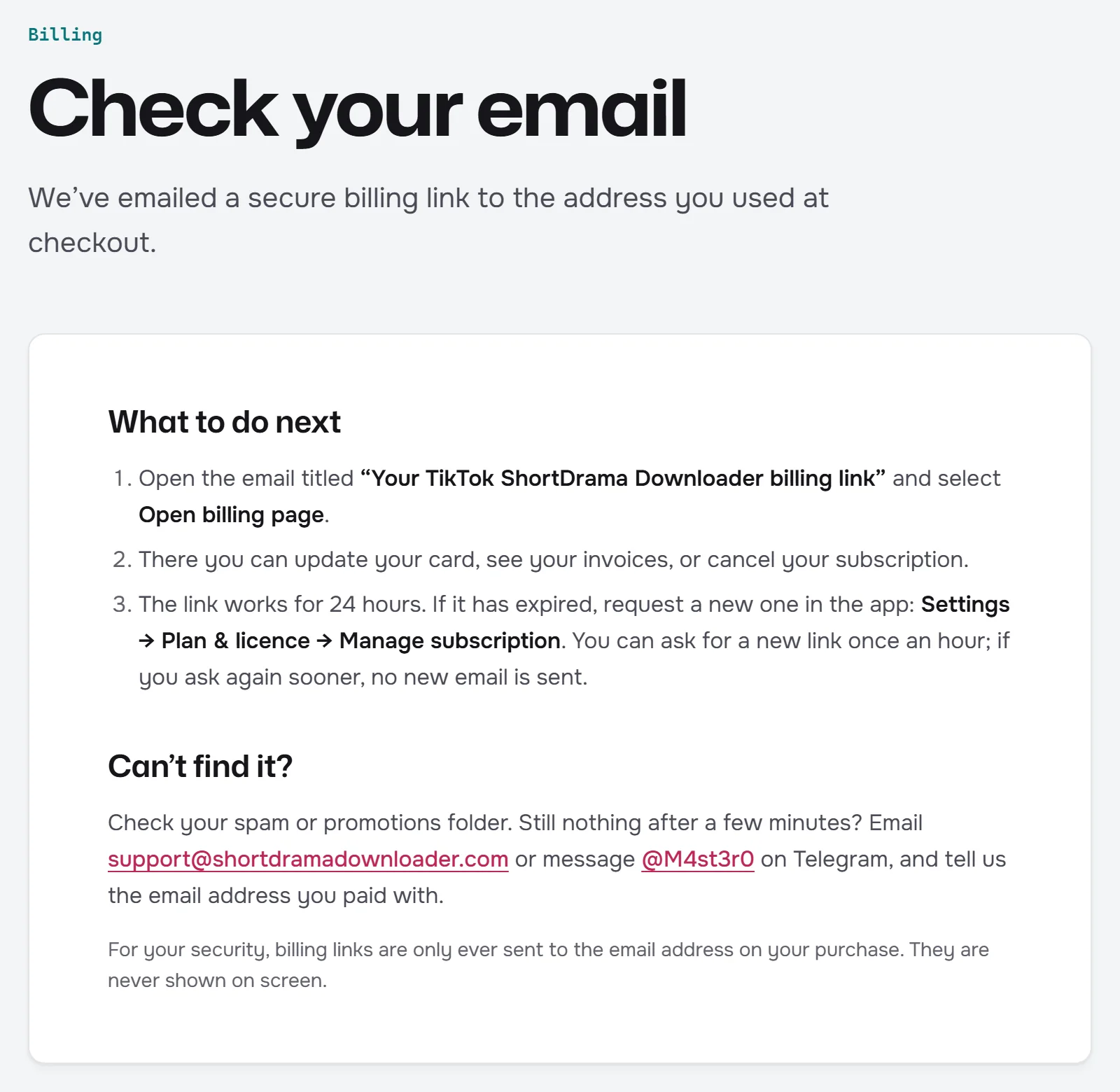
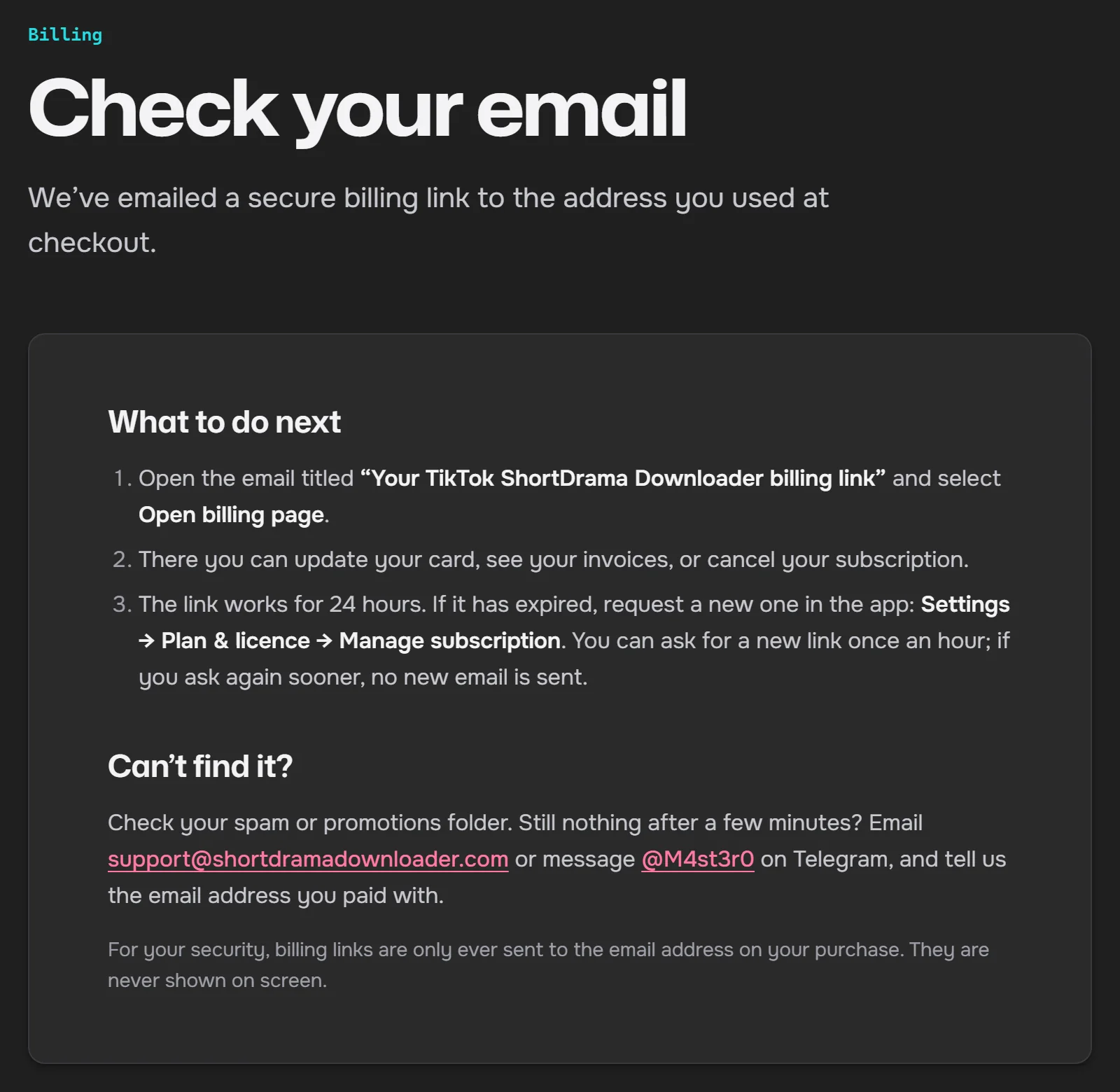
Open the link soon after it arrives: it works for 24 hours, and you can ask for a new one only once an hour. If you ask again within the hour, no new email is sent and the one you already have is the one to use. If that link has expired, wait until the hour is up, then click Manage subscription again.
Have another active subscription to the app, bought with the same email address? The email lists it too, under You also have another active subscription bought with this email address: click open its billing page next to it to manage or cancel that one. The big Open billing page button is always for the plan on this PC. The list shows up to two other subscriptions; one that is already set to end at the close of its paid period isn’t listed, because it’s already cancelled.
For your security, billing links only ever go to the email address on your purchase, and they’re never shown on screen. If you can no longer get into that mailbox, contact support instead (see Lost key, changed email and support).
Manage subscription also stays on the card after a Monthly or Yearly plan has ended while its key is still on the PC, so you can fix a failed card payment (see When a plan ends). A Lifetime plan has no Manage subscription button: there’s nothing to renew or cancel.
Cancel a subscription
- Open Settings ▸ PLAN & LICENCE ▸ Manage subscription, and open the billing link from the email, as described above.
- On Stripe’s billing page, choose the option to cancel your plan, then confirm it on that page. Your cancellation is complete once you’ve confirmed it.
- Carry on using the app as normal until the date after
paid untilon the card.
You can also cancel without the app:
- By email: write to support@shortdramadownloader.com from the address you used at checkout, with the subject “Cancel my subscription”. Writing from another address? Add the email address you used at checkout and, if you have it, your licence key. We cancel the subscription and confirm by email.
- On Telegram: message @M4st3r0 and tell us the email address you used at checkout.
Either way, your cancellation is complete when we receive your email or message.
What happens next:
- Your plan keeps working until the end of the period you’ve already paid for. Cancelling stops the next renewal, whether you cancel on the billing page or through support.
- The app looks the same until then. The card still says
paid until <date>and still shows Manage subscription; there’s no “cancelled” label in the app. - On that date, the app goes back to the Free plan. The card’s notice then starts with
Your plan has ended, so this PC is back on the Free plan.Your saved videos stay on your PC. - No refund of charges already made. We don’t refund unused time, so cancel before your renewal date to avoid the next charge.
- Uninstalling isn’t cancelling. Uninstalling the app, clicking Deactivate this PC or not using the app doesn’t cancel a subscription.
Change or upgrade your plan
You change plan by buying the new one: every purchase is a separate plan with its own new key. Buying it doesn’t cancel the subscription you already have, which keeps billing until you cancel it, and a separate purchase like this earns no credit for the time left on the old plan. The app reminds you of this before you buy and helps you cancel the old subscription afterwards. The steps below move from Monthly to Yearly; any other change works the same way.
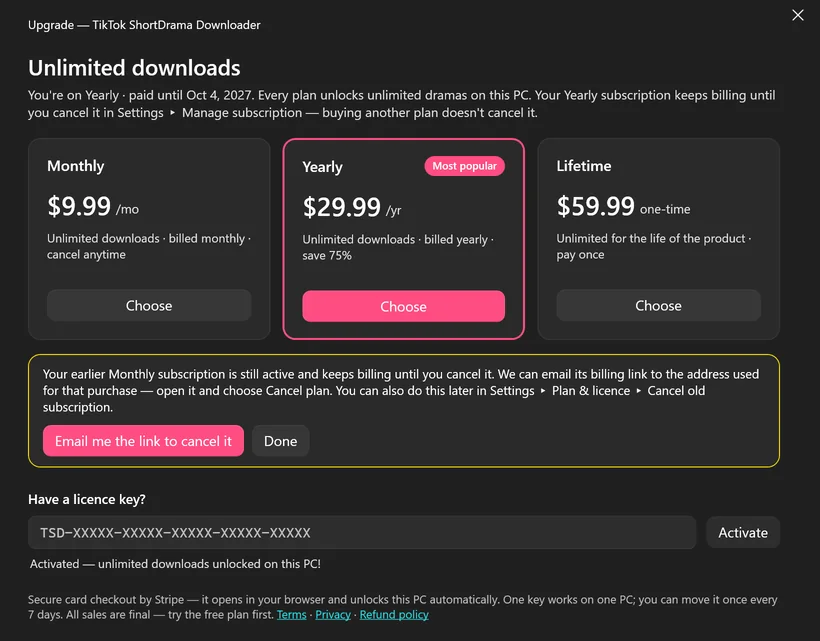
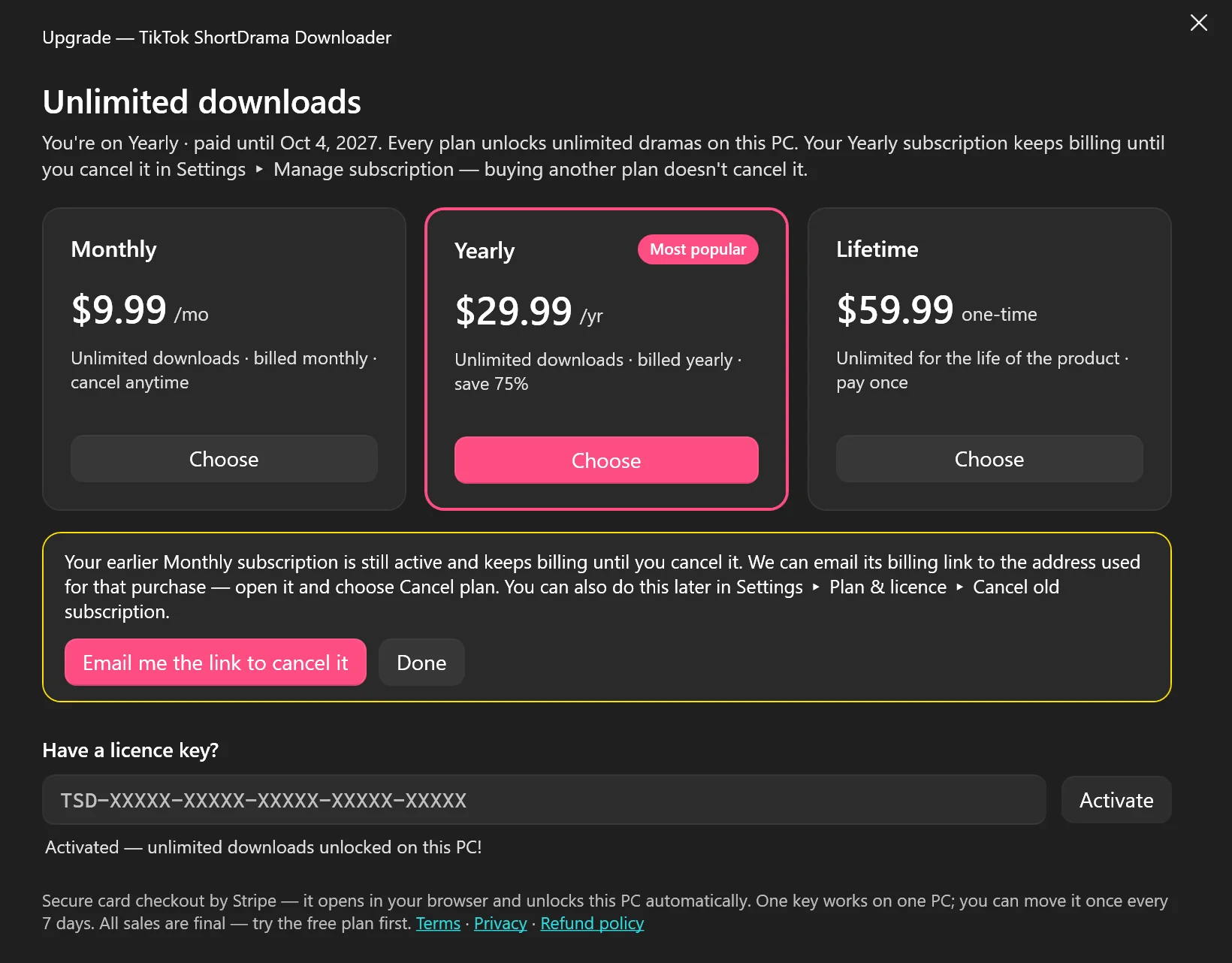
- Open Settings ▸ PLAN & LICENCE and click Change plan. The Upgrade window opens with a reminder:
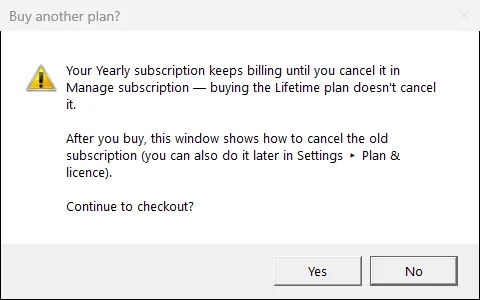
Your Monthly subscription keeps billing until you cancel it in Settings ▸ Manage subscription — buying another plan doesn't cancel it. - Click Choose under the plan you want. A box titled Buy another plan? repeats that your current subscription keeps billing until you cancel it. Click Yes to go on to checkout (No is the default).
- Pay on Stripe’s checkout page in your browser, and keep the Upgrade window open. It says
Payment received — unlimited downloads unlocked on this PC!once the new key is active on this PC. - The window then says
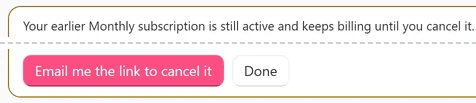
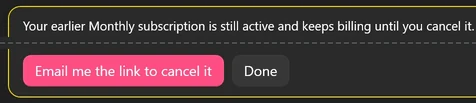
Your earlier Monthly subscription is still active and keeps billing until you cancel it.Click Email me the link to cancel it. The window saysSending the billing link…, then that it emailed the link to the address used for that purchase. - Open the email
Your TikTok ShortDrama Downloader billing links. Its heading names your old plan,Cancel your old Monthly plan, and its big button, Cancel old Monthly plan, opens that plan’s billing page. Cancel the old plan there.
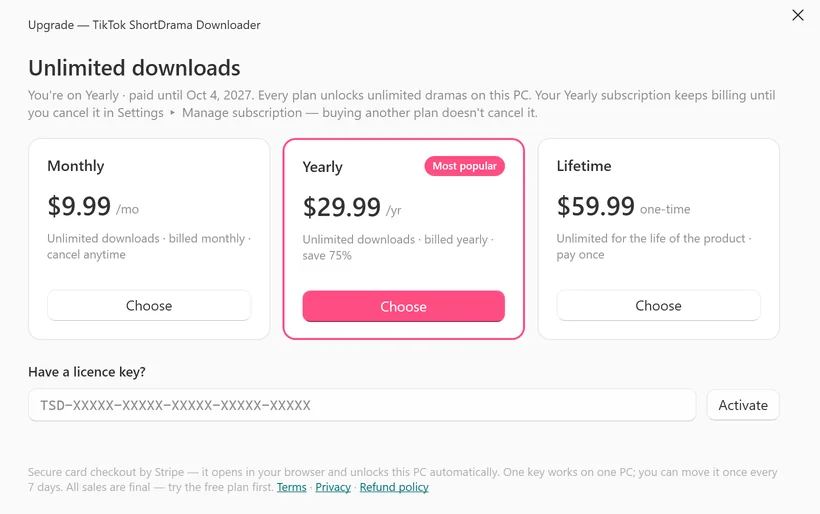
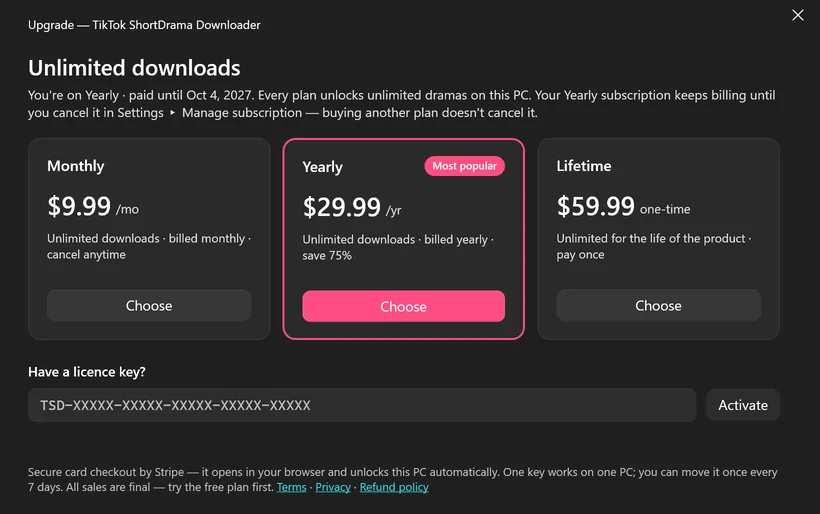
 Open the full-size pictureOpen the full-size picture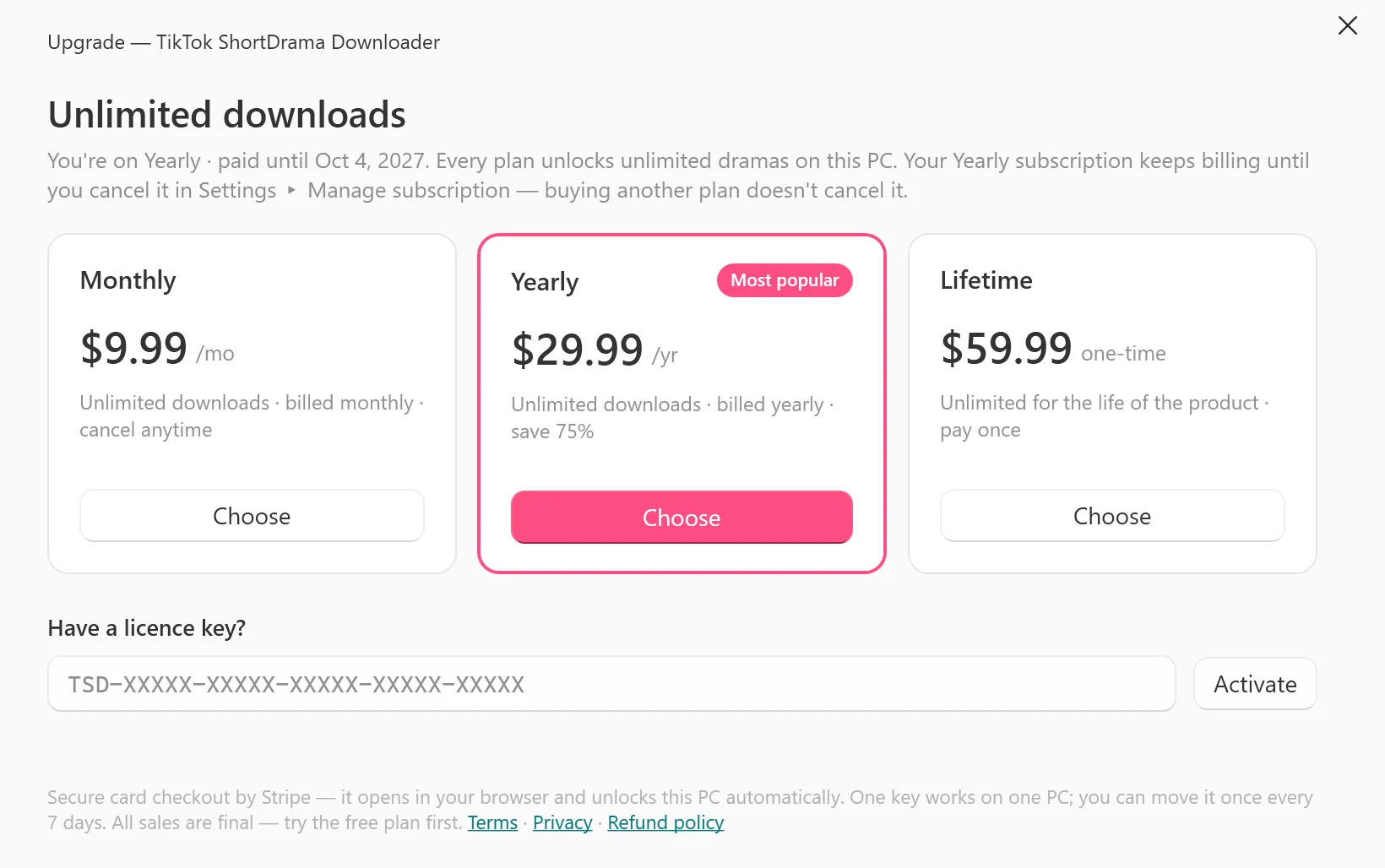
 Open the full-size picture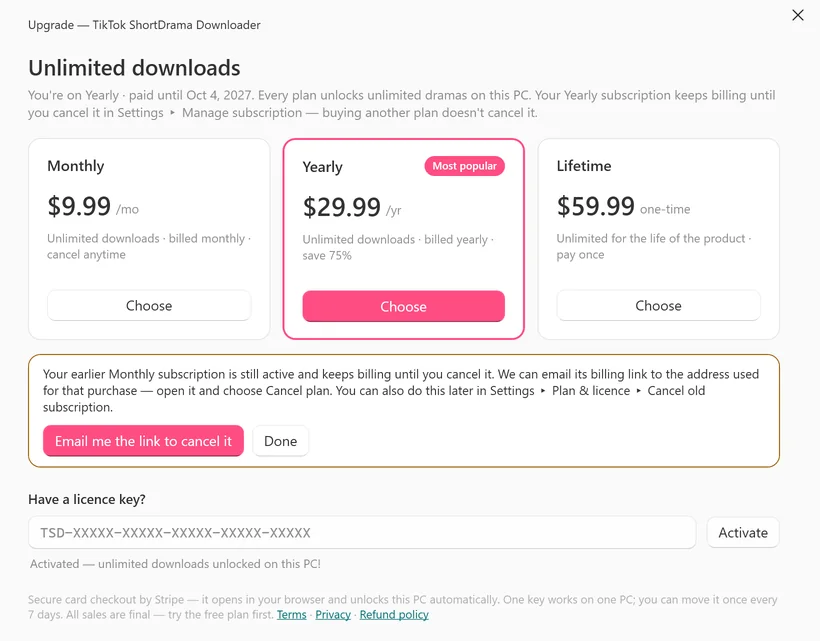
 Open the full-size pictureOpen the full-size picture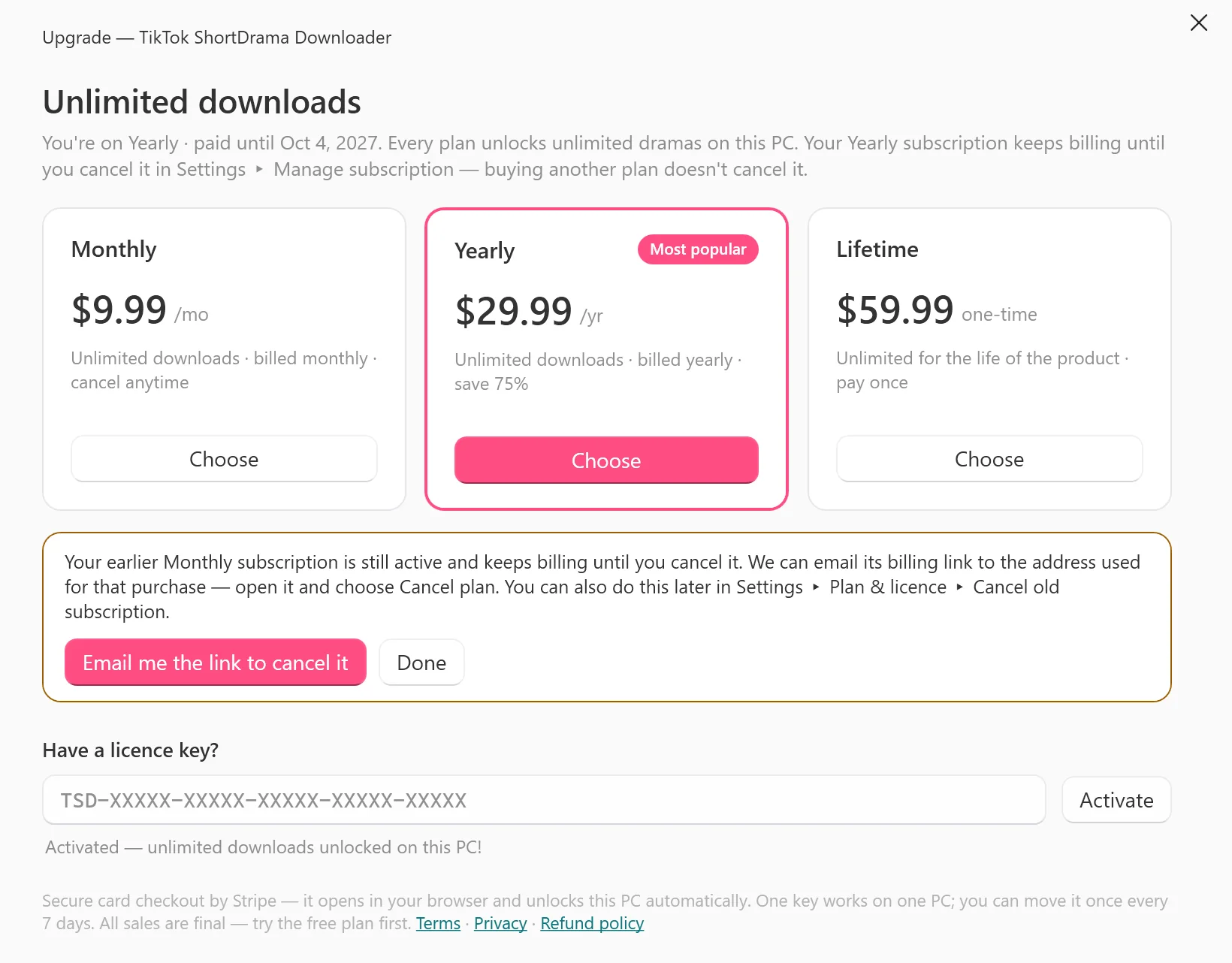
The email and its big button carry the name of your old plan, so after a change from Yearly the button reads Cancel old Yearly plan. Below the button, a line such as Your new Yearly plan is not affected. comes with a small link, Manage your Yearly plan, which opens your new plan’s billing page instead: you don’t need it to cancel the old plan. Open the email soon: its links work for 24 hours, and you can ask for new ones only once an hour. The email ends with what to do if a link has expired. After a move to Monthly or Yearly it says: The links work for 24 hours. If one has expired, ask the app for a new billing email (one per hour): Settings → Plan & licence → Manage subscription. That email also lists your other active subscriptions bought with this email address. Or contact support below. After a move to Lifetime, it asks you to contact support, and we help you cancel the old plan.
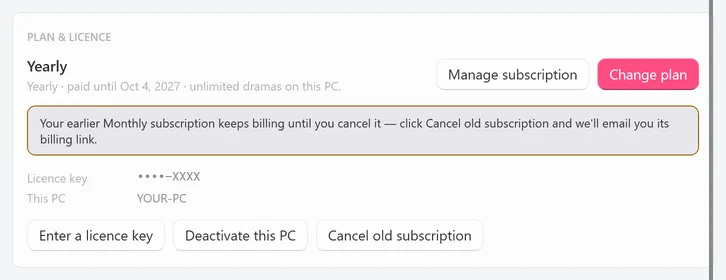
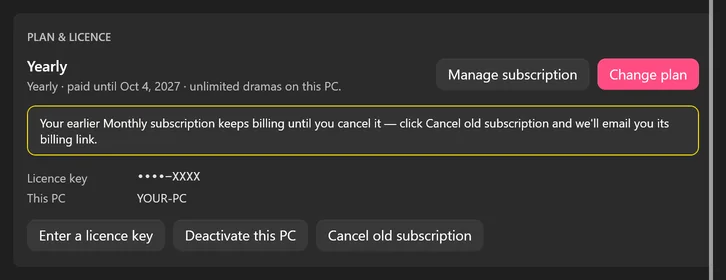
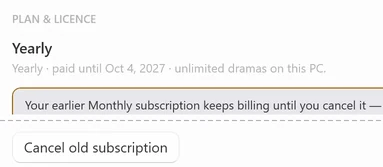
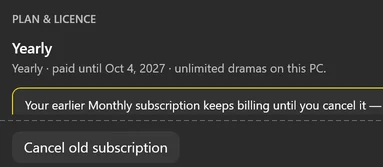
Not ready to cancel yet? Click Done. The card in Settings then keeps the reminder Your earlier Monthly subscription keeps billing until you cancel it — click Cancel old subscription and we'll email you its billing link. Its Cancel old subscription button sends the same email, and the reminder and the button go away once that email has been sent.
 Open the full-size pictureOpen the full-size picture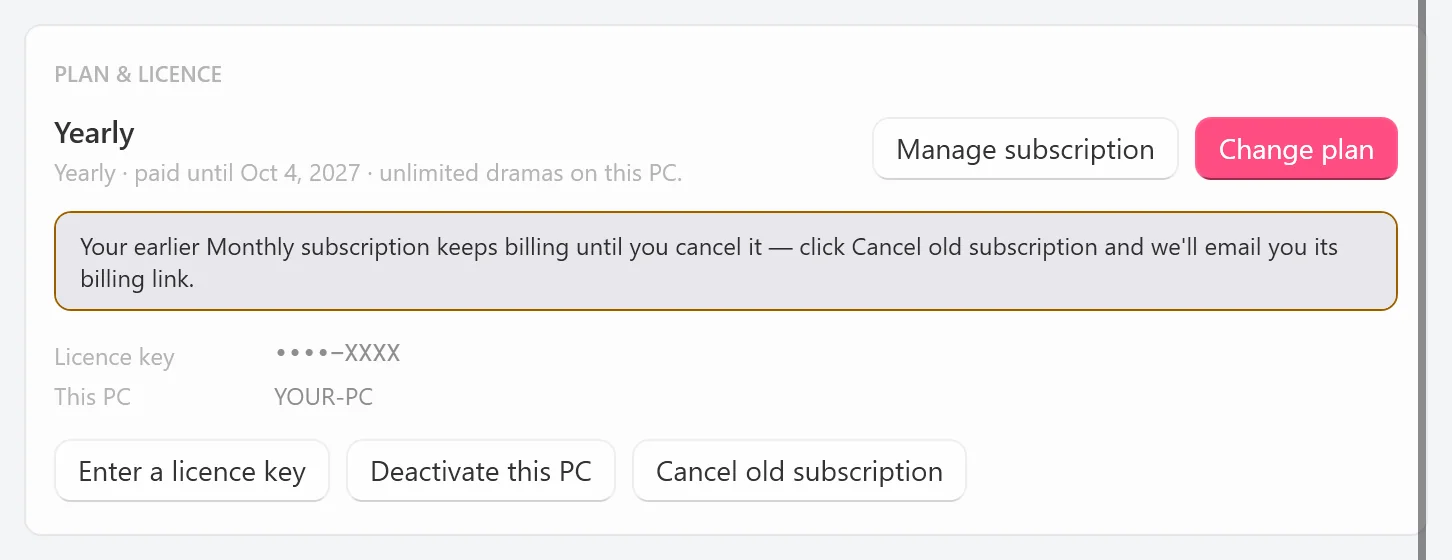
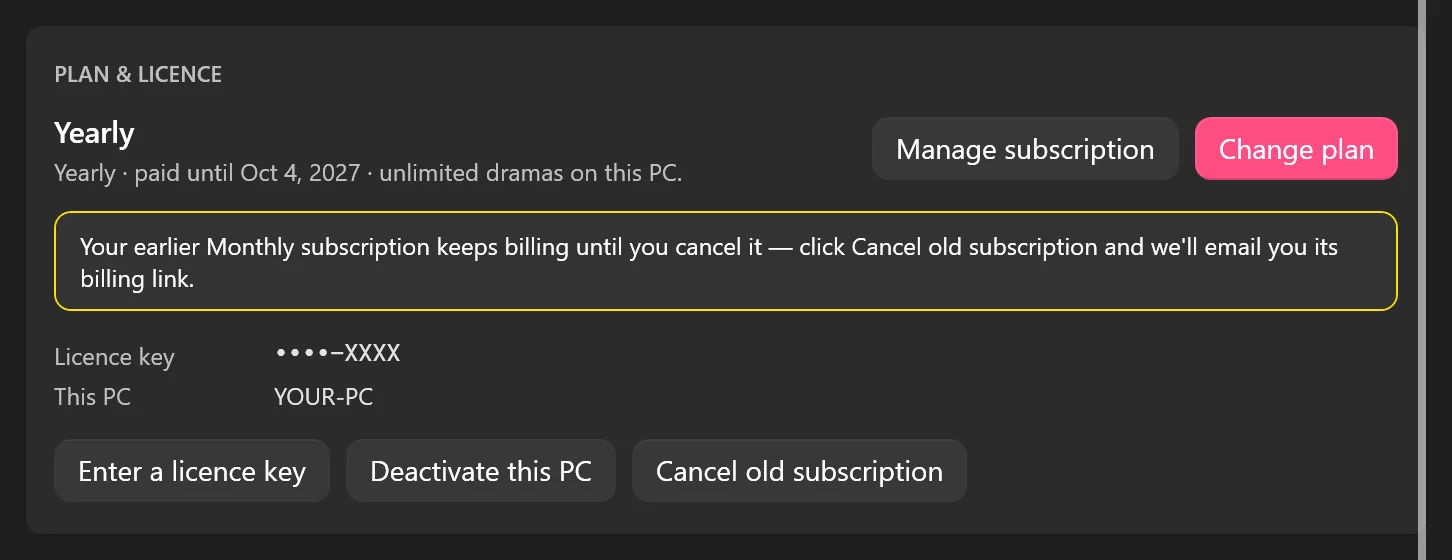
A few cases work a little differently:
- The links in that email have expired. Cancel old subscription has gone from Settings by then, so ask support to cancel the old plan (see Cancel a subscription). If your new plan is Monthly or Yearly, you can also click Manage subscription, at least an hour after the last email: when the old plan was bought with the same email address, that email lists it, with an open its billing page link next to its name. The big Open billing page button in that email is for your new plan.
- The earlier plan was bought with a different email address. The app can’t email its link and says so, and the button then reads Hide reminder. Ask support to cancel that plan, then click Hide reminder.
- You bought the new plan on our website. Enter the new key on the PC that has the old plan (Settings ▸ Enter a licence key). The same help appears, as long as the old plan was still active on that PC.
- You moved to Lifetime. Lifetime has no Manage subscription button, so cancel the old plan with Email me the link to cancel it, with Cancel old subscription, or through support.
- Your old key. Activating the new key releases the old one from this PC without starting the 7-day wait, and the old key keeps working until the end of the period you paid for.
Bought the same plan twice, or the wrong plan, by mistake? Contact us as soon as possible, don’t activate the extra key, and please don’t open a payment dispute. Our Refund Policy explains how we may help.
Move your key to a new PC
A paid licence key is active on one PC at a time and can be moved to another PC once every 7 days. The rule is the same for every paid plan, Lifetime included, and you can move the key yourself: release it on the old PC, then activate it on the new one.
- On the old PC, connected to the internet, open Settings ▸ PLAN & LICENCE and click Deactivate this PC.
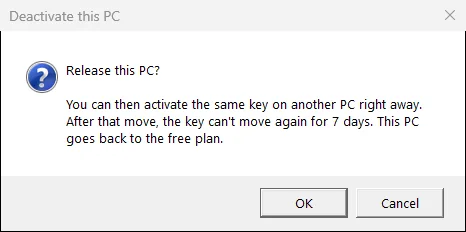
- A box titled Deactivate this PC asks:
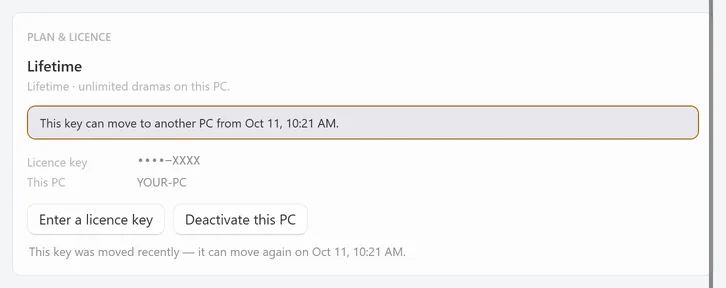
Release this PC? You can then activate the same key on another PC right away. After that move, the key can't move again for 7 days. This PC goes back to the free plan.Click OK. - The line under the buttons says
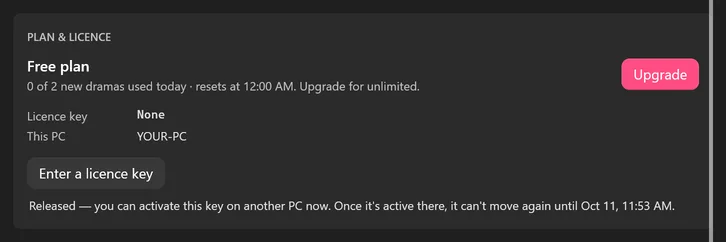
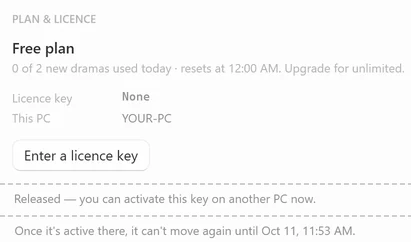
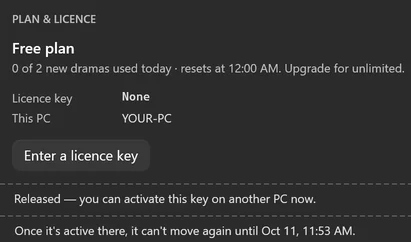
Releasing this PC…, thenReleased — you can activate this key on another PC now. Once it's active there, it can't move again until <date and time>.The old PC is now on the Free plan. - On the new PC, install the app, click the plan badge (or Settings ▸ Enter a licence key), paste your key and click Activate.
 Open the full-size picture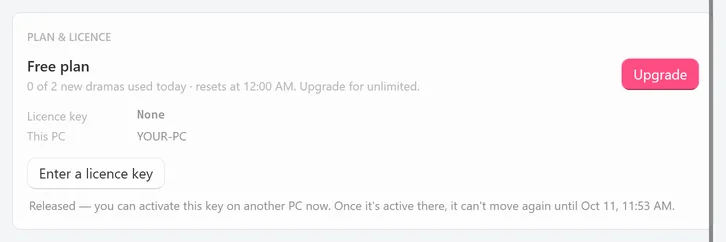
 Open the full-size pictureOpen the full-size picture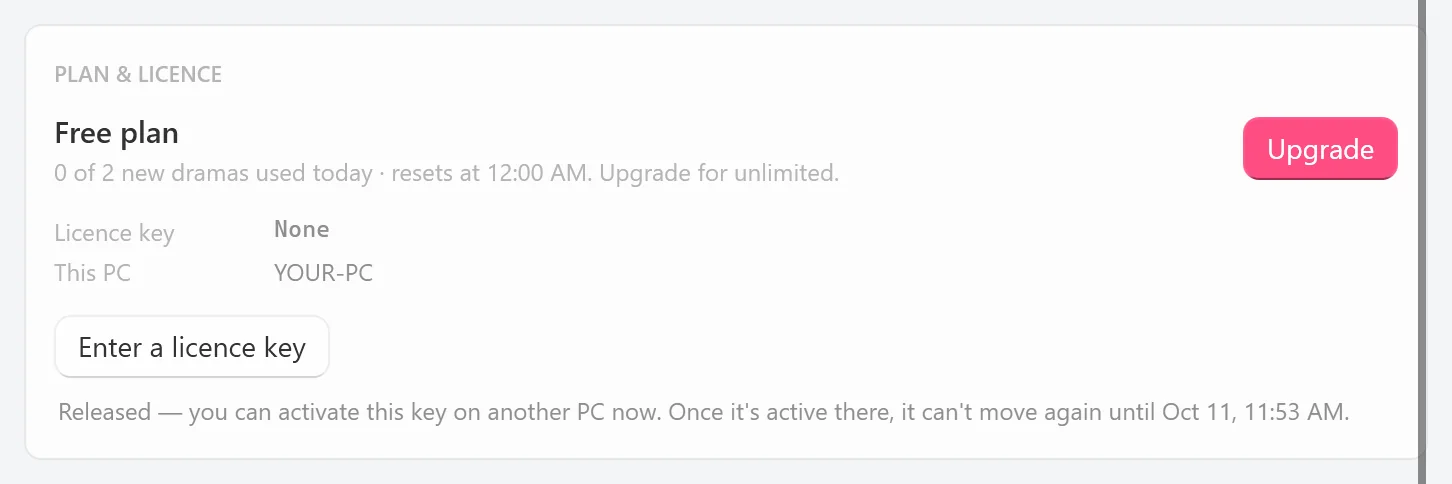
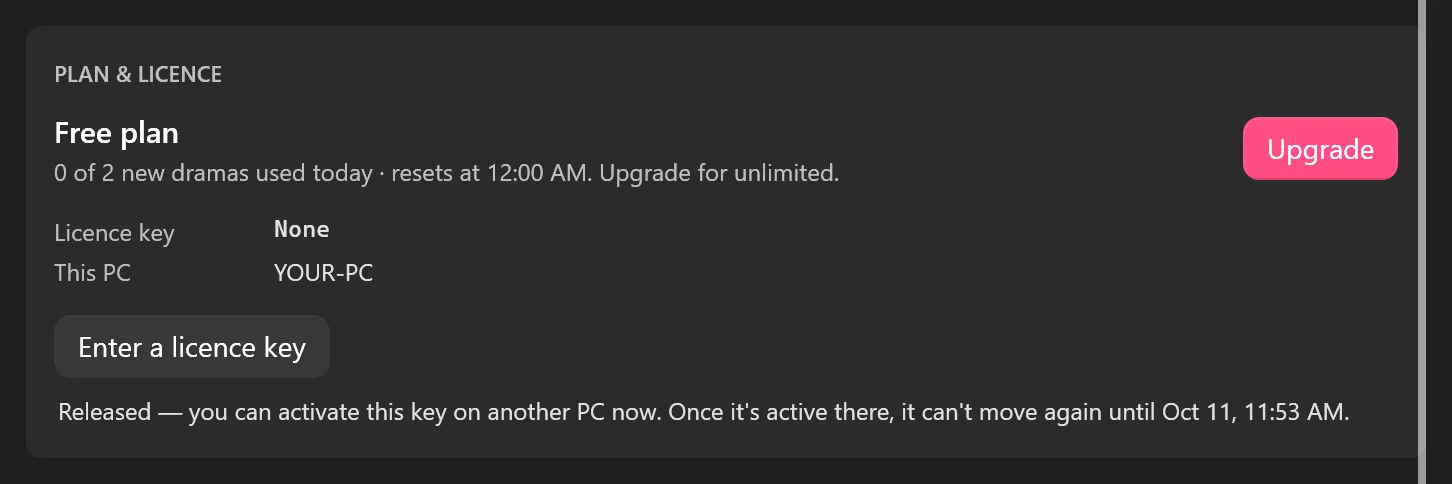
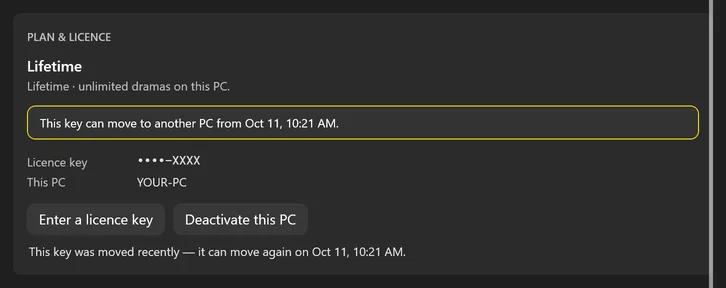
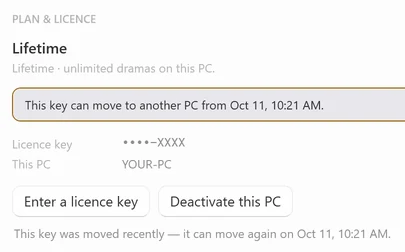
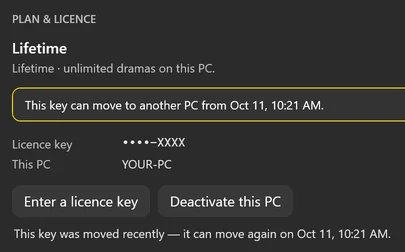
Move to the PC you’ll keep. You can activate the new PC straight away, but once the key is active there, it can’t move again until the date and time in the message, 7 days after you released it. A release inside those 7 days is refused. The first time you try, the Deactivate this PC box still opens; after OK, the line under the buttons says This key was moved recently — it can move again on <date and time>. and the card adds This key can move to another PC from <date and time>. After that, Deactivate this PC shows that line straight away, without the box.
 Open the full-size pictureOpen the full-size picture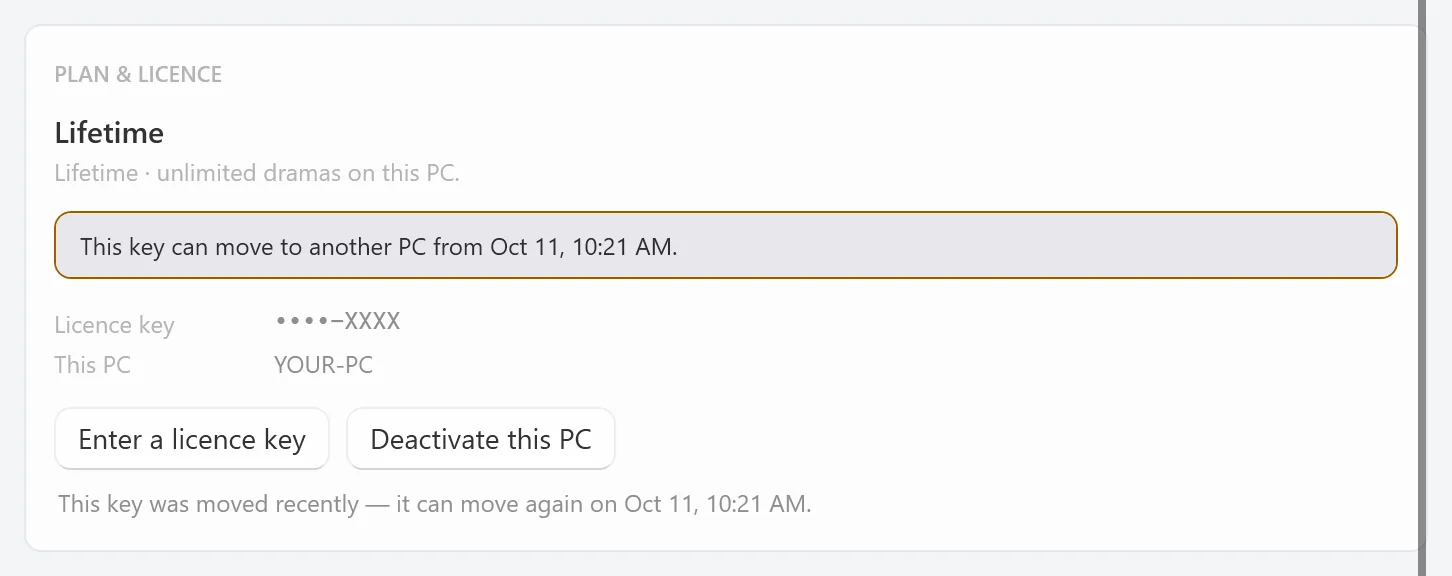
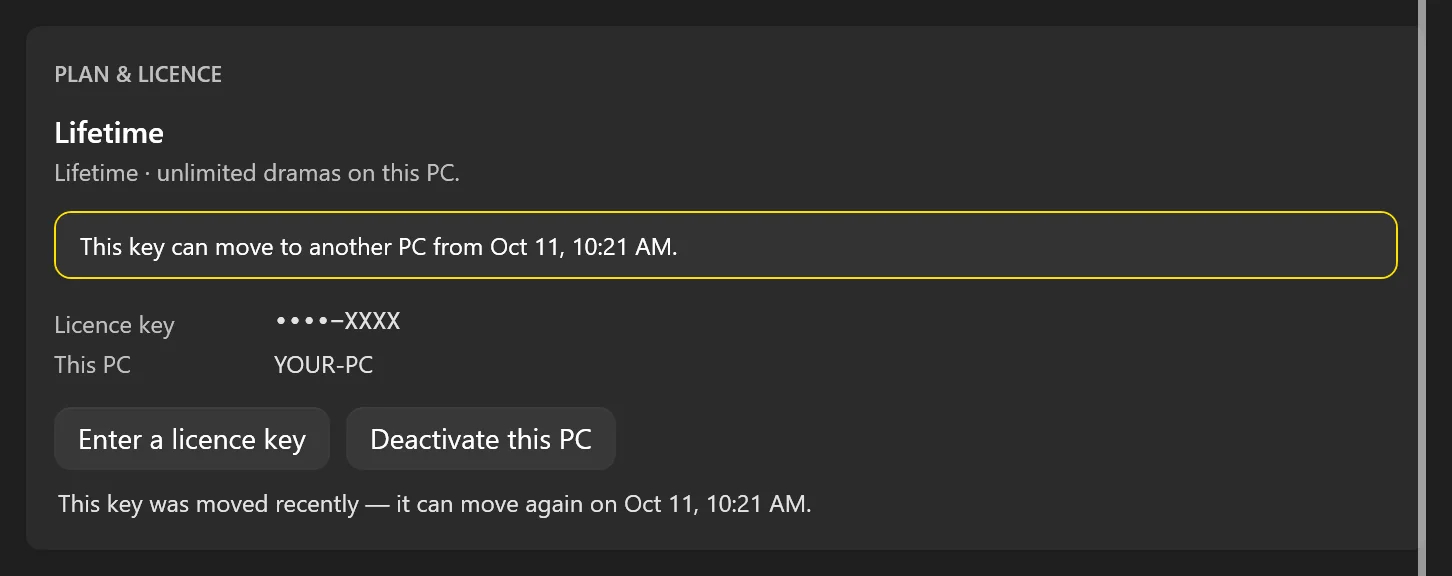
Tested on 4 October 2026
On a test build of version 1.5.0 connected to our own test licence server, we released a Lifetime test key on one test PC and activated it on a second test PC straight away. Releasing it again from the second PC was refused, with a date and time 7 days after the first release; that first try still showed the Deactivate this PC box, and the refusal came after OK. The other screenshots of the app in this guide come from the same kind of test setup, with test keys. The times on them are in UTC, while the app shows your own local time.
If you skip the release, the new PC says This key is already active on another PC. Release it there first (Settings ▸ Deactivate this PC — a key can move once every 7 days), then activate it here. Go back to the old PC and click Deactivate this PC there. The button only shows while that PC is online and its plan is active: a key whose plan has ended, or that has been turned off, can’t be moved.
Old PC lost, stolen, broken or reset? If you can’t open the app on it to click Deactivate this PC, email support@shortdramadownloader.com or message @M4st3r0 on Telegram with your licence key and the email address you used at checkout. Once we’ve checked that you’re the buyer, we reset the key so you can activate it on your new PC. We may refuse resets, or limit how many we do in 12 months, if a key seems to be passed around or misused (Terms, section 8.5).
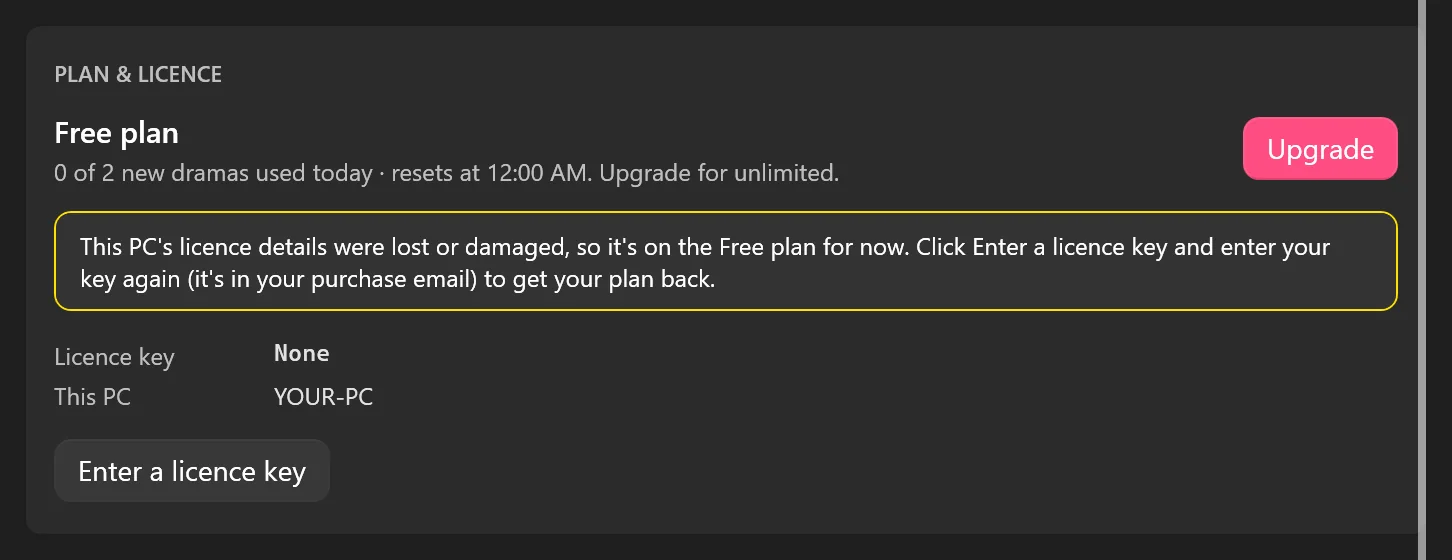
Reinstalling? Reinstalling only the app keeps the same PC. If the card then says This PC's licence details were lost or damaged, so it's on the Free plan for now., click Enter a licence key and enter the same key again: that isn’t a move, so there’s no 7-day wait. Reinstalling Windows, or making major changes to your PC, can make it count as a new PC, so click Deactivate this PC before you do that.
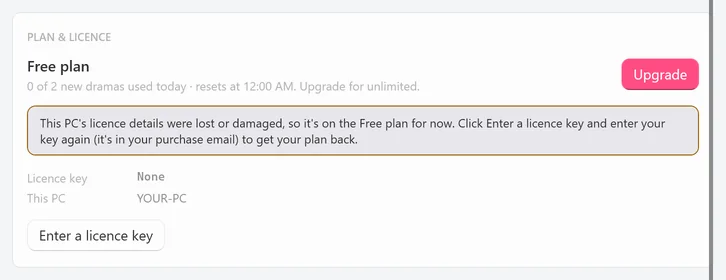
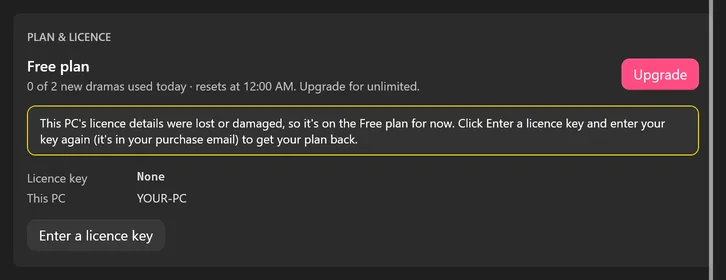
 Open the full-size pictureOpen the full-size picture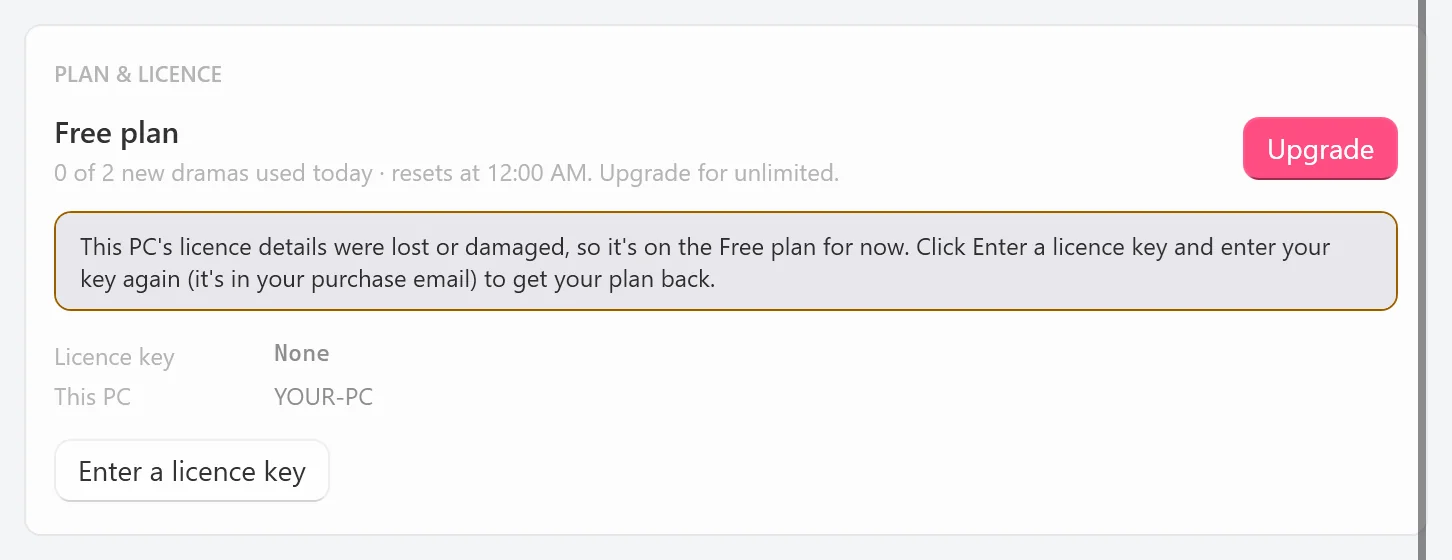
When a plan ends
Monthly and Yearly plans renew automatically until you cancel. When a renewal payment goes through, there’s nothing to do: the date after paid until moves forward within a few minutes, and Stripe emails you a receipt. For the Yearly plan, we also send you a reminder through Stripe 30 days before each renewal date, with the date and the amount; we don’t promise an advance reminder for Monthly.
If a renewal payment hasn’t been collected yet, the line says renewal due · works until <date>, and the plan keeps working for up to 72 hours after the renewal date while the payment goes through. That extra time is only for renewals: a cancelled plan ends at the end of the period you’ve paid for.
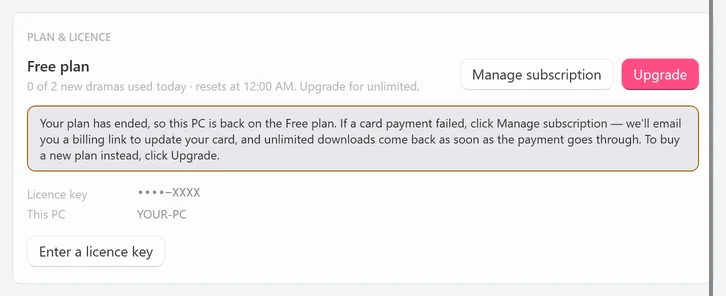
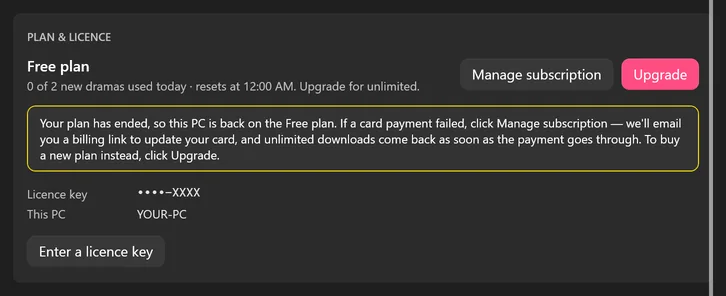
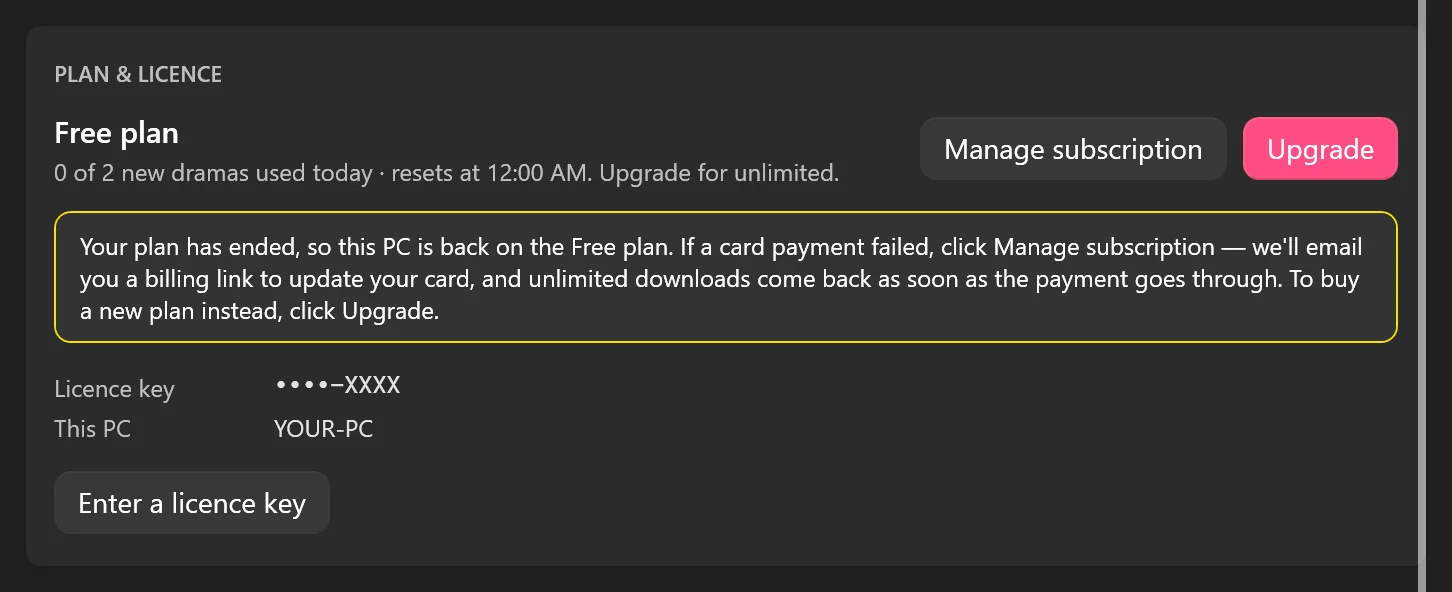
A plan ends when you’ve cancelled it and that period is over, or when a renewal payment can’t be collected. This PC then goes back to the Free plan, and the card says: Your plan has ended, so this PC is back on the Free plan. If a card payment failed, click Manage subscription — we'll email you a billing link to update your card, and unlimited downloads come back as soon as the payment goes through. To buy a new plan instead, click Upgrade.
- A card payment failed? Click Manage subscription, open the emailed billing link and update your card. Once the payment goes through, the same key works again on this PC within a few minutes, with nothing to re-activate.
- Subscription cancelled or ended? Click Upgrade and buy a new plan. You get a new key, and the app activates it on this PC if you keep the Upgrade window open while you pay.
 Open the full-size pictureOpen the full-size picture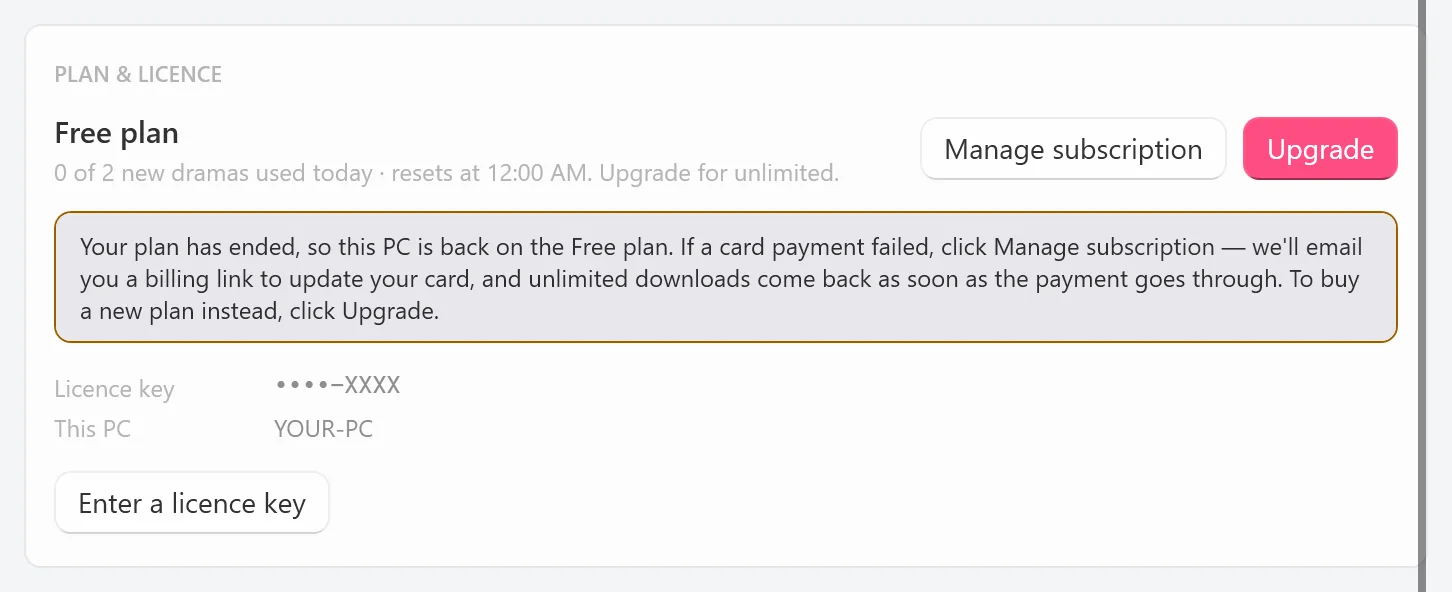
When a plan ends, downloads that are already running finish. Dramas still waiting in the queue have to fit the Free plan’s daily count again, and every video you’ve saved stays on your PC.
A Lifetime plan shows no end date. It lasts for the life of the product, which isn’t the same as forever: our Terms explain what that means.
Using the app offline
Paid plans keep working for up to 72 hours without internet. Downloading always needs internet; saved MP4s play offline in a video player that supports HEVC. The 72 hours count from the app’s last successful check with our licence server, and they never run past the end of your plan.
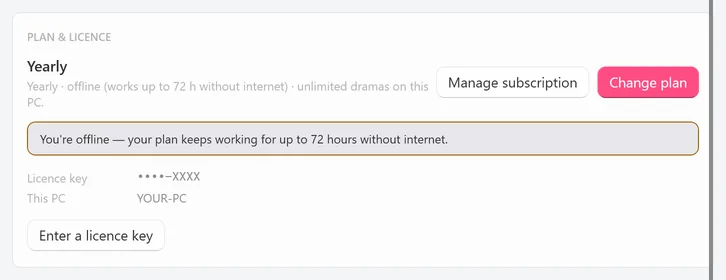
- While you’re offline on a paid plan, the badge keeps your plan’s name, and the card says
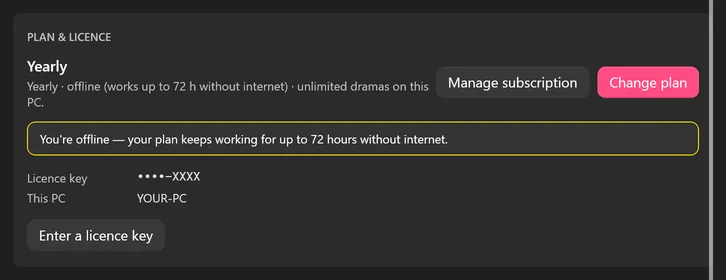
Yearly · offline (works up to 72 h without internet) · unlimited dramas on this PC.with the noticeYou're offline — your plan keeps working for up to 72 hours without internet. - Reconnect within 72 hours. The app confirms your plan at its next check, within about 5 minutes.
- If you stay offline longer, paid features stop until you reconnect, and the card says
You've been offline for more than 72 hours — connect to the internet to keep your licence active.
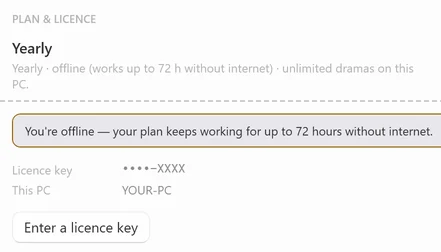
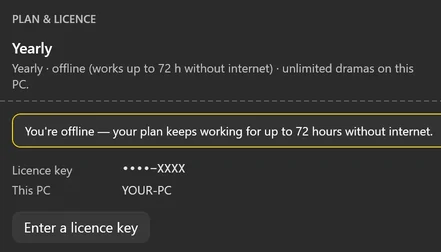 Open the full-size pictureOpen the full-size picture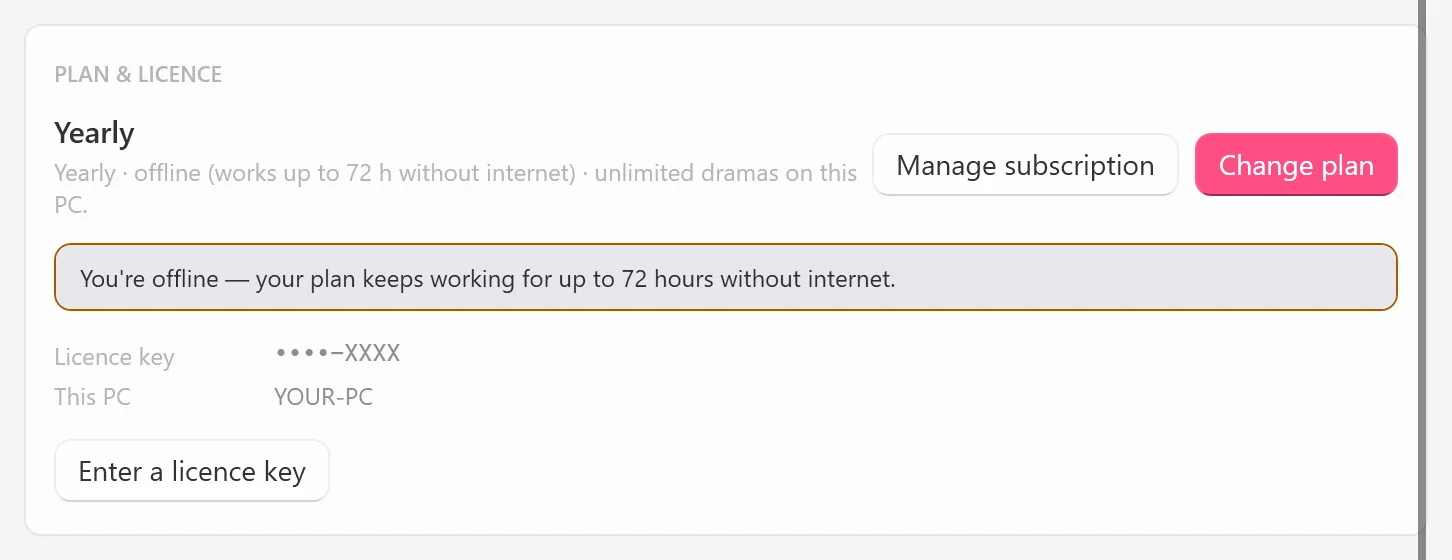
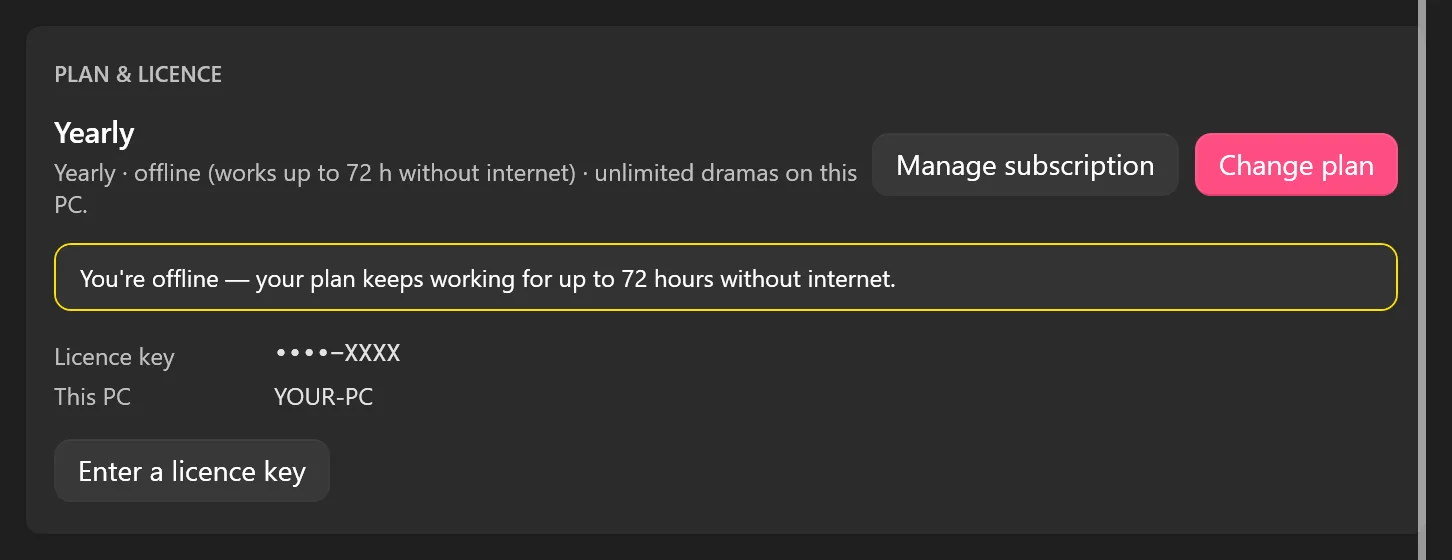
If you open the app with no internet at all, the card may say Can't check your licence right now. Check your internet connection and try again — your plan comes back as soon as it's confirmed. until the app reaches our server. Deactivate this PC isn’t shown while you’re offline, so move a key only while both PCs are connected.
The Free plan needs an internet connection, because its daily count is kept on our server. To watch what you’ve saved, you don’t need the app or the internet at all: downloading short dramas for offline viewing explains how.
Lost key, changed email and support
- Lost your key? Search your inbox and spam folder for
licence keyand for the subjectYour TikTok ShortDrama Downloader Yearly licence key(or Monthly, or Lifetime). The key email is your lasting copy: the app shows only the last 4 characters, and the page after paying shows the key for 3 hours only. - Still can’t find it? Email support@shortdramadownloader.com or message @M4st3r0 on Telegram, and include the email address you paid with. We may be able to help once we’ve checked your purchase.
- No longer have the email address you paid with? Billing links only ever go to that address, and we can’t send them anywhere else. To cancel a subscription, email or message us instead, as in Cancel a subscription, and tell us the email address you used at checkout.
When you contact us about a key or a charge, please include:
- the email address you used at checkout;
- your licence key, if you have it (send it only to us, through the contacts on this page);
- your plan, and the date and amount of the charge;
- what happened, and what you’d like us to do.
Never send your full card number, your card security code or your bank login details: we’ll never ask for them. Keep this page or your key email handy, because the app’s Settings has no support link.
Receipts and refunds
- Receipts: Stripe emails you a receipt after every payment, including each Monthly and Yearly renewal. It comes separately from the key email.
- Invoices: on Monthly or Yearly, click Manage subscription and open the billing page from the email to see your invoices.
- Lifetime: keep the Stripe receipt and the key email. Lifetime has no billing page in the app, and the key email includes your order confirmation.
These emails go to the address you used at checkout, so make sure that emails from us and from Stripe aren’t caught by your spam filter.
All sales are final, except where the law requires a refund. Our Refund Policy lists the exceptions:
- Billing errors, such as being charged twice, or charged for a renewal after your cancellation took effect. We correct them: tell us within 60 days of the charge.
- Charges you didn’t make or allow. We reverse them after we’ve checked your report.
- Rights that the law where you live gives you and that can’t be excluded.
- Duplicate or mistaken purchases, where we may help at our discretion.
A purchase that is refunded in full has its key turned off and any subscription linked to it cancelled. A chargeback does the same as soon as it’s opened, so please contact us before you dispute a charge: a dispute isn’t a way to cancel. A turned-off key makes the app say This key has been turned off. Contact support if you think this is a mistake.
Troubleshooting
| What you see | What to do |
|---|---|
Enter your licence key. | The key box was empty. Paste your key, then click Activate. |
That key doesn't exist — check it for typos. | Copy the key again from your key email; it starts with TSD-. Pasting the whole line from the email works too. |
This key is already active on another PC. Release it there first… | Click Deactivate this PC on the other PC, then activate here. If that PC is lost, broken or reset, contact support with your key and the email address you used at checkout. |
This key was moved recently — it can move again on <date and time>. | A key can move once every 7 days. Try again after that time. |
This key was activated too many times today. Try again tomorrow, or contact support if that wasn't you. | A key can be activated only a limited number of times on one PC in 24 hours. Wait, or contact support if you didn’t do it. |
This key's plan has ended — choose a plan to keep unlimited downloads, or contact support if you think this is a mistake. | The plan behind this key is over. Buy a new plan, or contact support if you think it should still be active. |
This key has been turned off. Contact support if you think this is a mistake. | The key was turned off, for example after a full refund or a chargeback. Contact support. |
Couldn't reach the licence server. Check your internet connection and try again. | Check your connection, and that no firewall blocks the app, then try again. |
This PC's licence details were lost or damaged, so it's on the Free plan for now. | Usually after a reinstall on the same PC. Click Enter a licence key and enter the same key again; there’s no 7-day wait. |
This key is now active on another PC, so this PC is back on the Free plan. | You’ll see this on a PC whose key support has reset, once the key is active on another PC. To use it here again, release it on that PC first. |
This key was activated on another PC. Activate it again here to continue. | Click Re-activate this PC. The app’s next check usually sorts this out within a few minutes anyway. |
Couldn't reach the billing server — check your connection and try again. | Check your connection, then click Manage subscription again. |
This licence wasn't bought with a card, so there's no subscription to manage. | A gift or promotional key has no subscription, so there’s nothing to cancel. |
There's no email address on this purchase — email support@shortdramadownloader.com to manage it. | Email us and we’ll manage it for you. |
Couldn't open billing right now — please try again, or contact support. | Try again a little later, or contact support. |
The plan badge says Free · offline | The app can’t reach our licence server. Connect to the internet; your plan comes back as soon as it’s confirmed. |
| No key email arrived | Check your spam and promotions folders. Still nothing? Contact support with the email address you paid with. |
FAQ
Can I use my licence on more than one PC?
Not at the same time. A paid licence key is active on one PC at a time and can be moved to another PC once every 7 days. To use the app on two PCs at once, each PC needs its own plan. Keep your key private: anyone who has it can try to use it, and a key that is passed around can be turned off.
Does Lifetime mean forever?
No. Lifetime is a one-time payment of US$59.99 that lasts for the life of the product: it ends if the app is discontinued, with no refund. It’s still one PC at a time, and it still needs an internet check-in at least every 72 hours. See section 10 of our Terms.
Do I need to cancel before I uninstall the app?
Yes, if you don’t want to be charged again. Uninstalling the app doesn’t cancel a subscription, and neither does Deactivate this PC. Cancel first, as in Cancel a subscription.
Can I get credit for my old plan if I upgrade?
No, not for a plan bought this way: in this version of the app every new plan is a separate purchase with its own key, so it earns no credit for the time left on the old plan. Cancel the old subscription so it doesn’t renew; its key keeps working until the end of the period you paid for.
Why does the card show my PC’s name?
This PC shows your Windows computer name, never your Windows user name. When you activate, it’s recorded with your key so that support can see which PC holds it, for example to reset the key for a lost PC. Deactivate this PC removes it from the key’s record. Our Privacy Policy has the details.
What happens to my videos when my plan ends?
They stay where they are. The app never deletes files you’ve saved: when a plan ends, only new dramas count against the Free plan’s daily limit again.
Can I buy a key for someone else?
Contact us first. A licence is personal to the person who bought it, and a key can’t be passed on, sold or given away. See section 8.7 of our Terms.