How to use TikTok ShortDrama Downloader: the complete walkthrough
A tour of TikTok ShortDrama Downloader (the same app as PineDrama Downloader): sign in, find dramas, pick episodes, then the Queue, Library and Settings.
Written with AI assistance and reviewed by the ShortDrama Downloader team before publication. How we make guides
In short
- Short answer: sign in once with TikTok, find a drama in Browse or paste its link on Download, choose episodes and quality in the episode picker, then follow the Queue and open the Library.
- What it is: a Windows app that saves TikTok short-drama series, and PineDrama dramas from their links, as MP4 files: every available episode or only the ones you pick, one folder per series, for personal offline viewing where permitted.
- One app, two names: TikTok ShortDrama Downloader and PineDrama Downloader share one installer, the same plans and the same licence keys, and the window always says TikTok ShortDrama Downloader.
- What you need: a 64-bit Windows 10 or 11 PC, your own TikTok account and an internet connection for downloading.
- Free plan: 2 new dramas per PC per day, each with every available episode in any quality TikTok offers for it; paid plans remove the daily limit.
This is the complete tour of TikTok ShortDrama Downloader 1.5.0, in the order a new user meets it: installing, signing in, finding dramas, choosing episodes, downloading, and managing what you saved. Each part says what you see, what it does and where its limits are, and links to the guide that goes deeper. If you installed PineDrama Downloader, all of it applies to you as well: it is the same app.
Applies to: TikTok ShortDrama Downloader and PineDrama Downloader (the same app) 1.5.0 on Windows 10 and 11 (64-bit). Tested on Windows 11 Pro 25H2, 30 September 2026.
Features at a glance
- Browse TikTok’s short-drama shelves: All, Trending, New releases and Latest as a poster grid, with filters and 15 region choices. Posters you already have carry an
In librarybadge. - Search by title in Browse or on the Download tab, and More like this for TikTok’s similar dramas.
- Paste links: TikTok share and episode links, a video that is an episode of a drama, a creator’s @profile, numeric ids, and PineDrama share or episode links, one per line for a batch. Links to other websites are never opened.
- A whole series or only some episodes: one click queues a series, and the episode picker takes a selection or a range such as
1-20, 25. - Quality as a ceiling: 1080p, 720p or 540p. Each episode gets the best tier TikTok serves for it, up to your choice, and the Queue shows the tiers you really got.
- HEVC at every tier, H.264 at 540p: the Library’s Convert to H.264 makes full-resolution H.264 copies for devices that need them.
- Subtitles TikTok provides, when you tick them: inside the MP4 and as a
.vttfile next to it. - Preview EP 1: the first 60 seconds of episode 1, before you download anything.
- Batch downloads: up to 8 series at a time and up to 8 episodes per series, with at most 16 downloads at once.
- A Queue that survives a restart: one card per drama with Retry, ✕ and Open. Unfinished downloads come back the next time you open the app, ready for Resume all.
- A Library of your series: covers with episodes saved and size, five sort orders, Update for new or missing episodes when you click it, Merge into one MP4, Play in your default Windows video player, and Delete to the Recycle Bin.
- Plain files: MP4 files in one folder per series, named after the drama, going straight from TikTok to your PC.
- Dark and Light themes.
- Sign-in on TikTok’s own page: you sign in inside the app, on TikTok’s login page. Your password goes to TikTok, the session stays encrypted on your PC, and the app has no ads or analytics.
- Plans: the Free plan gives you 2 new dramas per PC per day. Monthly, Yearly and Lifetime remove the daily limit, and you can buy them in the app with card checkout in your browser.
Install and first start
What you need first:
- A 64-bit Windows 10 or 11 PC. There’s no Mac, phone or web version.
- Your own TikTok account. You don’t need an account with us.
- An internet connection. Downloading always needs one; the files you save play offline.
- Download the installer from the TikTok ShortDrama Downloader download page or the PineDrama Downloader download page. Both pages offer the same 106 MB installer and list its SHA-256 checksum, so you can check the file.
- Run it. If Windows shows “Windows protected your PC”, click More info, then Run anyway.
- Go through the wizard. The app installs for your Windows user only and doesn’t need administrator rights. Create a desktop shortcut is ticked unless you untick it.
- On the last page, leave Launch TikTok ShortDrama Downloader ticked and close the installer.
The Log in to TikTok window runs on the Microsoft Edge WebView2 Runtime. Windows 11 and most Windows 10 PCs already have it. If yours doesn’t, the installer says so, and OK opens Microsoft’s download page: click Download under “Evergreen Bootstrapper”, run the file, then start the app. The tools the app downloads with are installed with it.
When the app opens for the first time:
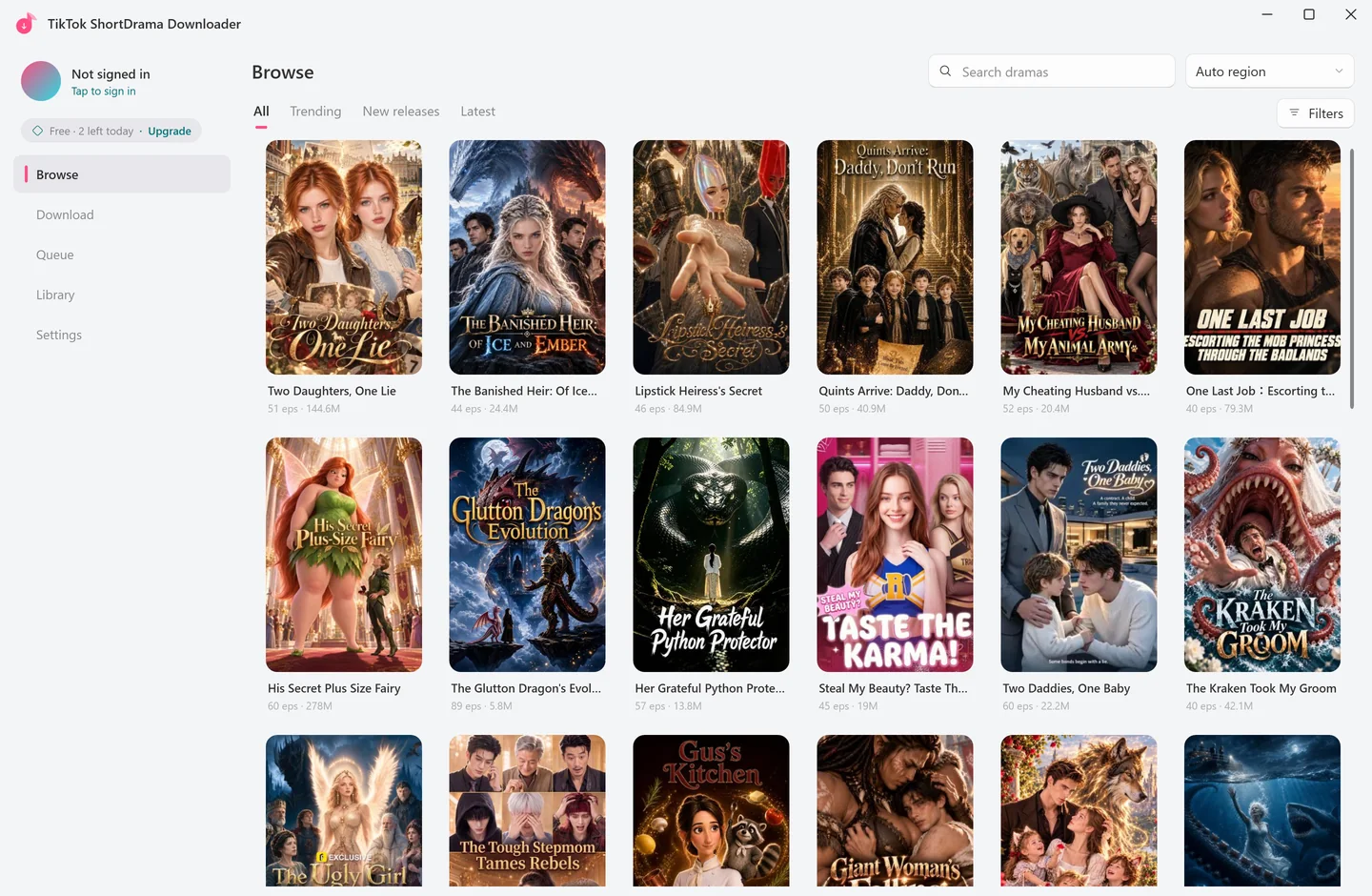
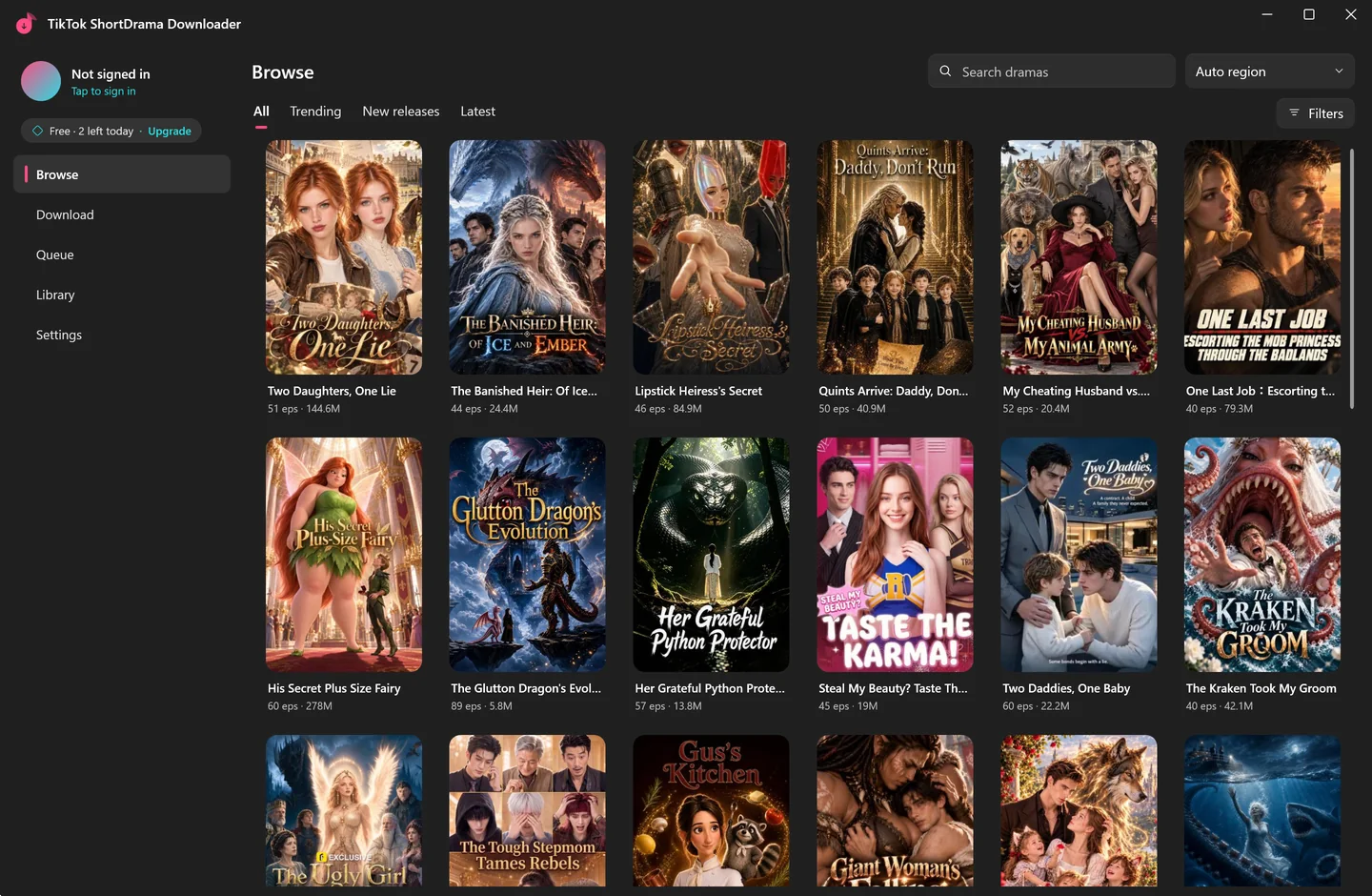
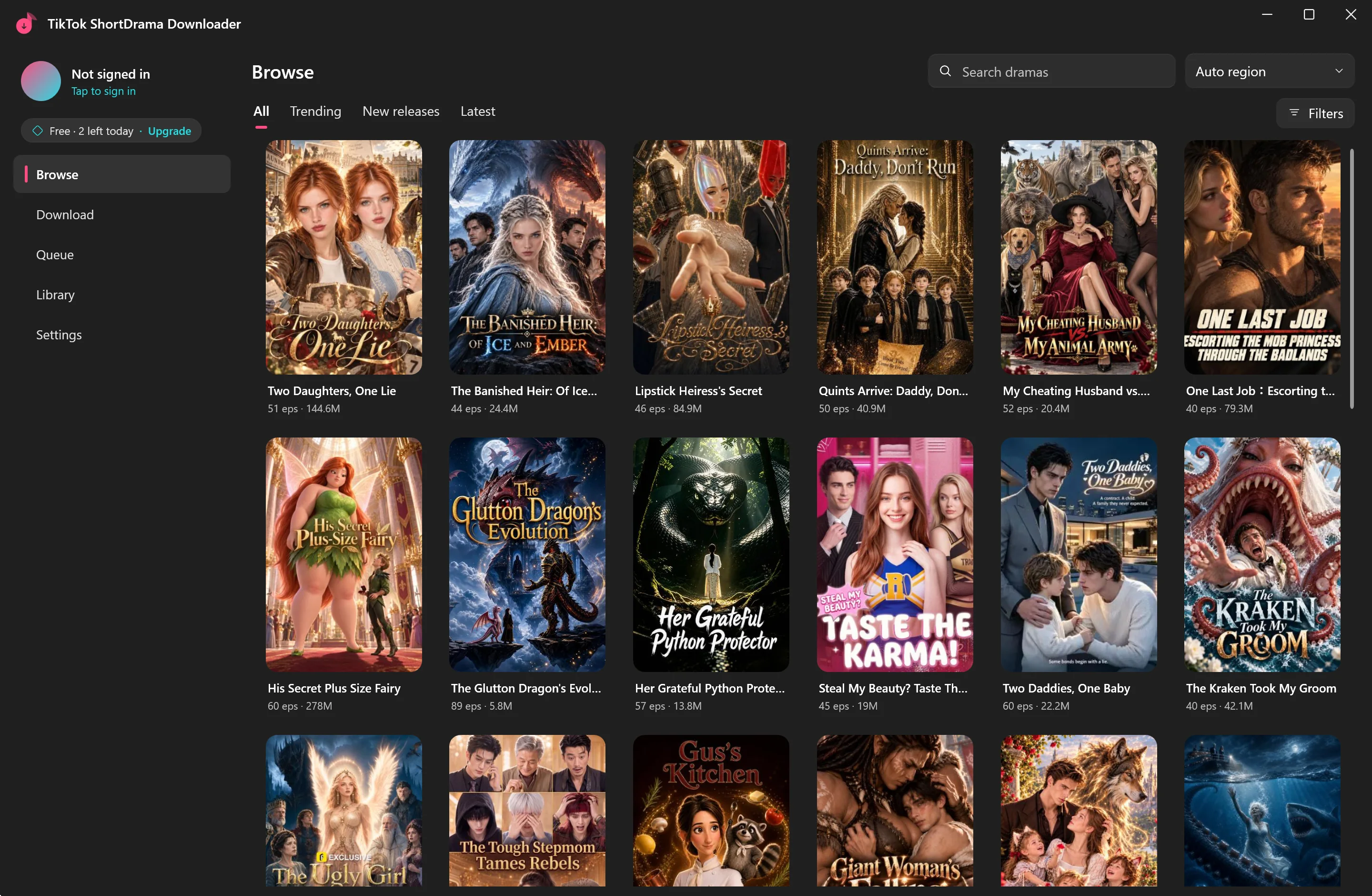
- It opens on Browse, in the Dark theme. Browse already shows TikTok’s posters before you sign in, but searching and downloading need your TikTok sign-in.
- The top of the left rail reads Not signed in, with
Tap to sign inunder it. That’s where you sign in (next section). - The plan badge under it shows
…during the first check, then your plan; on the Free plan that’sFree · 2 left today. - If you closed the app with downloads unfinished, it opens on the Queue instead, under a
Resume last session?banner.
 Open the full-size pictureOpen the full-size picture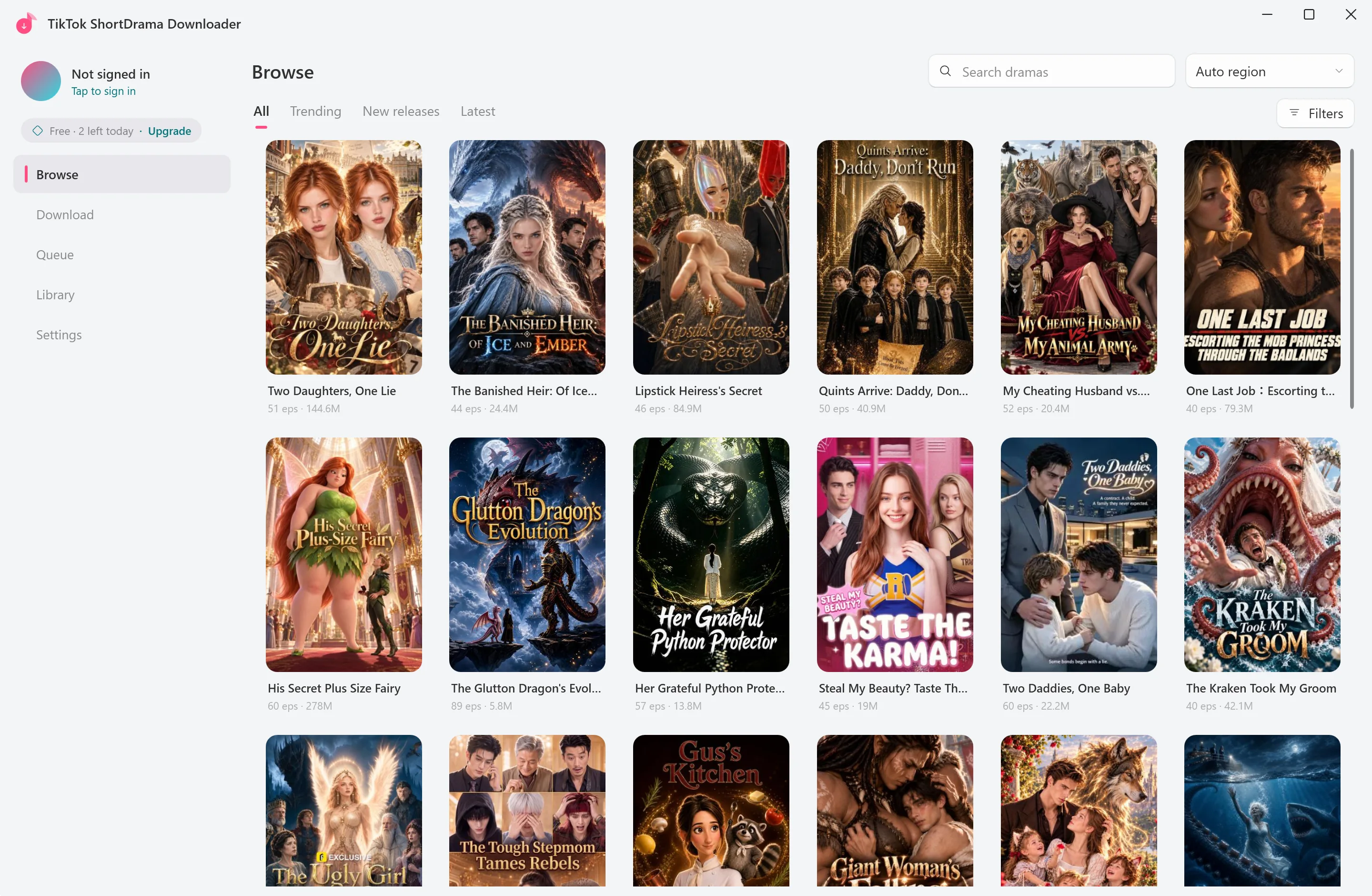
Tested on 30 September 2026
The screenshots of the first start, the bar of the Log in to TikTok window before signing in, the signed-out ACCOUNT card, the empty Download box and the lower Settings cards were taken on 4 October 2026 on a test build of the same version, 1.5.0, connected to our own test licence server and signed out of TikTok. That first start also showed that Browse lists TikTok’s posters before you sign in. The other results in this guide come from our tests on 30 September 2026.
Updating: the app has no updater of its own. Download the new installer and run it over the old version; your Library, settings and TikTok sign-in are kept.
Uninstalling: remove it like any Windows app, or use Uninstall TikTok ShortDrama Downloader in its Start menu folder. It asks Also remove your settings and TikTok sign-in from this PC?, and the answer is No unless you choose Yes. Your downloaded videos and your Library stay either way; after a Yes, a later reinstall needs your TikTok sign-in again, and your licence key if you have one.
Go deeper: How to download short dramas for offline viewing on Windows explains what the app can and can’t save, and Video downloaders vs short-drama downloaders explains what kind of tool it is.
Sign in with TikTok (once)
Search, pasted links, Preview EP 1, every download and Library Update use your TikTok session, so sign in before anything else. You do it once and the app keeps the session.
- Click Not signed in at the top of the left rail. Settings opens.
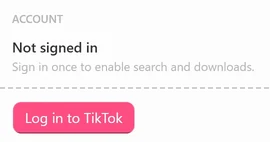
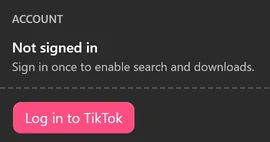
- In the ACCOUNT card, under
Sign in once to enable search and downloads., click Log in to TikTok. - The Log in to TikTok window opens TikTok’s own login page. The bar above it reads
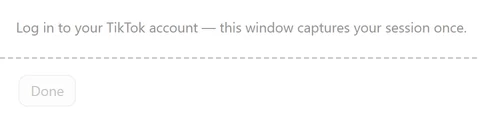
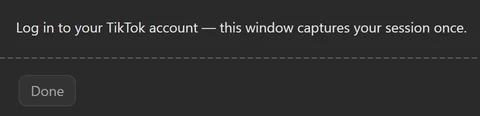
Log in to your TikTok account — this window captures your session once., and Done is grayed out. Sign in the way you usually do; Google and Apple sign-in stay inside this window. - When the bar changes to
Logged in ✓ session captured — click Done., click Done.


 Open the full-size pictureOpen the full-size picture



 Open the full-size pictureOpen the full-size picture


 Open the full-size pictureOpen the full-size picture

Your TikTok picture, name and @handle then appear at the top of the rail. Click them whenever you want Settings.
- Privacy: your password goes to TikTok, not to us. The app stores the session encrypted on your PC, for your Windows user only, and never sends it to us.
- PineDrama: PineDrama users sign in with the TikTok account they use in PineDrama.
- Switch account and Log out are in Settings > ACCOUNT. Switch account signs you out and opens the login window again.
- Signed out by accident? Searches and downloads then stop with a line such as
Log in to TikTok first — see Settings ▸ Account.Sign in again and repeat what you did.
Go deeper: signing in, step by step in the TikTok series guide, and How to save PineDrama episodes to your PC for PineDrama users.
The main window
 Open the full-size pictureOpen the full-size picture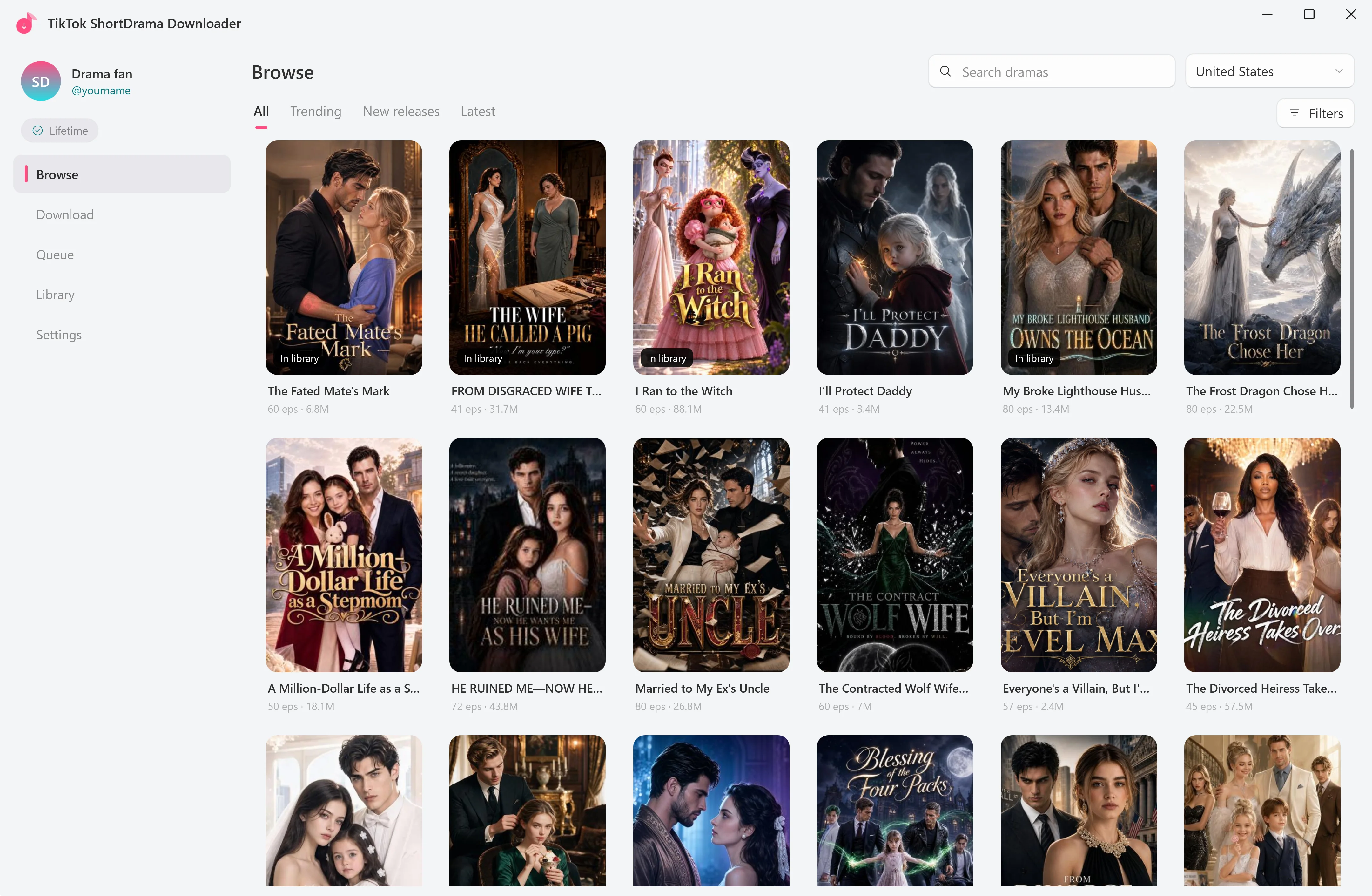
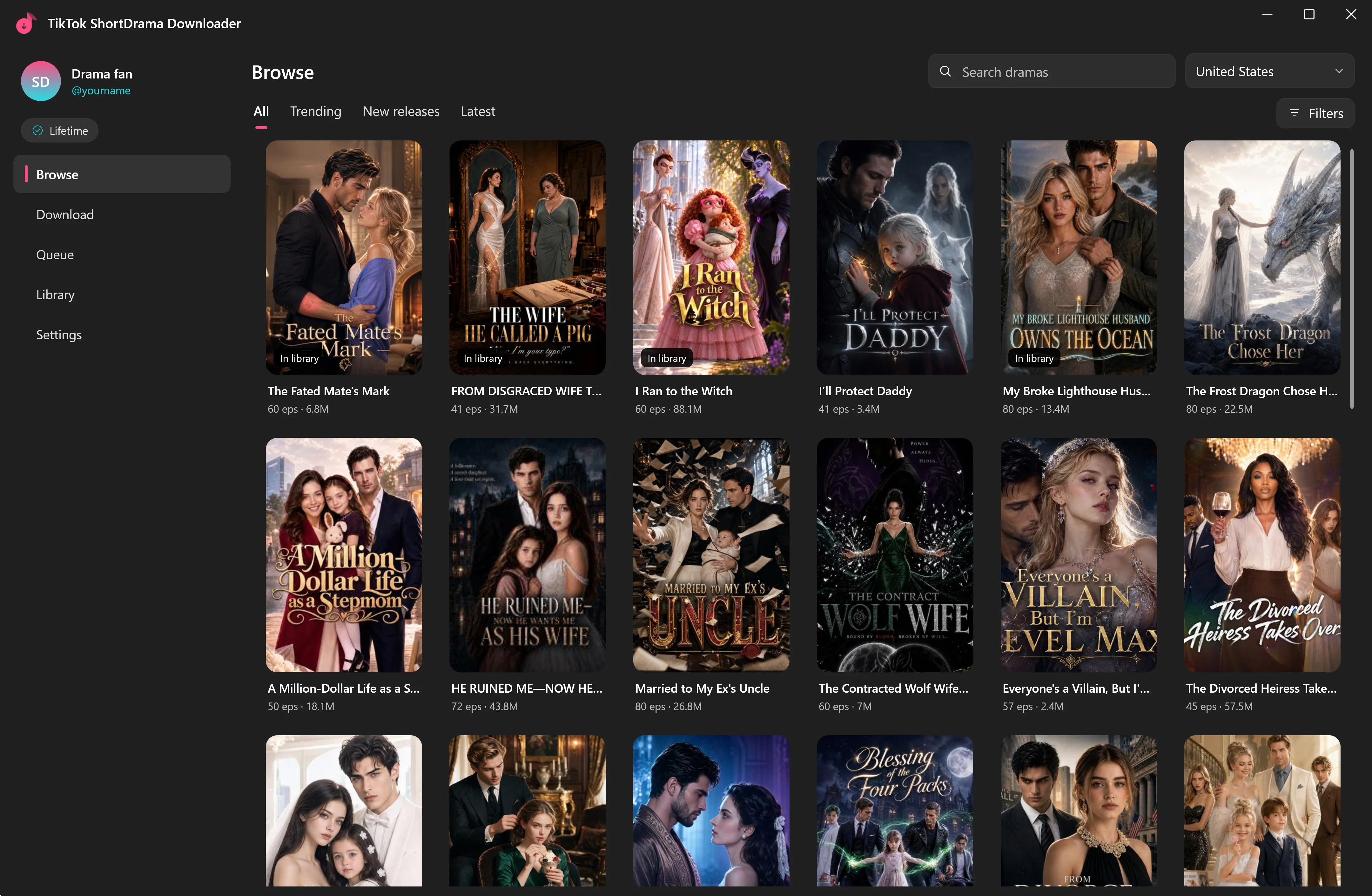
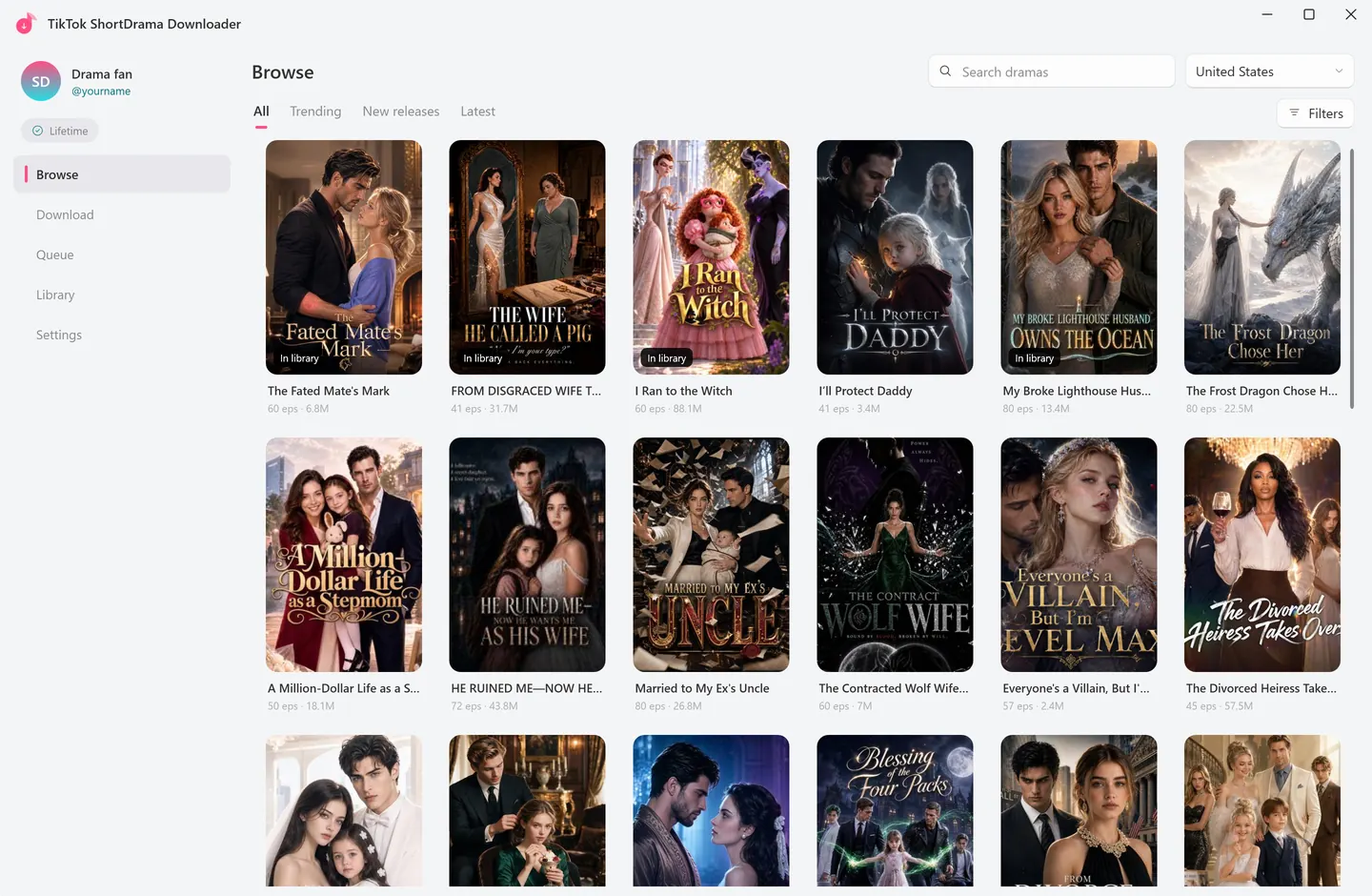
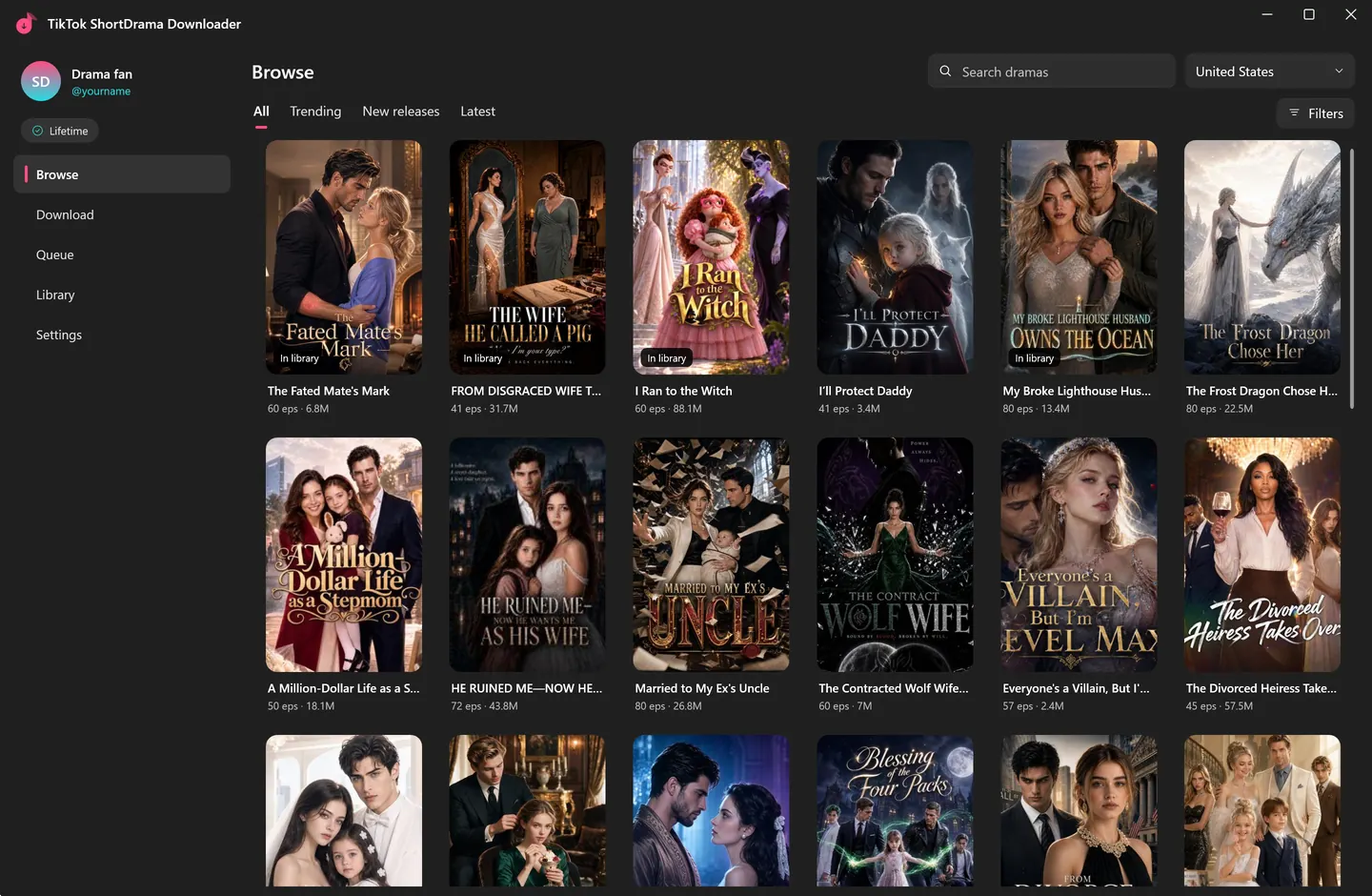
- Title bar: it always reads TikTok ShortDrama Downloader, in both editions. If you installed PineDrama Downloader, this is the same app under its other name.
- Account: the top of the left rail shows your TikTok picture, name and @handle, or Not signed in. Click it to open Settings.
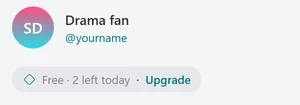
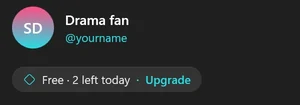
- Plan badge on the Free plan: it reads
Free · 2 left todayfollowed by Upgrade, and clicking it opens the Upgrade window. The number goes down as you start new dramas.Free · offlinemeans the app can’t reach our licence server to check today’s count. - Plan badge on a paid plan: it shows
Monthly,YearlyorLifetimewith a check mark, and clicking it opens Settings. - Badge summary: point at the badge for a one-line summary, such as
Free · 0 of 2 dramas used today. - Sections: Browse, Download, Queue, Library and Settings, top to bottom.
- Theme: Dark at first. Settings > APPEARANCE switches to Light.
- Closing: the app closes without asking. Unfinished downloads are kept and offered again the next time you open it.
 Open the full-size pictureOpen the full-size picture
Browse TikTok’s short-drama shelves
Browse shows TikTok’s short-drama catalog as posters and loads more as you scroll. It covers TikTok only: for PineDrama you paste links on the Download tab.
- Shelves: All, Trending, New releases and Latest. On Trending and New releases, the line under a poster starts with its chart position, such as
#3. - Posters: the cover, the title and a line such as
60 eps · 7M(episodes and views).In librarymarks a series that’s already in your download folder, andQueuedone that’s waiting in the Queue. - Search dramas: type a title and press Enter; Ctrl+F jumps to the box. Results appear under
Results for “…”, and Back returns you to the shelf where you were. - Region box: picks which country’s catalog Browse shows, from 15 choices. Its tooltip says
Which country's catalog to show. Auto uses your TikTok account's region.The app remembers your shelf and region. - Filters (on the All shelf): rows of chips that come from TikTok, plus a Released row. Pick one chip per row; the button then counts your filters, and Clear filters removes them.
- Click a poster to open its episode picker.
- Point at a poster for two buttons: the round mark at the top left selects it, and the download button at the top right (Download all episodes) queues the whole series.
- Right-click a poster for Open, Download all episodes, Select, More like this, Open on TikTok and Copy link. More like this lists TikTok’s similar dramas under
More like “…”.
Queue several dramas from Browse
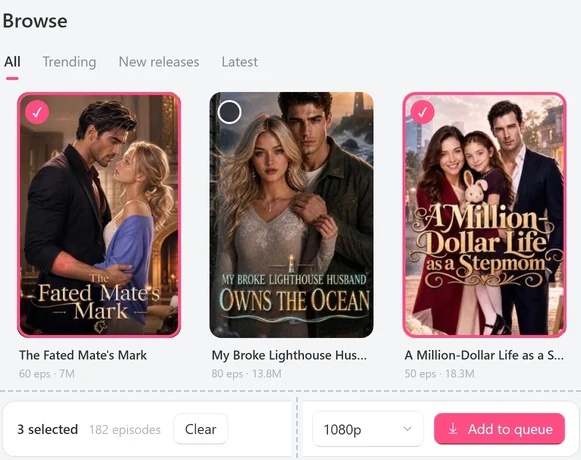
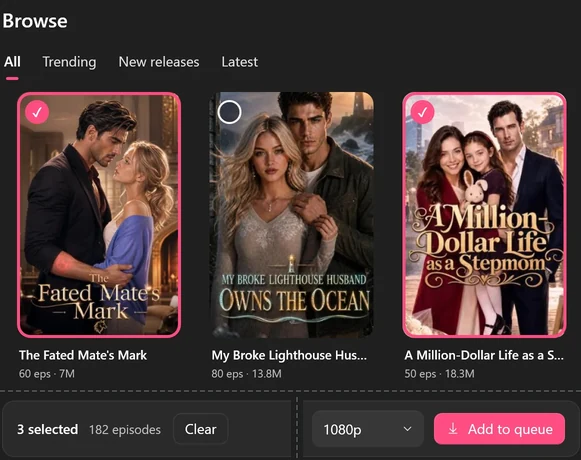
- Click the round mark on a poster, Ctrl+click it, or right-click it and choose Select. Once one poster is selected, clicking another selects it too.
- Select more. Ctrl+A selects every poster loaded so far, and Esc clears the selection.
- Check the bar at the bottom, which counts the dramas and their episodes, choose a quality in the box next to Add to queue, and click Add to queue.
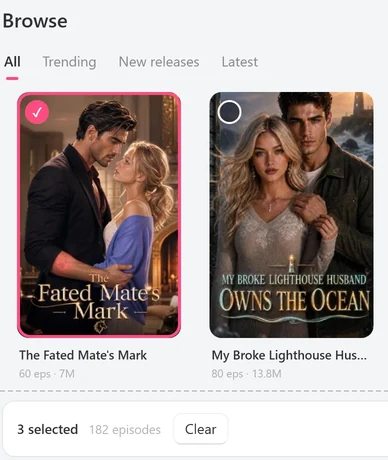
 Open the full-size pictureOpen the full-size picture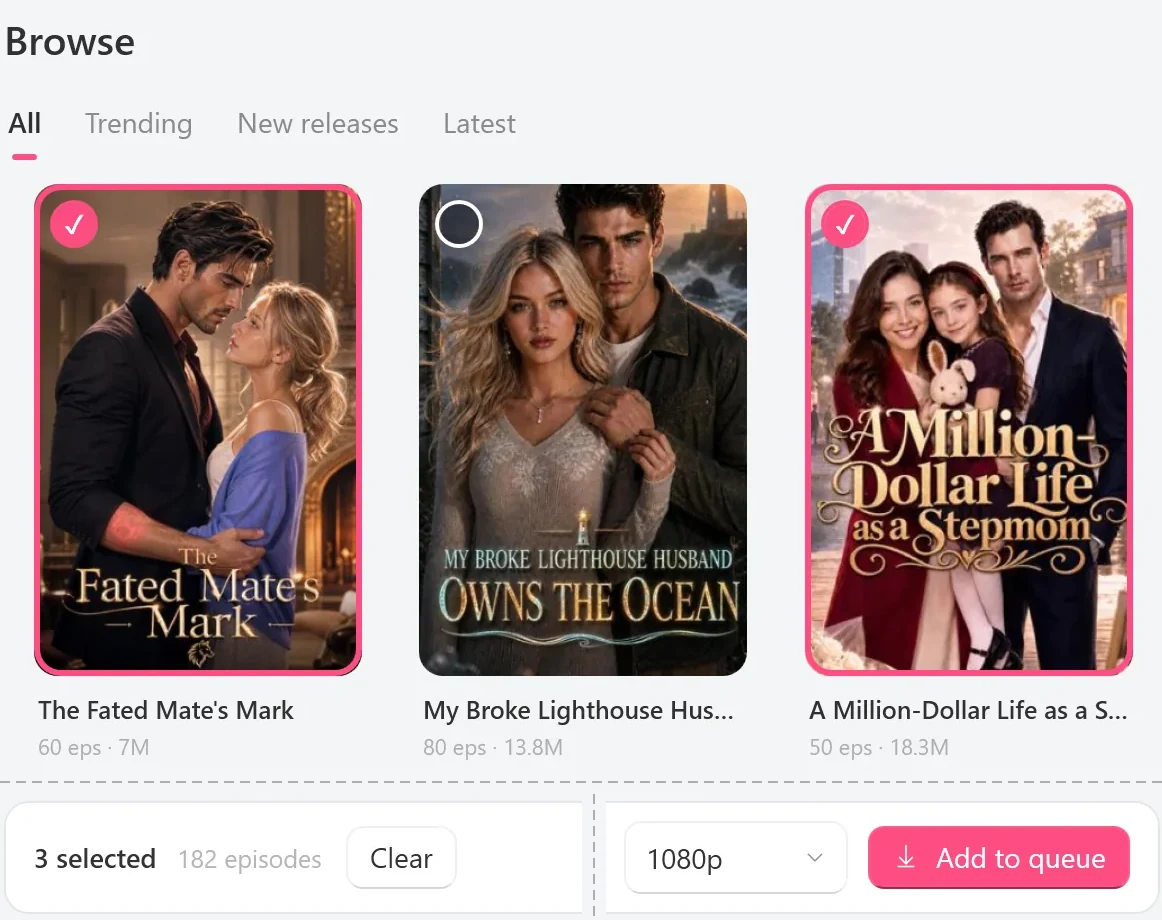
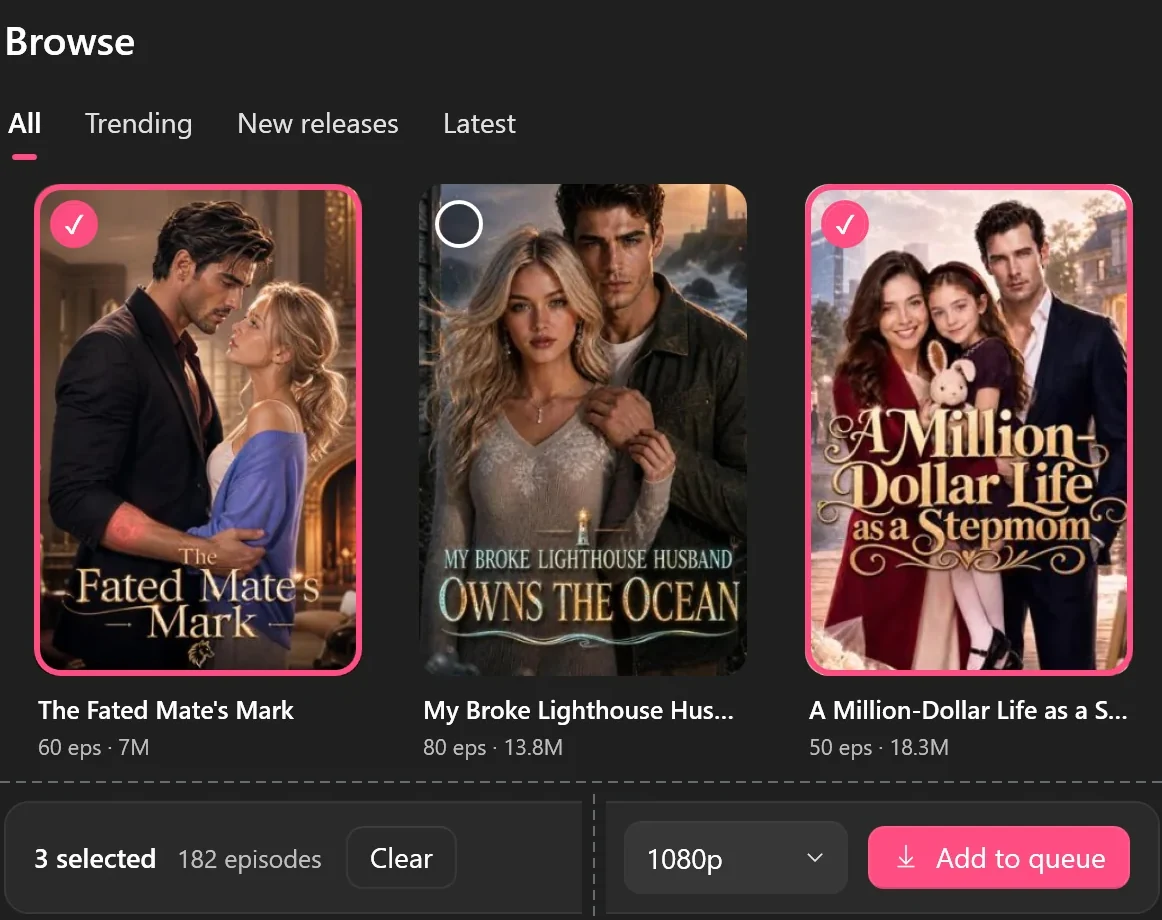
What Browse’s one-click buttons queue:
- every episode of the series, at your quality as a ceiling: the default quality from Settings for a poster’s download button and Download all episodes, and the quality box for Add to queue (it starts at your default);
- in HEVC, unless the quality is 540p and your default codec is H.264;
- without subtitles: tick those in the episode picker.
A line such as Queued 182 episodes from 3 dramas at up to 1080p. confirms it, with View queue. On the Free plan the app checks your plan first; a batch that can’t start at all reports Nothing queued — free daily limit reached.
Go deeper: Batch-download several TikTok short dramas at once.
The Download tab: titles and links
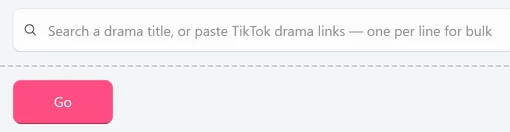
The Download tab has one box for everything: Search a drama title, or paste TikTok drama links — one per line for bulk. Type or paste, then click Go or press Enter. Shift+Enter starts a new line.


 Open the full-size pictureOpen the full-size picture

- A title: the app searches TikTok and lists the matching dramas as posters (
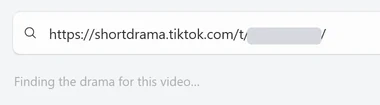
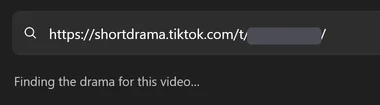
Searching…, then a count such as1 found.). - One link: the app finds the series and opens its episode picker. Meanwhile the line under the box shows what it’s doing; for a share link,
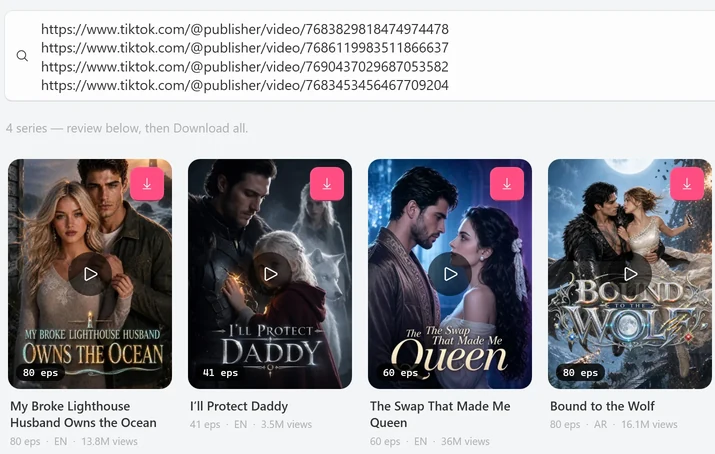
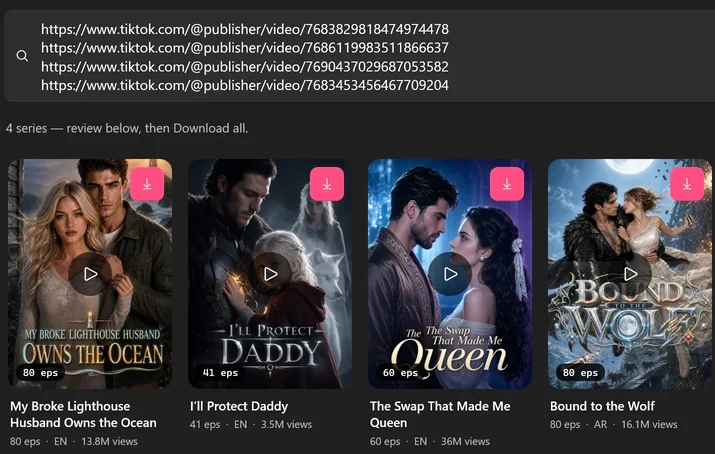
Resolving short link…and thenFinding the drama for this video…. - Several links, or a creator’s profile link: each drama becomes a poster with a line such as
80 eps · EN · 13.8M views. The line under the box reads like4 series — review below, then Download all., and the Pasted links bar at the bottom shows how many are ready, such as4 series ready to queue, next to Download all. Clear results empties the list. - A result poster: click it to open its episode picker, or click its download-arrow button (
Queue every episode) to queue the whole series. - Links can be separated by new lines, spaces, commas, semicolons or tabs, and TikTok and PineDrama links can be mixed.
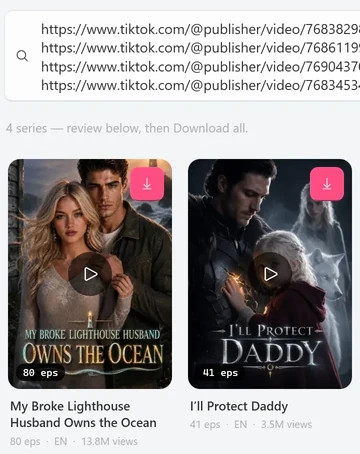
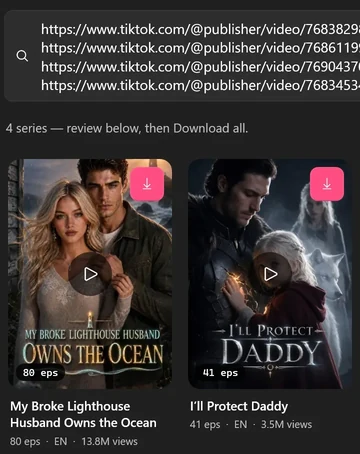 Open the full-size pictureOpen the full-size picture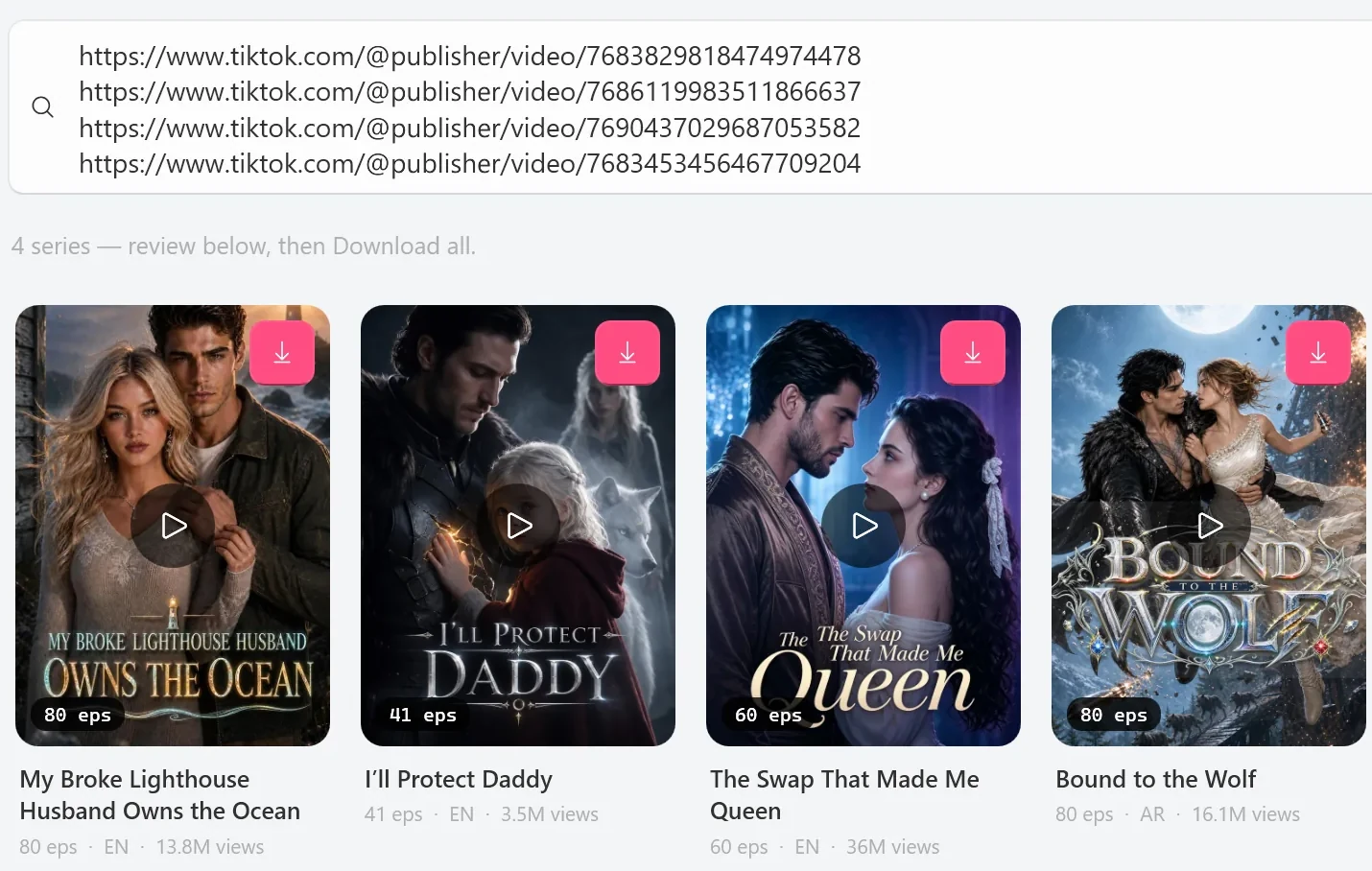
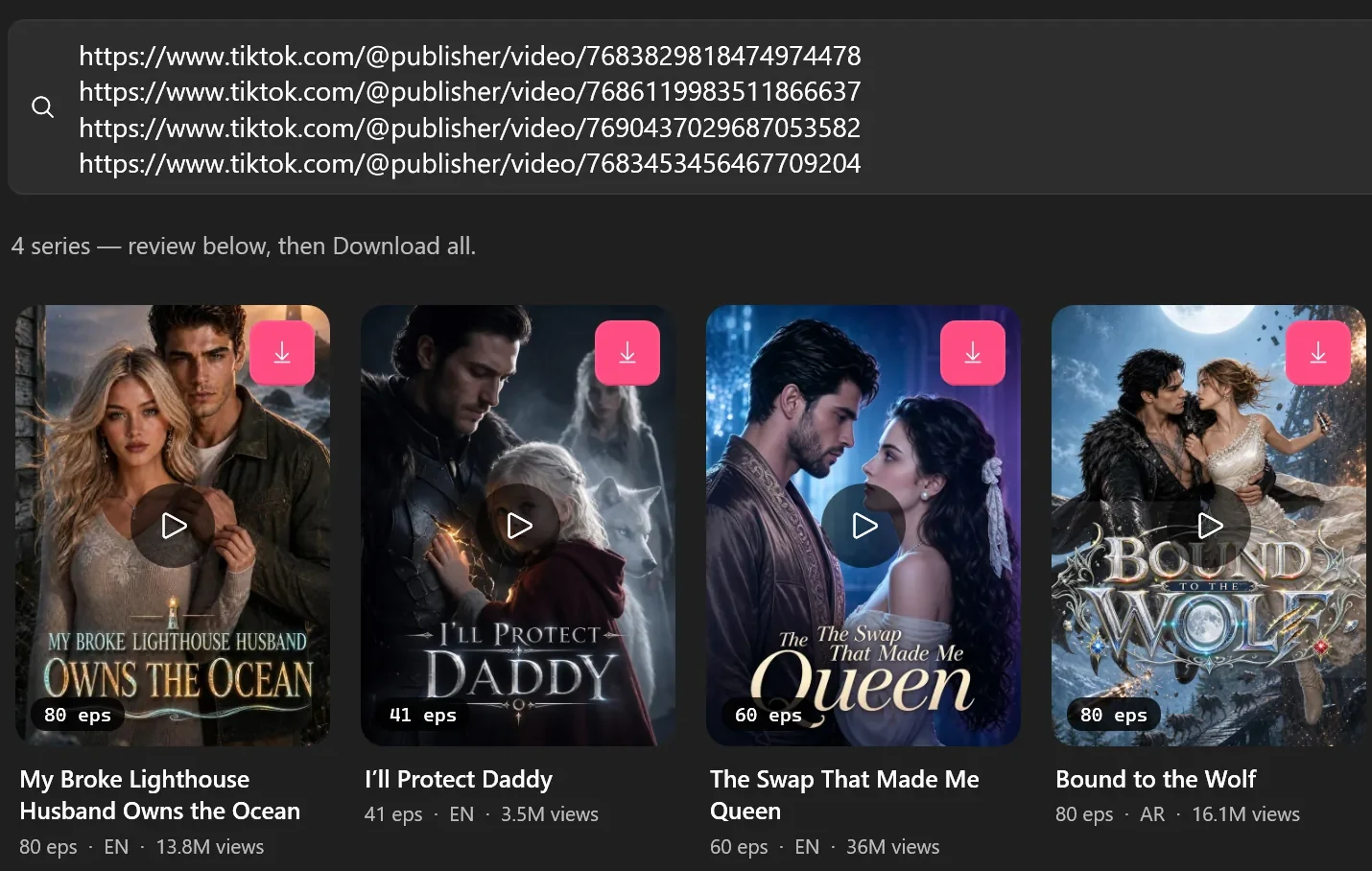
Links the box understands
- TikTok share links, such as
https://www.tiktok.com/t/...orhttps://vm.tiktok.com/... - short-drama episode links (
.../shortdrama/episode/...) - a link to a video that is an episode of a short drama
- a creator’s profile link (
https://www.tiktok.com/@name), for the dramas on its Short dramas tab - a drama or episode number on its own
- PineDrama share or episode links
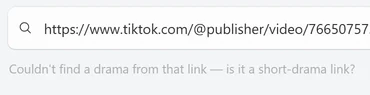
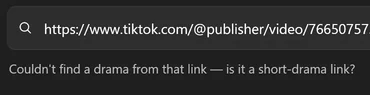
Not supported: ordinary TikTok videos, sounds, photo posts, collections, playlists and likes. A collection link is read as its owner’s profile, so you only get that creator’s dramas. Links to other websites are refused without being opened: Only TikTok and PineDrama links work here — “example.com” isn't one, so it wasn't opened.


 Open the full-size pictureOpen the full-size picture

PineDrama links
Paste a PineDrama share link in the same box and click Go. The line under the box shows Resolving short link…, then Finding the drama for this video…, and the episode picker opens. PineDrama share links work outside the US, but a particular drama can still be unavailable in some countries. Some PineDrama page links only open in certain countries; if one doesn’t open, copy that episode’s share link in PineDrama instead.


 Open the full-size pictureOpen the full-size picture

What Download all and the poster button queue
Download all, and the download button on a result poster, queue every available episode of the series:
- at the best quality TikTok has for each episode, with no ceiling;
- in your default codec from Settings, so if that’s H.264 you get 540p;
- without subtitles.
Download all loads each series, checks your plan, queues everything and switches to the Queue. A series that can’t be loaded never uses a Free plan slot, and a link that leads to no drama is left out without a message of its own, so count the posters against your list. To set a quality ceiling, a range or subtitles for one series, click its poster instead.
Go deeper: Batch-download several TikTok short dramas at once, How to save PineDrama episodes to your PC and Video downloaders vs short-drama downloaders.
The episode picker
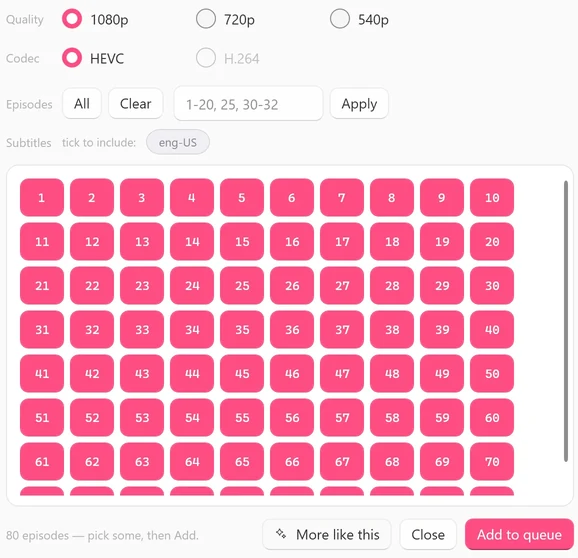
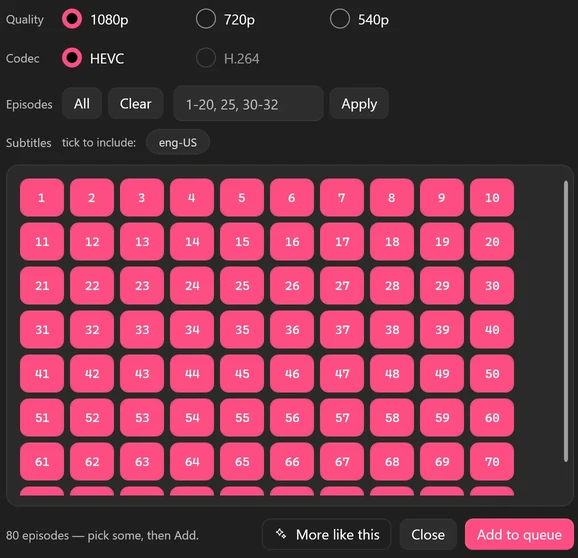
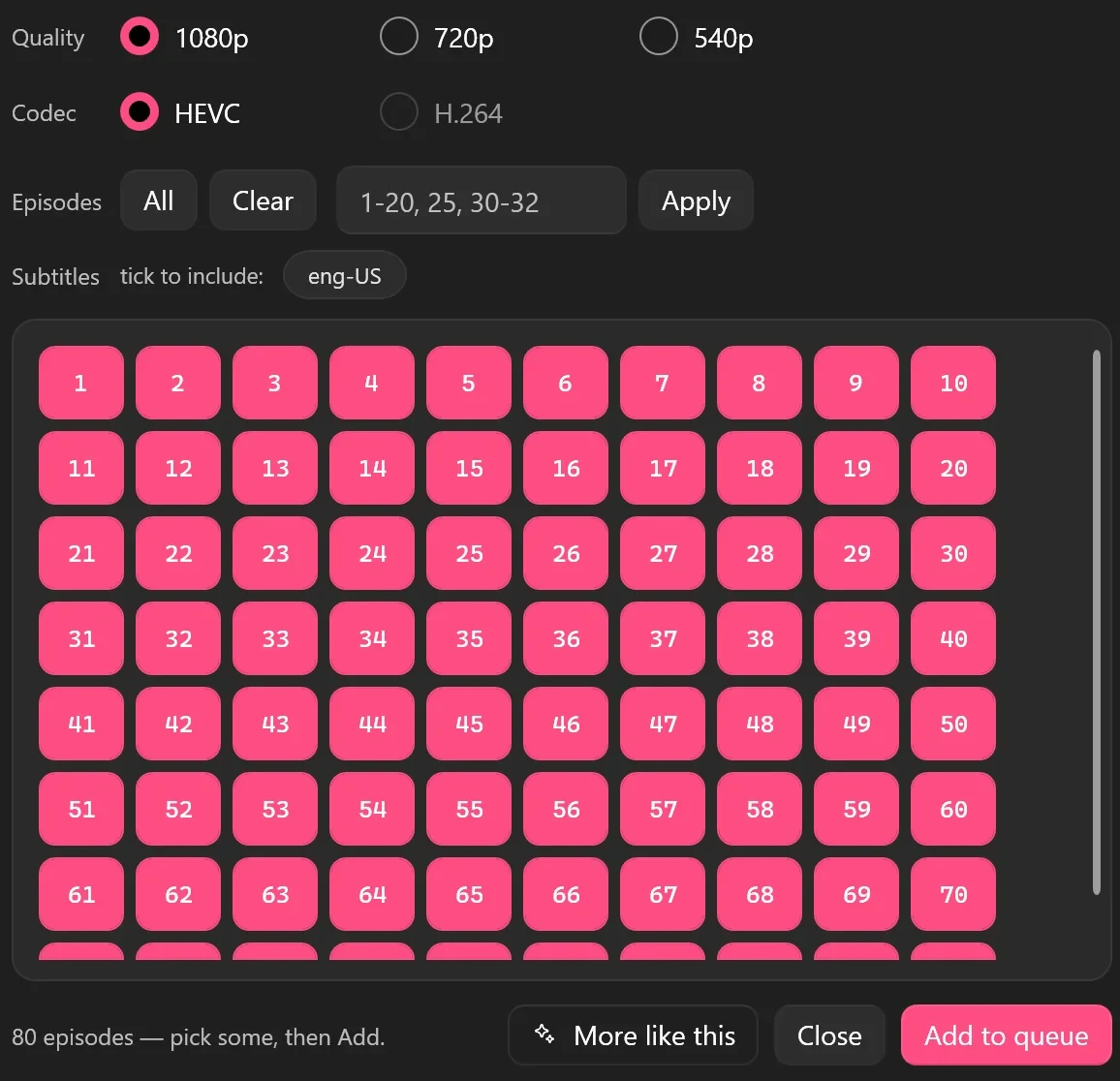
The picker opens when you click a poster, or when you paste a single link. Its window carries the drama’s name, and Esc closes it. On the left are the cover and Preview EP 1. On the right are the title, a line such as 80 eps · EN · 13.8M views, the description, and four rows of choices above the episode numbers.
 Open the full-size pictureOpen the full-size picture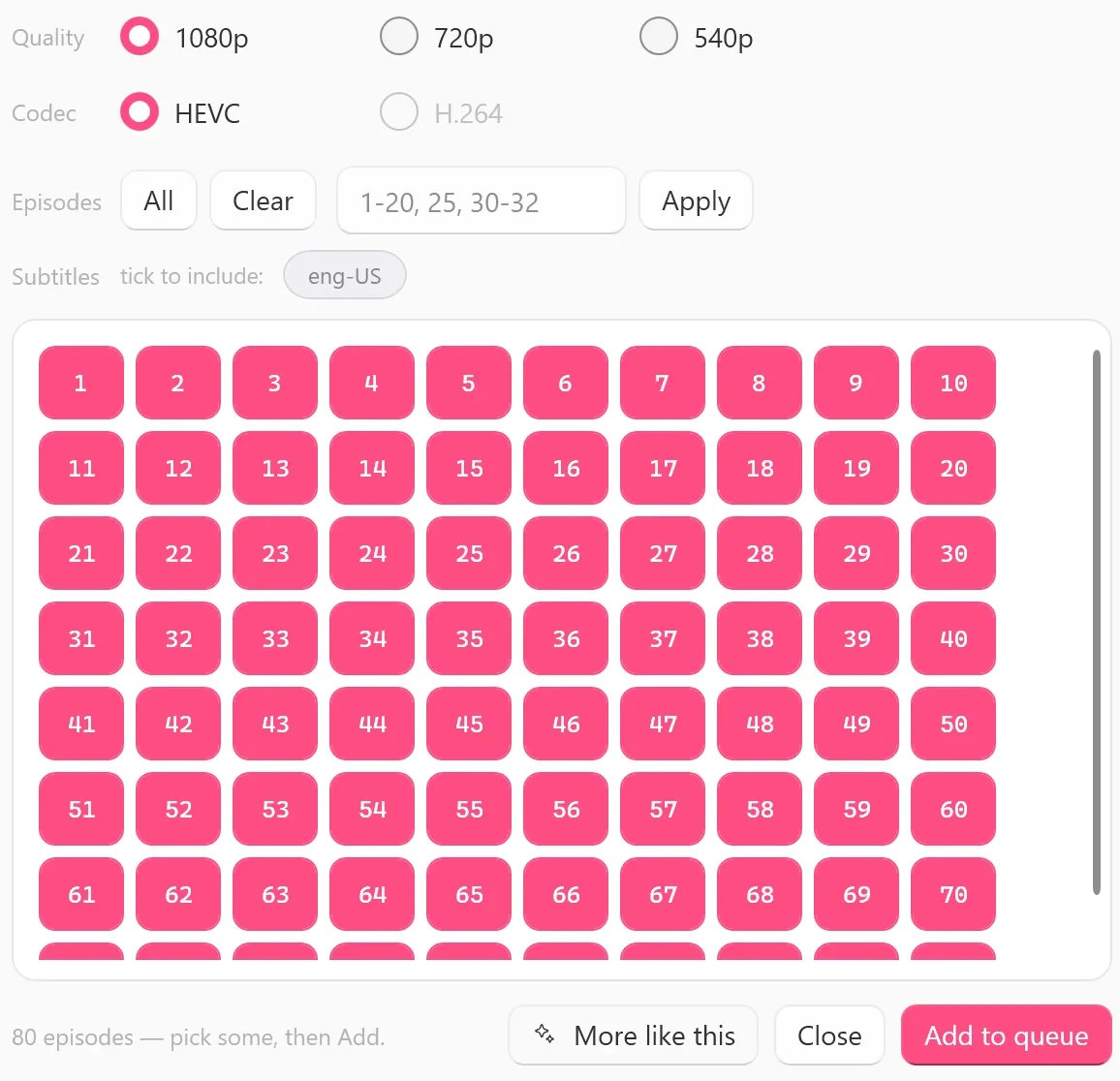
Quality
- 1080p, 720p and 540p are ceilings: each episode is saved at the best tier TikTok serves for it, up to your choice. Nothing is saved above 1080p, and nothing is enlarged.
- The picker checks the first, a middle and the last episode, grays out a tier that none of them has, and moves your choice to the best tier left. Point at a grayed-out tier to see why, such as
This drama has no 1080p version. - Tiers can still differ inside one series, so a series can arrive as
540p-1080p. - The choice starts at your default quality from Settings, which is 1080p unless you changed it.

 Open the full-size pictureOpen the full-size picture

Codec
- HEVC works at every tier and is the default; its tooltip says
High efficiency — smaller file. - H.264 is offered at 540p only, so select 540p first; its tooltip starts
Compatible with almost anything. For H.264 at a higher tier, download in HEVC and use Convert to H.264 in the Library. - The codec is a preference: when TikTok has no HEVC version of an episode at 540p, that episode can arrive in H.264.

 Open the full-size pictureOpen the full-size picture

Episodes
- Every episode starts selected. Click a number to leave it out or put it back; point at a number to see that episode’s TikTok caption.
- All selects every episode and Clear none. For a range, type it in the box, such as
1-20, 25, 30-32, and click Apply; the line under the grid confirms it, for exampleSelected 21 episode(s). - If you open the same picker again, your earlier selection is still there.
Subtitles
- After a short
Checking…, the row lists the subtitle languages TikTok provides for the drama aftertick to include:, as codes such aseng-USorcmn-Hans-CN.None availablemeans there are none. - Click a code to include it. Each episode then gets that track inside the MP4 and as a
.vttfile next to it. - The languages are read from episode 1. The app has no translation feature, doesn’t make subtitles of its own and never draws them into the picture.
- The picker is the only place to choose subtitles. The one-click buttons, Download all and Library Update never add them.

 Open the full-size pictureOpen the full-size picture

Add to queue, More like this and Close
- Add to queue checks your plan (
Checking your plan…), queues the selected episodes with your quality, codec and subtitles, and closes the picker. - If nothing could be added, the picker stays open and says why, for example
Already in the queue.orNo episodes selected — tap the numbers, or use All. - Episodes already in the queue are skipped. To queue saved episodes again in the same session, for instance to add subtitles, click Clear all in the Queue first.
- More like this closes the picker and shows similar dramas in Browse. Close closes it without queuing anything.
Preview EP 1
- Preview EP 1, under the cover, fetches the first 60 seconds of episode 1 at the lowest quality (
Fetching preview…) and plays them in a small preview window named after the drama andEP 01. - The clip loops. Click the picture to stop it and again to play it, and press Esc to close the window; the clip is deleted when it closes.
- It’s a first look only: your download comes in the quality you choose. Preview needs your sign-in and internet, and it doesn’t use a Free plan slot.
- If Windows can’t play the clip, which is HEVC, the app opens it in your default video player instead and names Microsoft’s free HEVC Video Extensions from the Microsoft Store.
Go deeper: How to download a TikTok short-drama series and What quality can you download TikTok short dramas in?
The Queue
 Open the full-size pictureOpen the full-size picture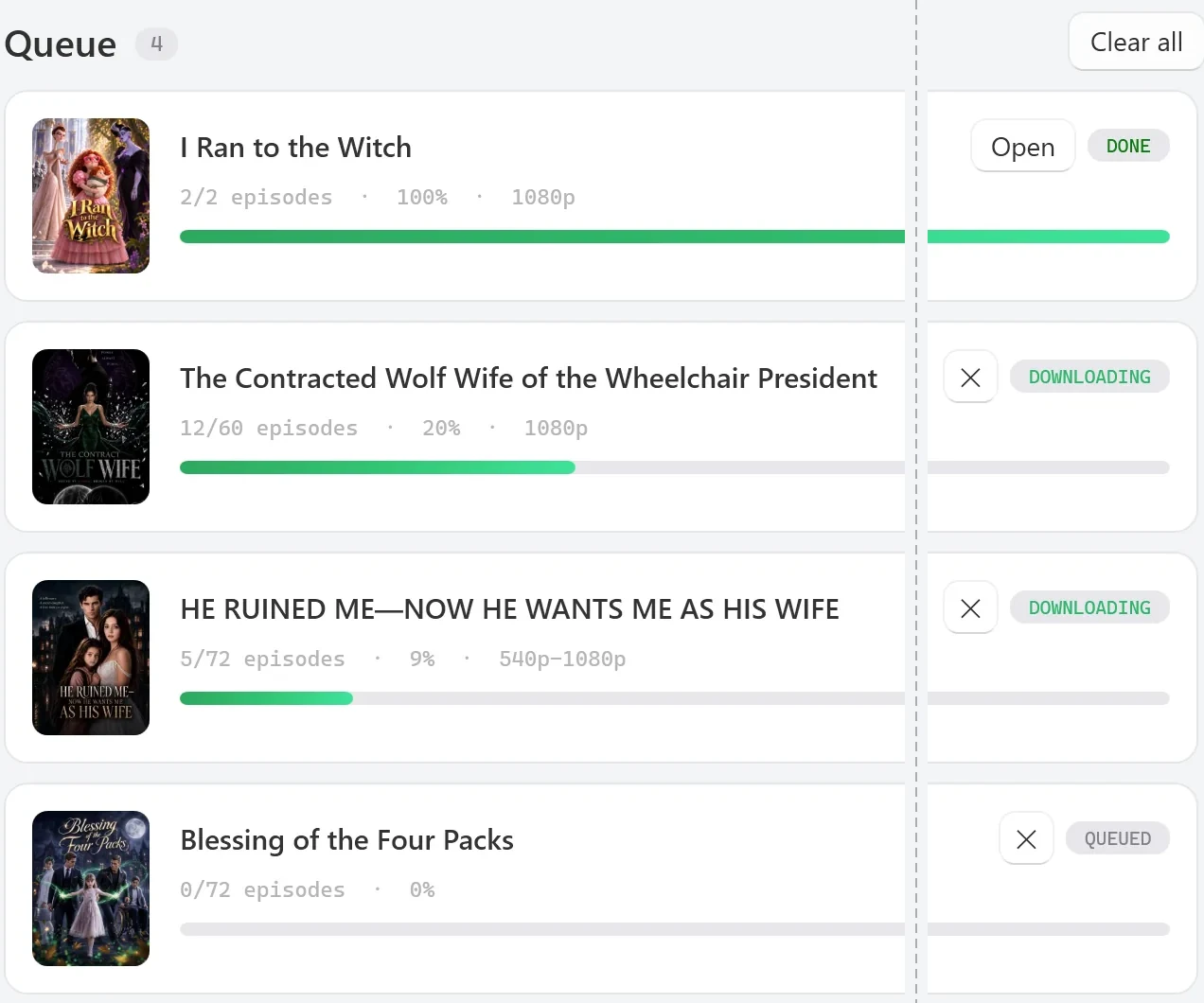
- Header:
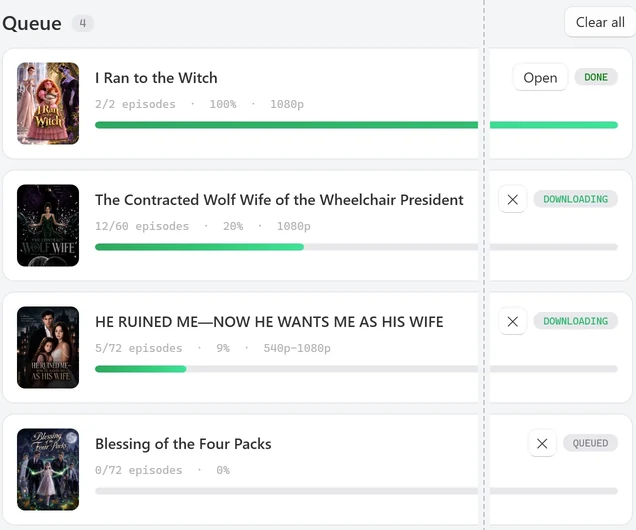
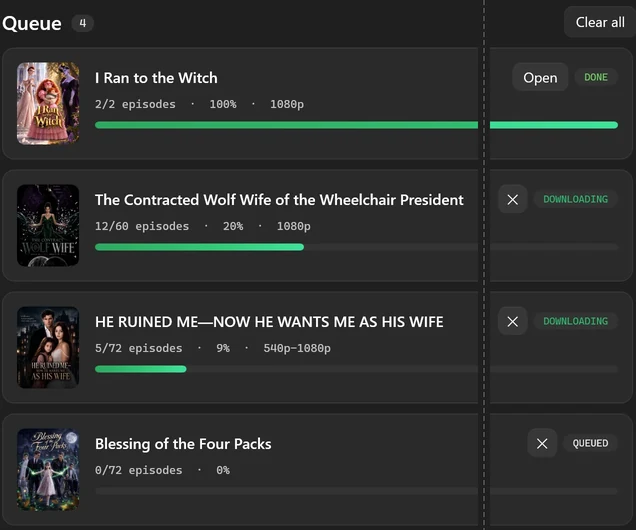
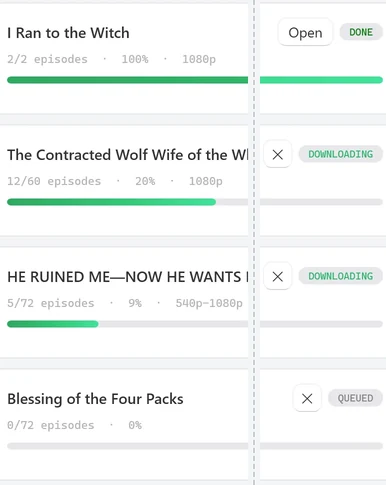
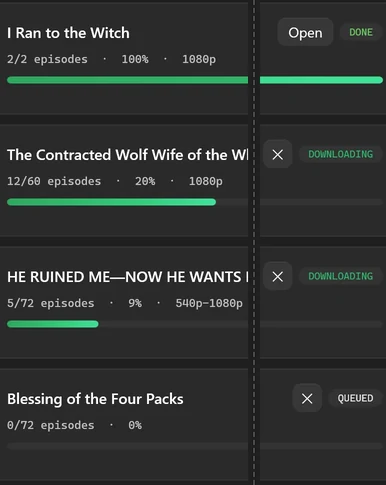
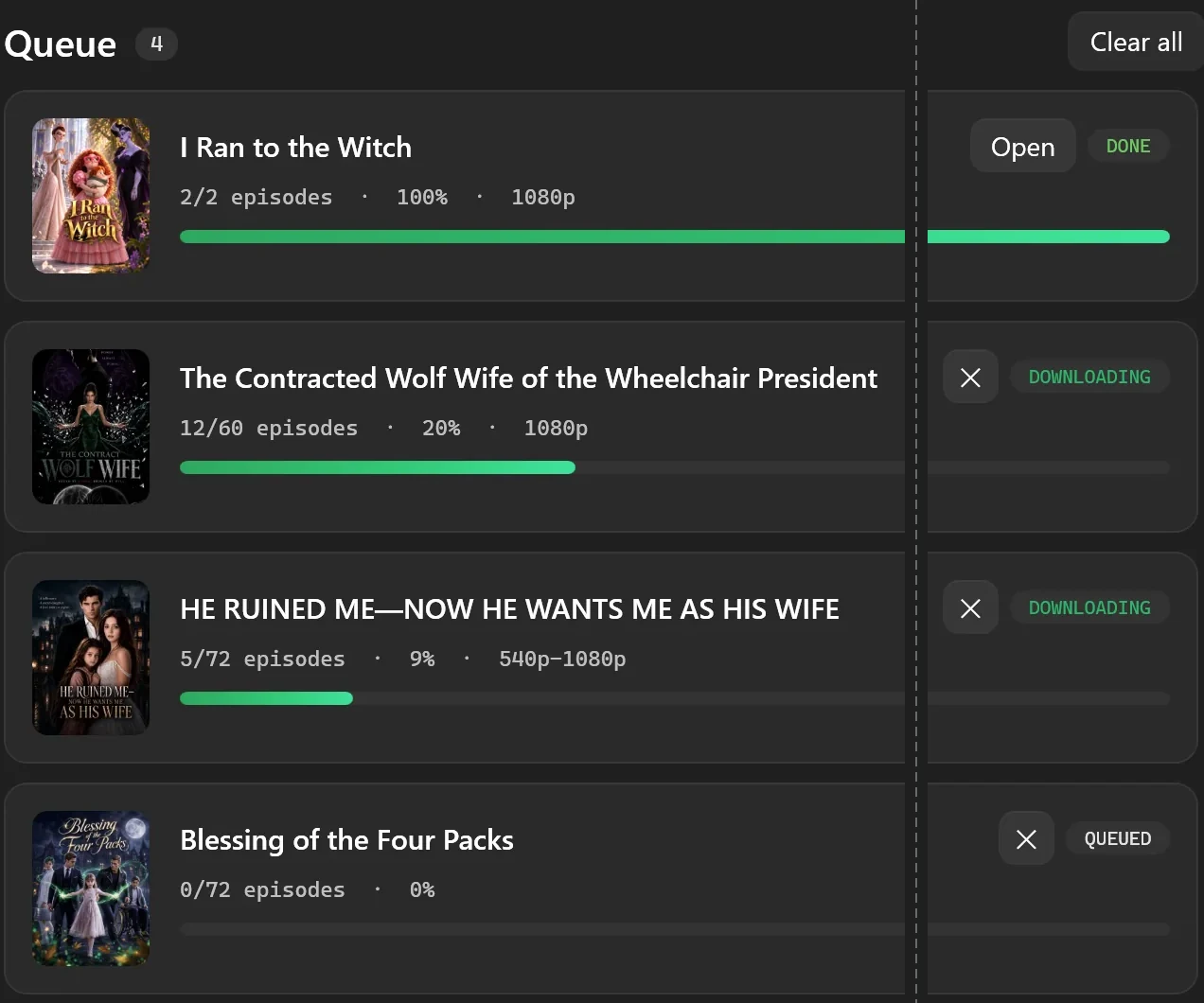
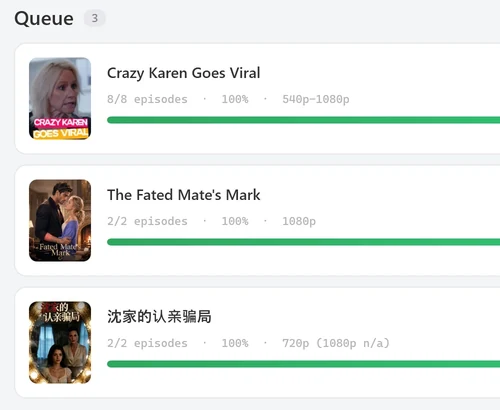
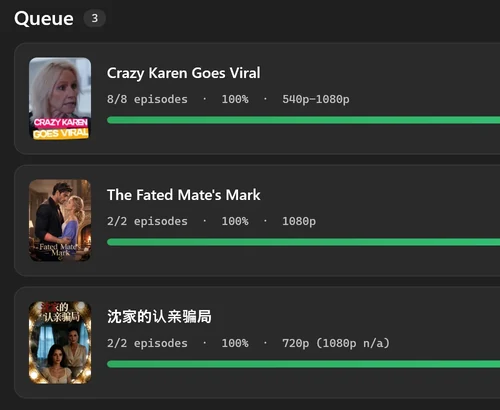
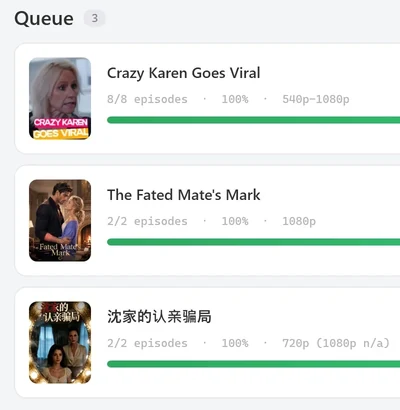
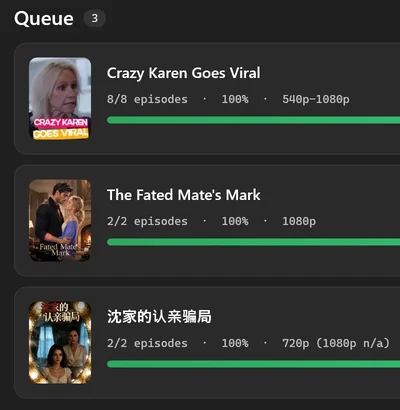
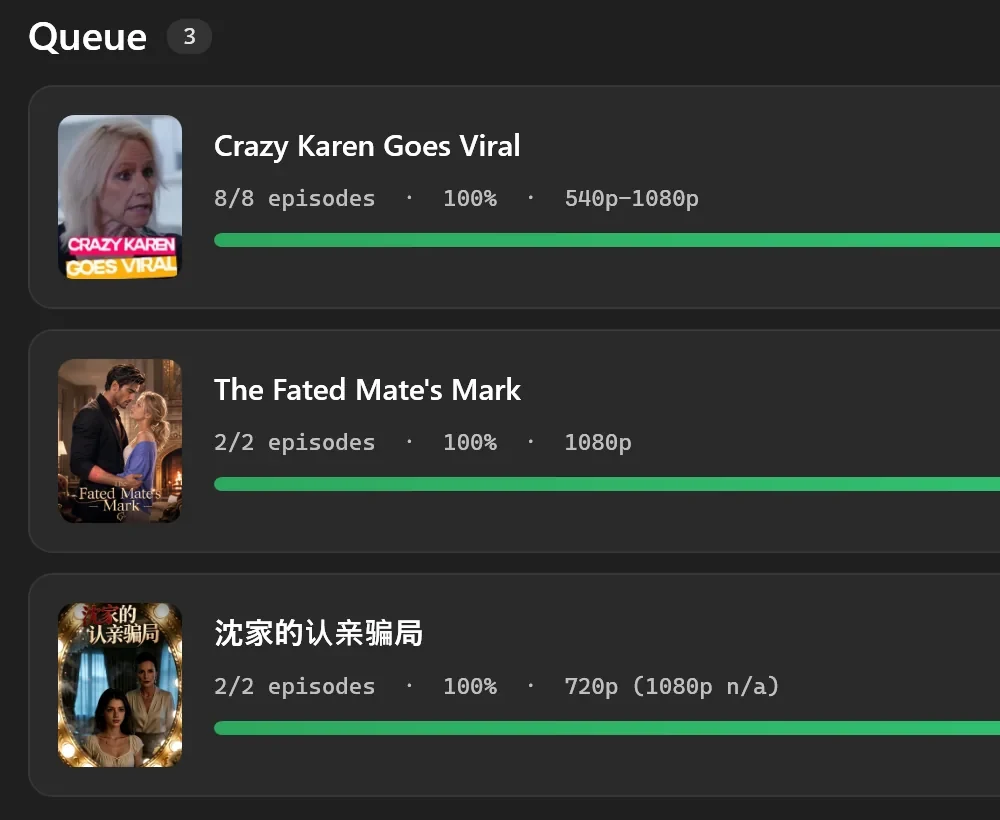
Queuewith the number of cards, and Clear all, which cancels everything still running or waiting and empties the list. It doesn’t ask first. - One card per drama: the cover, the title, a status label and a line such as
12/60 episodes · 20% · 1080p: episodes finished, overall progress, and the tiers the finished files really have. Cards show no per-episode list and no time remaining. - Status labels:
QUEUED(waiting its turn),DOWNLOADING,MERGING(an episode’s picture and sound being joined, not the Library’s Merge),DONE,PAUSED(waiting from your last session),CANCELED,FREE LIMIT(stopped by the Free plan’s daily limit) andERROR. - Buttons: Open opens a finished series’ folder, Retry queues its failed episodes again, and ✕ cancels the rest of that drama.
- How many at once: 2 dramas at a time with 4 episodes each, unless you change it in Settings > DOWNLOADS. Dramas start in the order you queued them.
- Library jobs: Merge and Convert to H.264 from the Library run here too, one at a time, each with its progress and a ✕ to cancel it. They don’t take download slots.
What the card says about quality
The end of each card’s line comes from the finished files: 1080p means every finished episode is 1080p, 540p-1080p means they range between those tiers, and 720p (1080p n/a) means none of them reached the 1080p you asked for.
 Open the full-size pictureOpen the full-size picture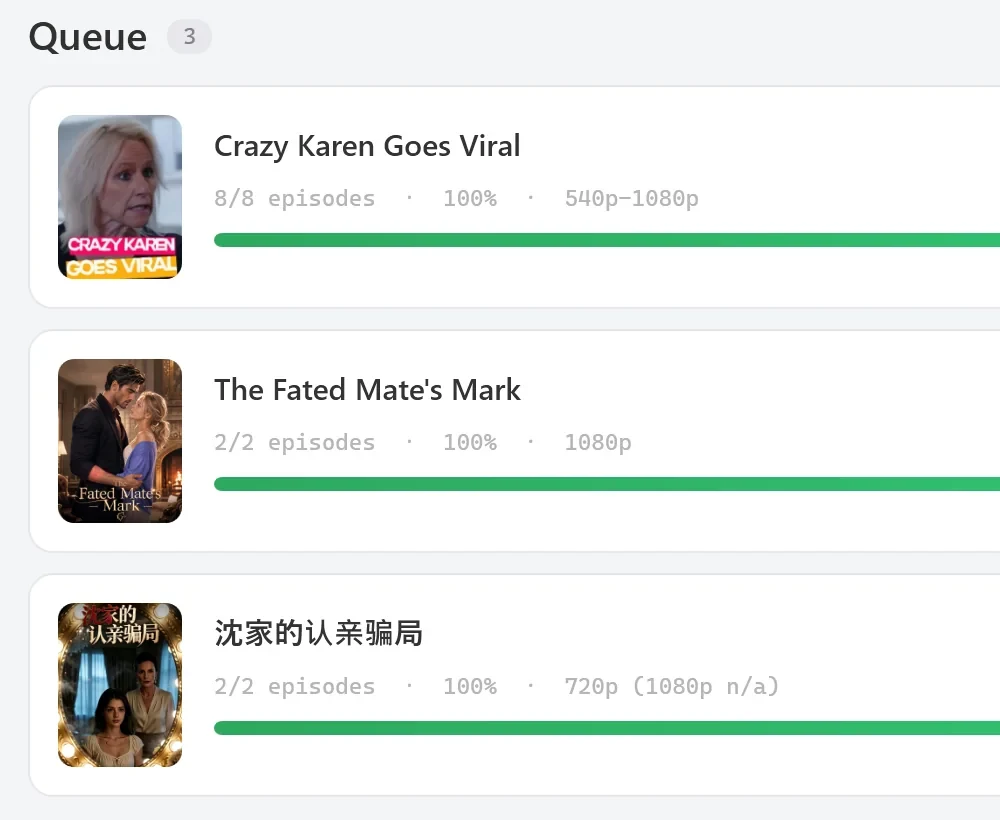
Tested on 30 September 2026
We queued an 8-episode drama at the 1080p ceiling with the eng-US subtitle chip ticked. Its card ended at 8/8 episodes · 100% · 540p-1080p: 5 episodes came in 1080p, 1 in 720p and 2 in 540p, because that’s what TikTok had for each. Its folder held an MP4 and a .eng-US.vtt file for every episode.
After a restart
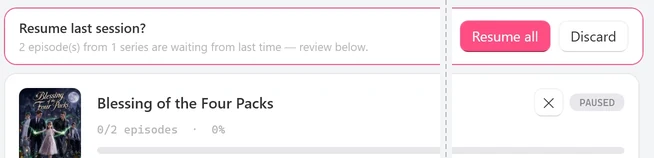
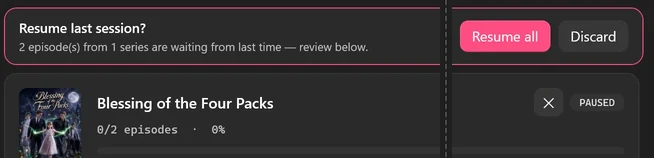
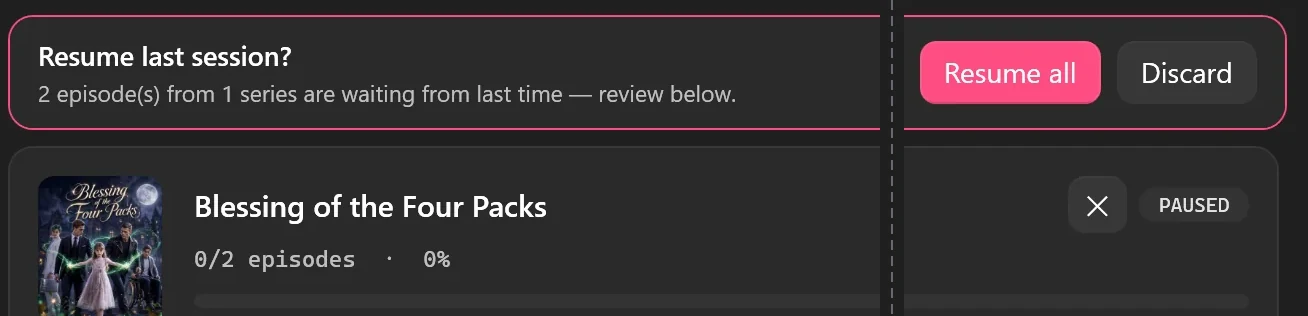
When you close the app with downloads unfinished (queued, downloading or failed), it keeps them. The next time, it opens on the Queue with a Resume last session? banner, and the waiting cards read PAUSED. Click Resume all to start the rest of your queue with the same choices, or Discard to drop them. Finished series aren’t offered again, and Library Merge and Convert to H.264 jobs aren’t kept: start those again from the Library.

 Open the full-size pictureOpen the full-size picture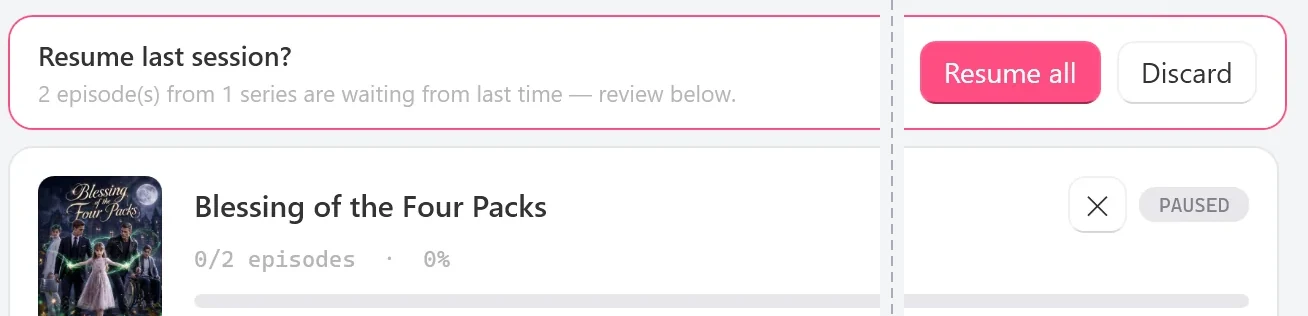
When episodes fail
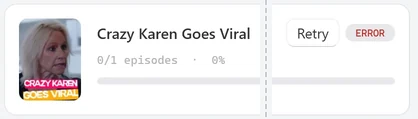
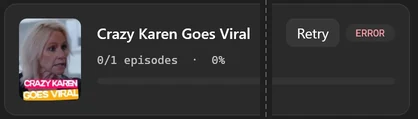
A card that finishes with failures reads ERROR and shows Retry. The card doesn’t say why: the app writes a log for each failed episode in the logs folder of its data folder, %LOCALAPPDATA%\TikTok ShortDrama Downloader. If Retry doesn’t help, lower the numbers in Settings > DOWNLOADS and retry, or email us the log.


 Open the full-size pictureOpen the full-size picture

On the Free plan, a new drama that would go over today’s limit doesn’t start: its card reads FREE LIMIT, and the Upgrade window explains why. If you activate a licence later, those dramas start.
Go deeper: Batch-download several TikTok short dramas at once and What quality can you download TikTok short dramas in?
The Library
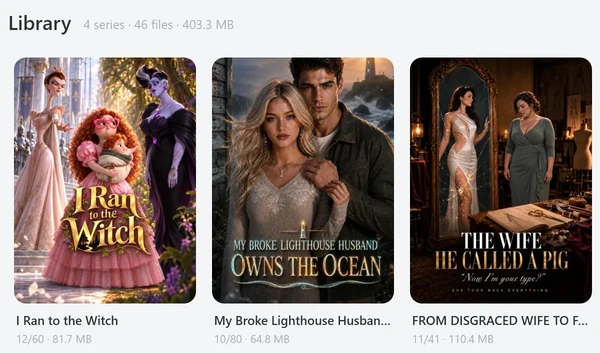
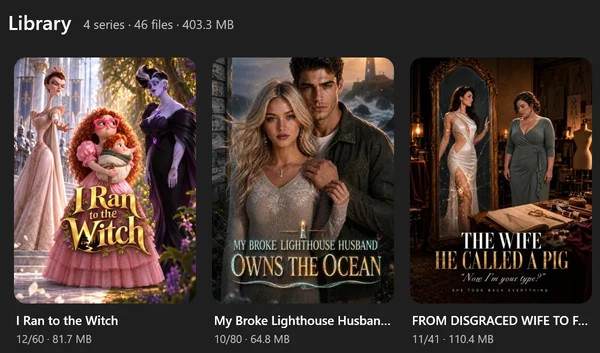
 Open the full-size pictureOpen the full-size picture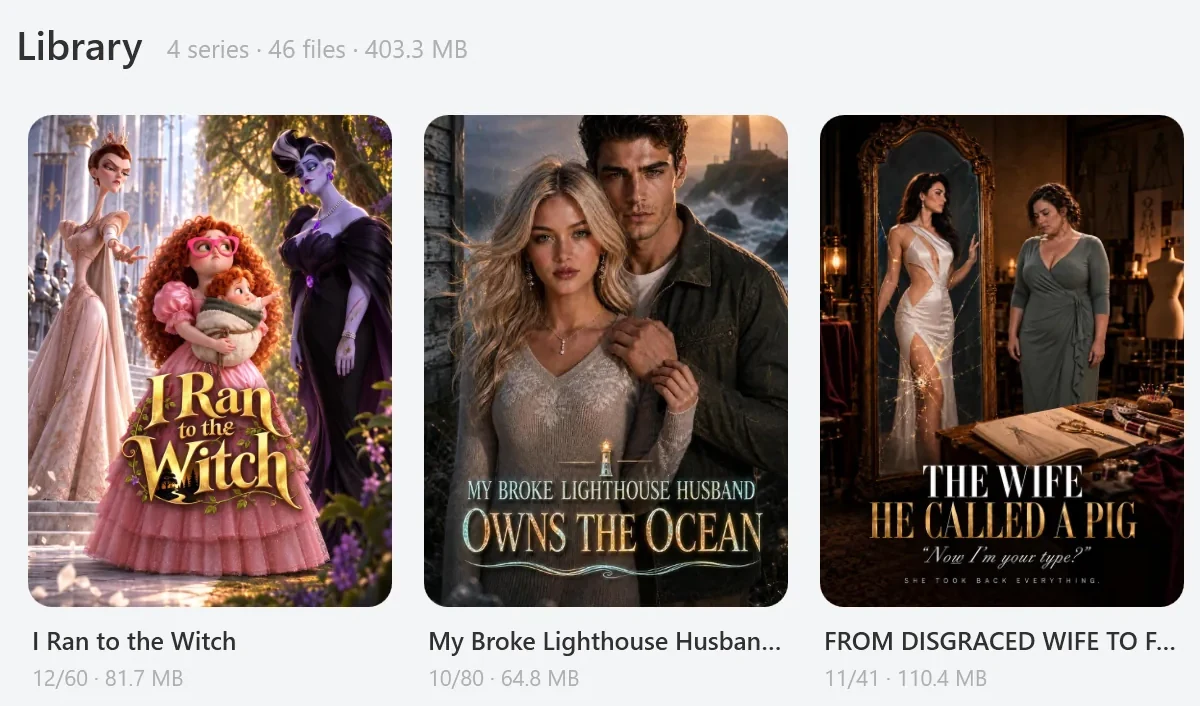
- Header:
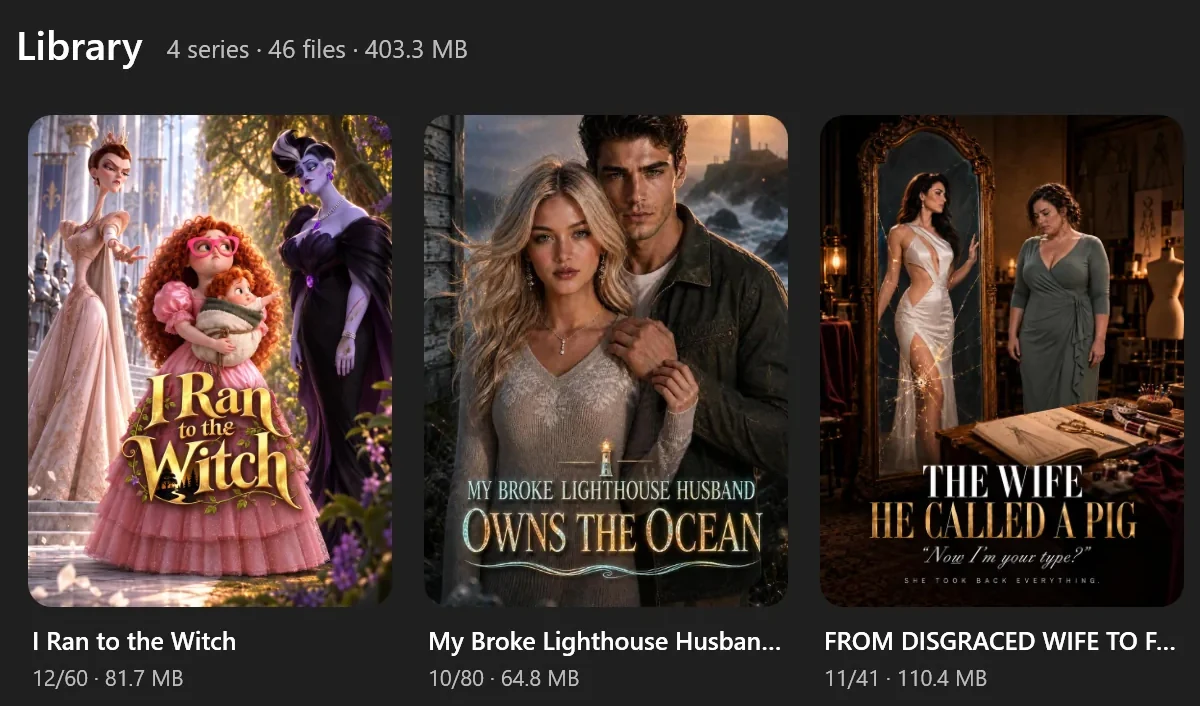
Librarywith the totals of your download folder, such as4 series · 46 files · 403.3 MB, and the buttons Open folder, Select and Sort: Newest. - Covers: one per series folder, with episodes saved out of the total and the size, such as
12/60 · 81.7 MB. The app reads the folder again each time you open the tab. Click a cover to open its series window. - Right-click a cover for Play, Update, Merge, Convert to H.264, Open folder, Delete… and Select. Convert from this menu always uses the Quality preset; the series window lets you choose.
- Sort: each click moves to the next order: Newest, Oldest, Most views, Most episodes and A–Z. Newest and Oldest go by the drama’s date on TikTok, not by the day you downloaded it.
- Select puts a ring on every cover and a bar at the bottom: tick series, or click Select all, then Update, Merge or Delete them together. The button reads Done until you leave this mode.
- Play opens the merged file if you made one, otherwise episode 1, in your default Windows video player.
- Delete asks first, then moves the whole series folder to the Windows Recycle Bin. Deleting files doesn’t give back a Free plan slot.
The series window
 Open the full-size pictureOpen the full-size picture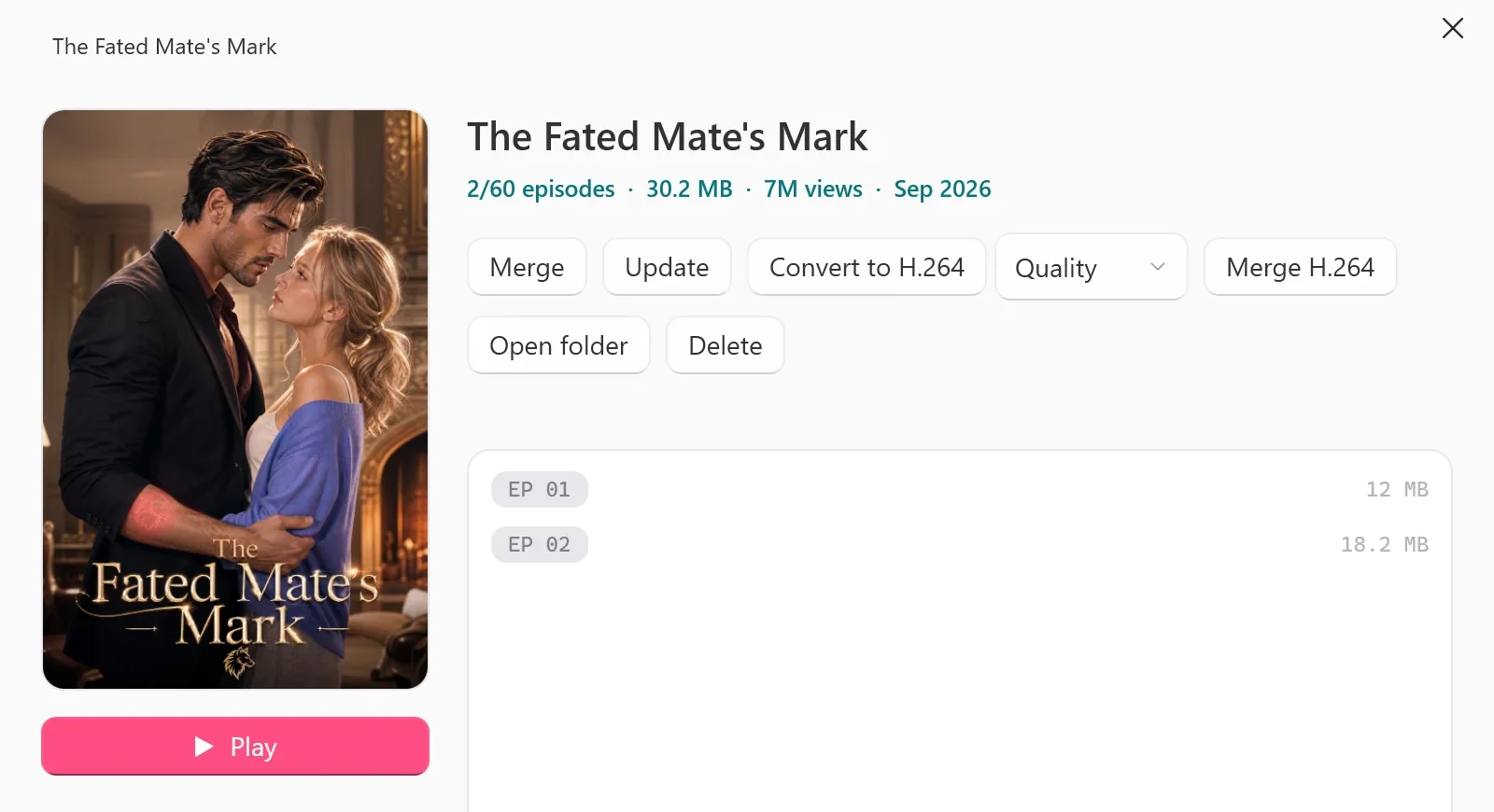
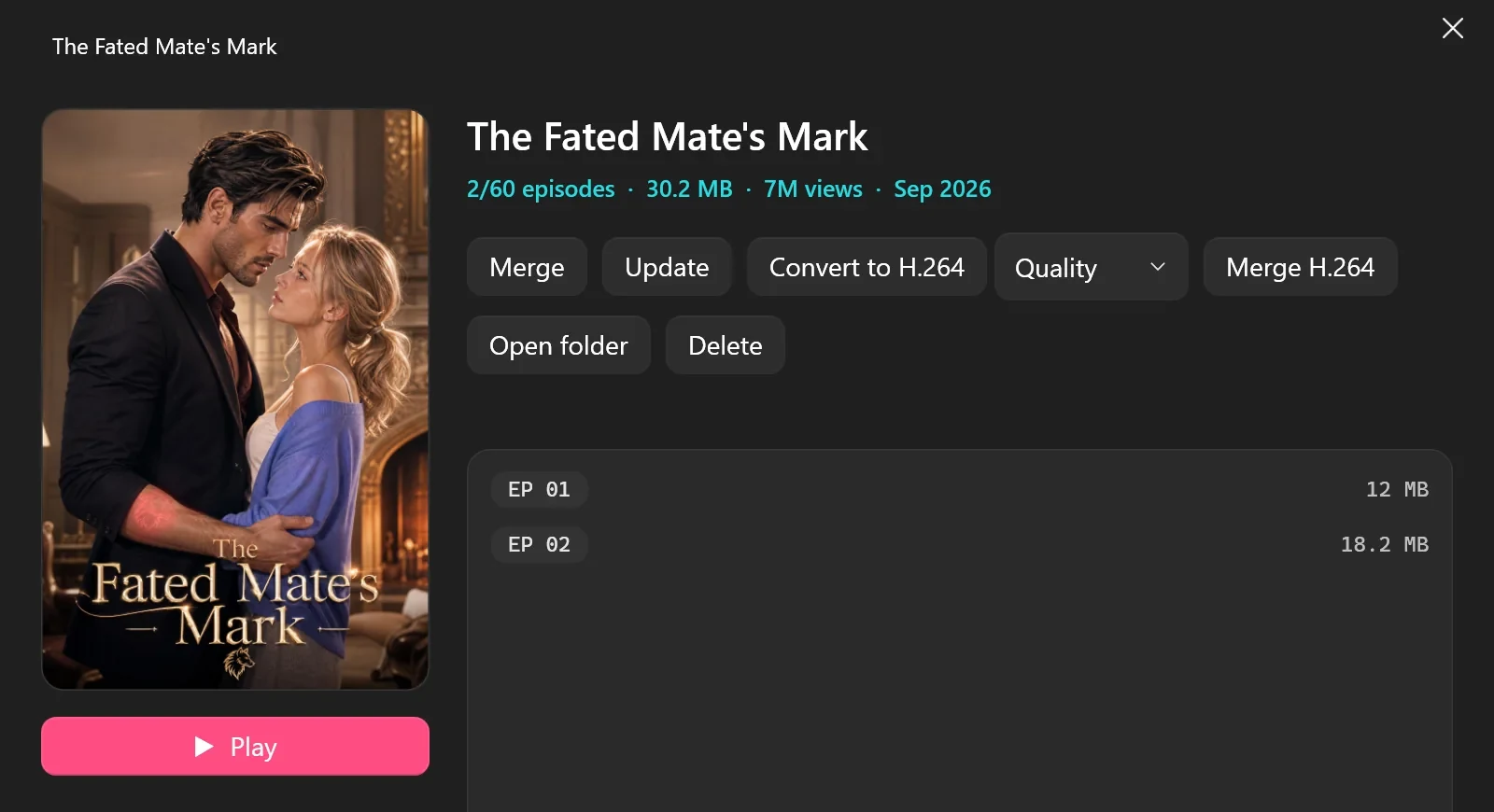
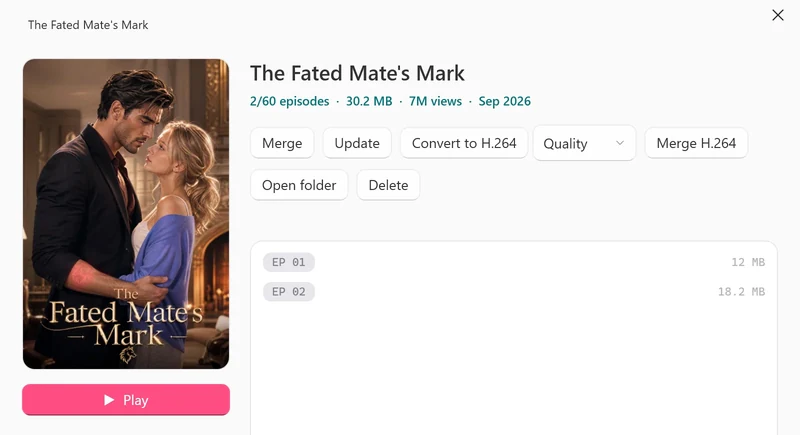
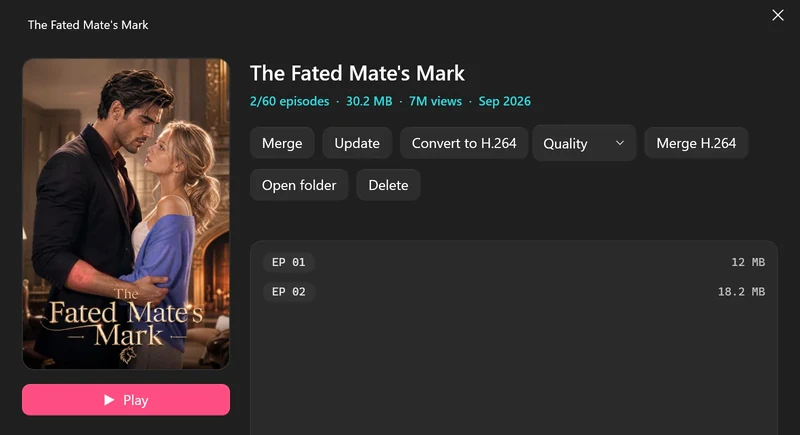
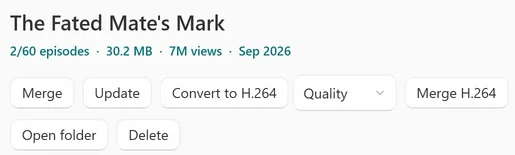
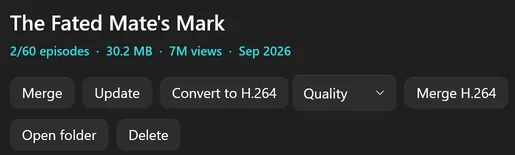
- Header: the title and a line such as
2/60 episodes · 30.2 MB · 7M views · Sep 2026, with Play under the cover. - Episode list: one row per file, such as
EP 01and its size. A small amber dot marks an empty or incomplete file (Incomplete — use Update to re-download). - Update: asks TikTok for the series’ episode list and queues every episode that isn’t on your PC: new ones, ones you skipped, and incomplete files, which it deletes first. It uses a 1080p ceiling and no subtitles, needs your sign-in, and runs only when you click it.
All episodes are present and healthy.means there’s nothing to fetch. A drama you already started on this PC stays free. - Merge (Re-merge once a merged file exists): joins the saved episodes into one
<Title> (merged).mp4file in the series folder. Episodes that match most of the series are copied as they are, the others are re-encoded to match, and the sound becomes one AAC track. It needs at least two episodes, and the merged file has no subtitle track. - Convert to H.264, with its preset box (Quality, Balanced or Fast;
Quality = slowest, best picture. Fast = quickest, smaller file.): after you confirm, it makes H.264 copies of every episode at full resolution in anH264subfolder and keeps your originals. It uses your graphics card’s encoder when one works, otherwise the processor. - Merge H.264 appears once a series has converted copies, and joins them into one file in the
H264folder. - Open folder and Delete work as they do in the grid.
Merge and Convert work on the files already on your PC and run as cards in the Queue, where you can cancel them. Update talks to TikTok, so it needs internet.
Tested on 30 September 2026
We merged a saved 8-episode series: the merged file had no subtitle track, although the episodes had one. We also converted two episodes to H.264: the copies were 2.2 to 2.6 times the size of their HEVC originals and had no subtitle track either.
Go deeper: How to download short dramas for offline viewing on Windows
Where your files go
- Download folder:
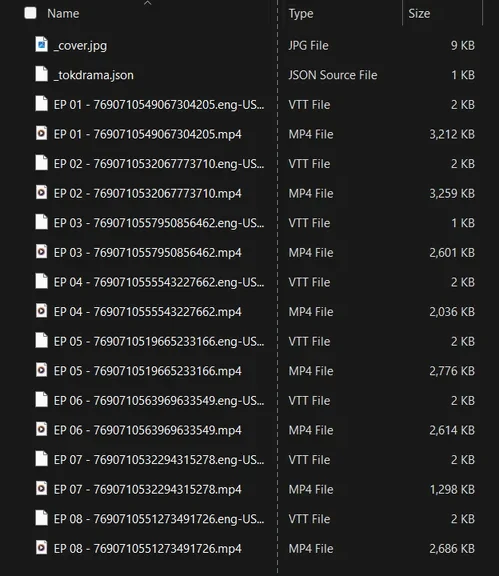
Videos\TikTok ShortDrama, unless you choose another one in Settings > DOWNLOADS. If you used the app when it was called TokDrama, it keeps using yourVideos\TokDramafolder. - One folder per series, named after the drama’s title. A second drama with the same title gets the last six digits of its id in brackets.
- Inside:
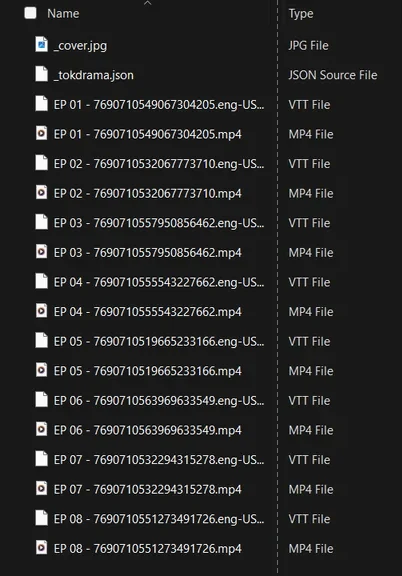
EP 01 - <episode id>.mp4,EP 02 - <episode id>.mp4and so on, a.vttfile for each ticked subtitle language (such asEP 01 - <episode id>.eng-US.vtt), the cover_cover.jpg, and_tokdrama.json, a small file the app uses. A merged file and theH264folder appear when you make them. - Picture sizes: in our tests, 1080p files were 1080 × 1920 pixels, 720p files 720 × 1280 and 540p files 576 × 1024.
- No detour: files go straight from TikTok to your PC, not through our servers.
 Open the full-size picture
Go deeper: How to download a TikTok short-drama series
Settings, card by card
Settings has six cards, top to bottom.
PLAN & LICENCE
- Your plan: on the Free plan, with today’s count and its reset time in your own time zone, such as
0 of 2 new dramas used today · resets at …. Licence keyandThis PC: your key, shortened, orNone, and your computer’s name.- Buttons: they depend on your plan: Upgrade or Change plan, Enter a licence key, Manage subscription, Deactivate this PC, and a few that appear only when they’re needed. Manage your licence explains each one.
ACCOUNT
Signed in: your TikTok picture, name and @handle, with Switch account and Log out. Signed out: Not signed in and Log in to TikTok.
DOWNLOADS
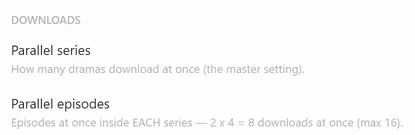
- Parallel series:
How many dramas download at once (the master setting).From 1 to 8; 2 by default. - Parallel episodes: episodes at once inside each series, from 1 to 8; 4 by default. The two numbers multiply and never pass 16: raising one lowers the other’s limit, and the line under the slider does the sum.
- Default quality & codec: 1080p and HEVC to start with.
Pre-selected on every download. 720p/1080p are HEVC-only; H.264 tops out at 540p.It also sets the quality of Browse’s one-click buttons and the codec of the Download tab’s. - Download folder: the path, with Open and Change…. The Library always shows the folder set here.


 Open the full-size pictureOpen the full-size picture

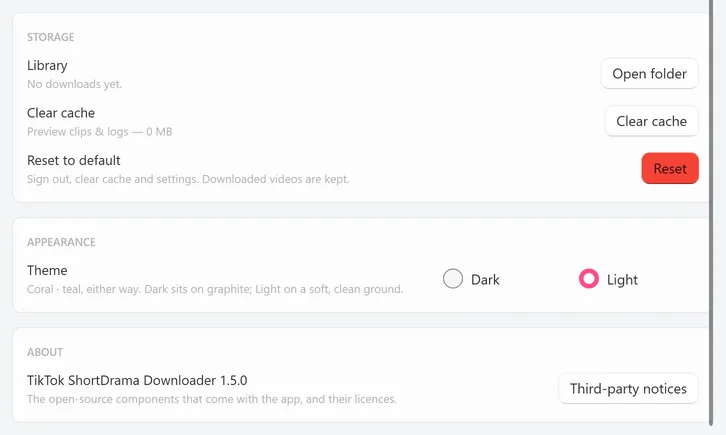
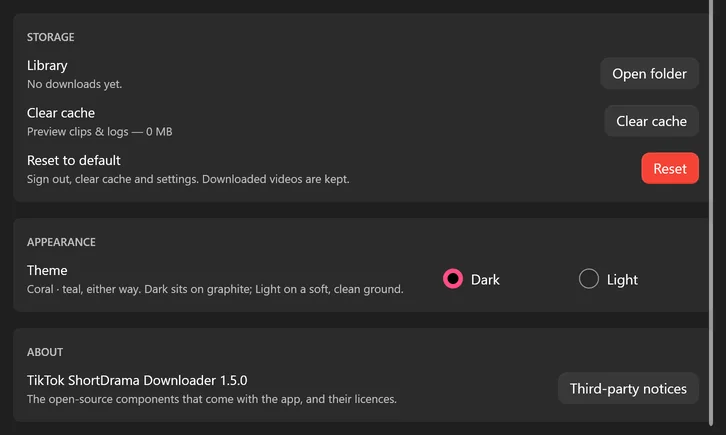
STORAGE
- Library: the size of your download folder, or
No downloads yet., with Open folder. - Clear cache: empties the preview clips and logs (
Preview clips & logs — 0 MB). - Reset to default: the red Reset button asks first, then signs you out of TikTok, clears the cache and puts every setting back to its default. Downloaded videos are kept.
APPEARANCE
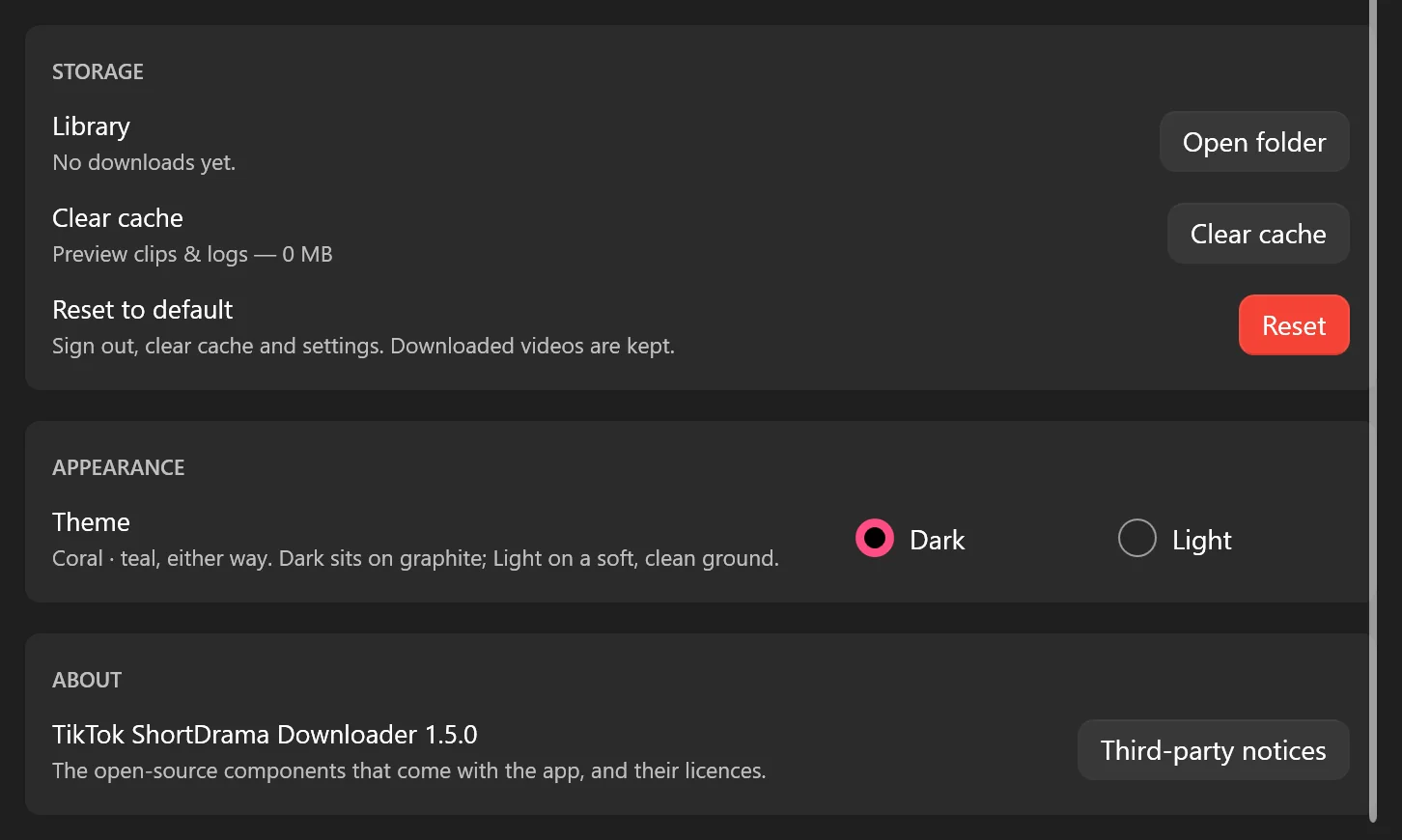
Theme: Dark, the default, or Light. The change is immediate, and the app remembers it.
ABOUT
The version line, TikTok ShortDrama Downloader 1.5.0, and Third-party notices, which opens the list of the open-source components that come with the app and their licences.
 Open the full-size pictureOpen the full-size picture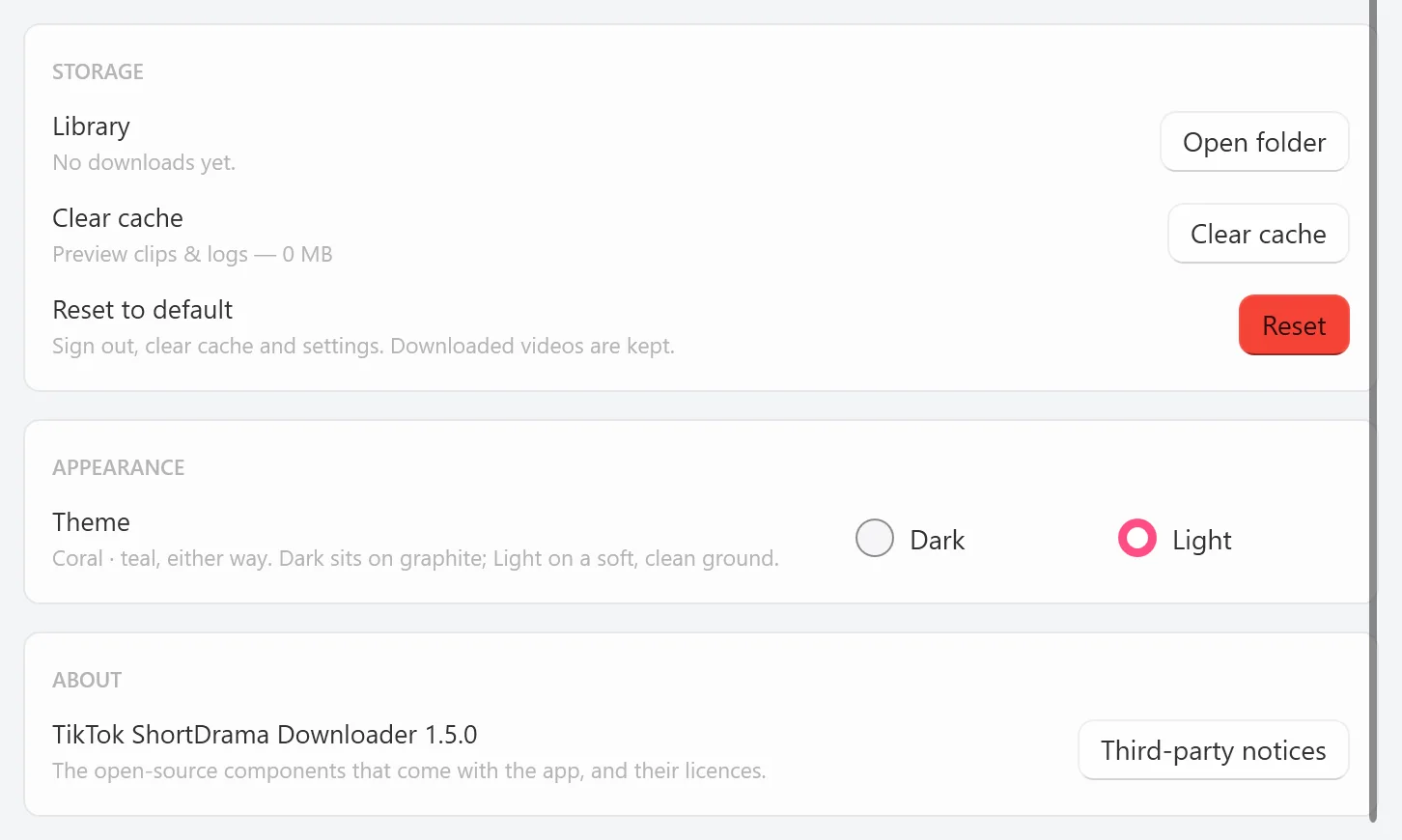
Go deeper: Choose how many download at once, in the batch guide.
Plans and the Upgrade window
- Free plan: 2 new dramas per PC per day, each with every available episode in any quality TikTok offers for it. A drama you start stays free to finish. The count resets at 00:00 UTC, which the app shows in your local time, and it needs an internet connection. No card is needed.
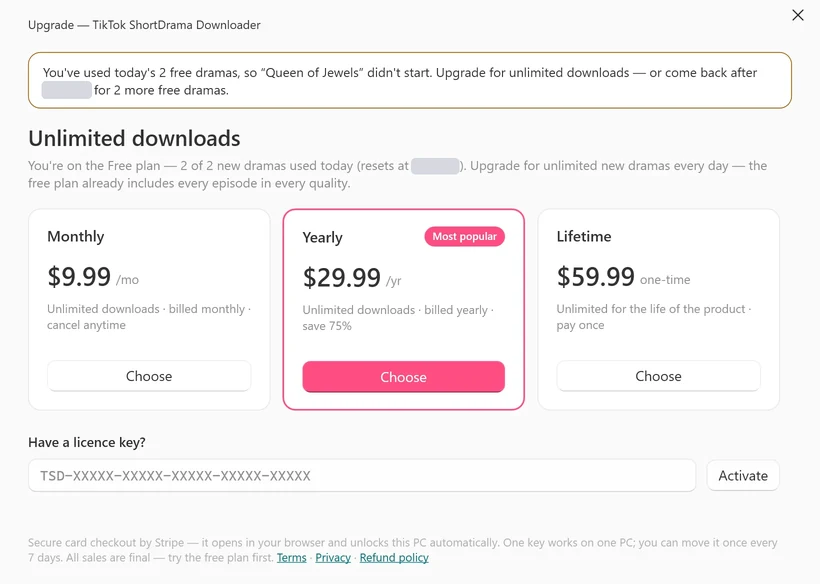
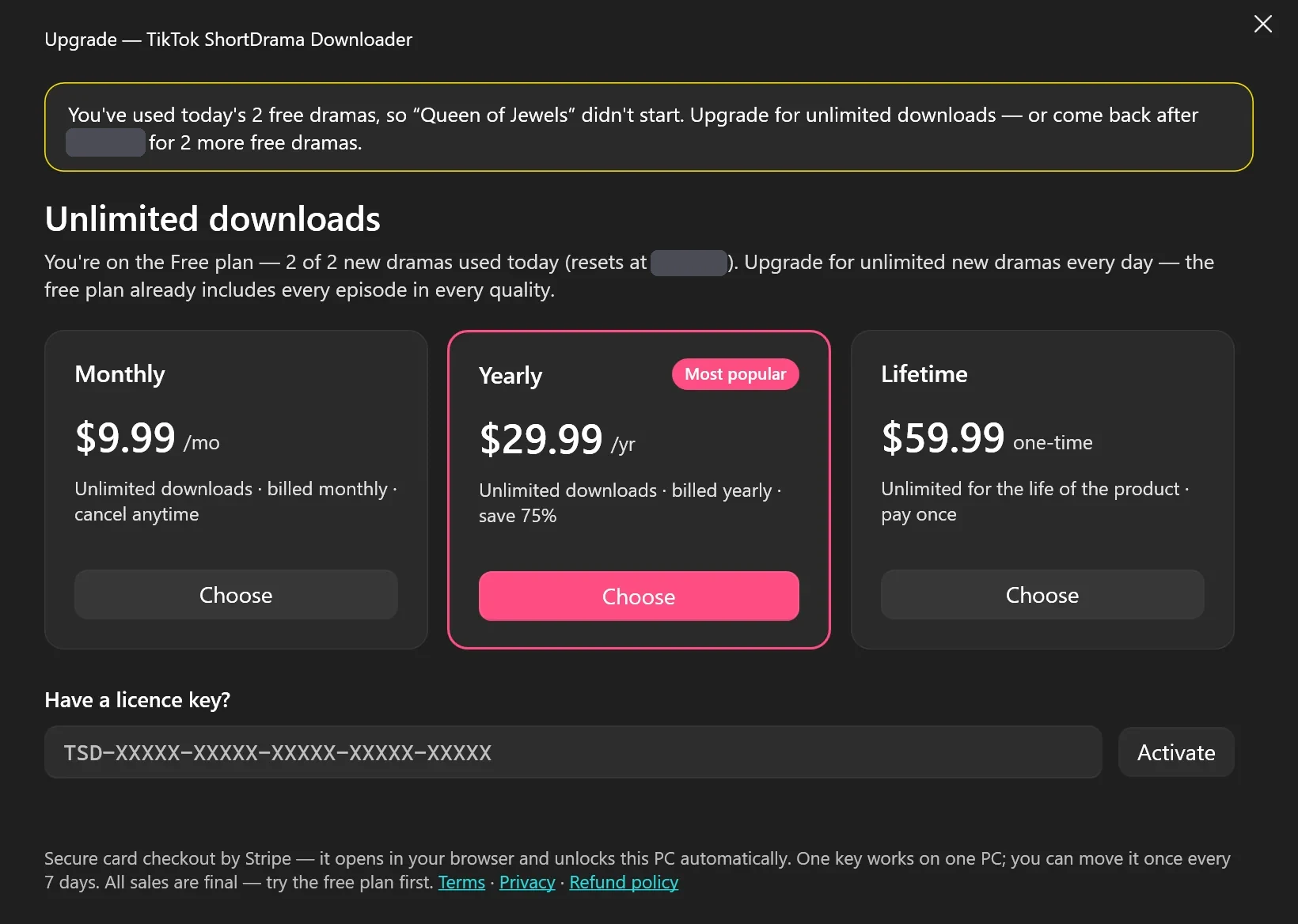
- Monthly, Yearly and Lifetime: US$9.99 a month, US$29.99 a year, or US$59.99 once, for the life of the product. Every paid plan unlocks unlimited new dramas.
- Licence key: A paid licence key is active on one PC at a time and can be moved to another PC once every 7 days.
- Without internet: Paid plans keep working for up to 72 hours without internet. Downloading always needs internet; saved MP4s play offline in a video player that supports HEVC.
- Refunds: All sales are final, except where the law requires a refund.
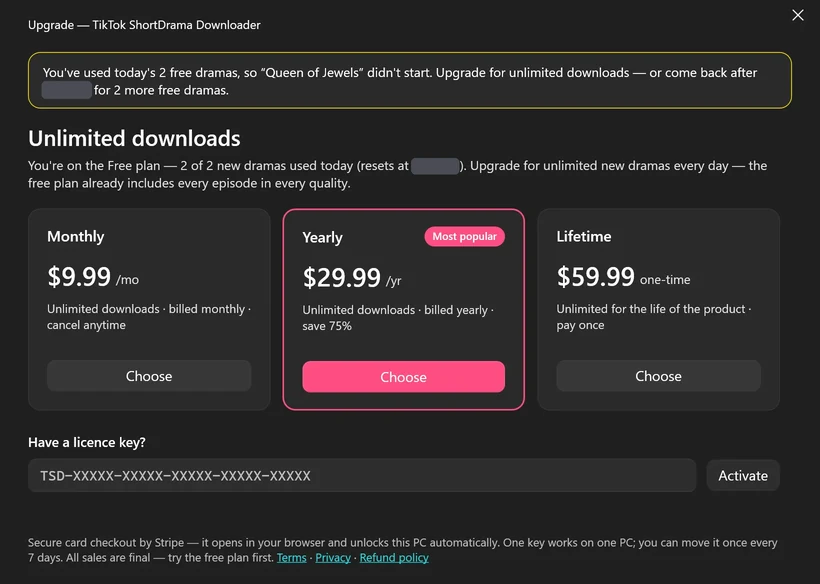
To buy in the app, click the plan badge, or Upgrade in Settings > PLAN & LICENCE. The Upgrade window lists the three plans. Choose opens secure card checkout in your browser, and when the payment goes through, the window unlocks this PC by itself; the key is emailed to you as well. On the web, use the Pricing section of the TikTok ShortDrama Downloader site or the PineDrama Downloader site.
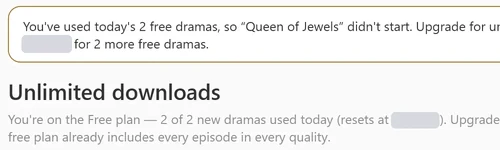
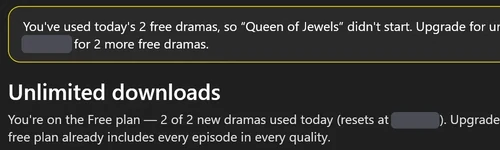
When the Free plan’s limit stops a new drama, the same window opens with a banner that starts You've used today's 2 free dramas, so “…” didn't start. and tells you when you can start more.
 Open the full-size pictureOpen the full-size picture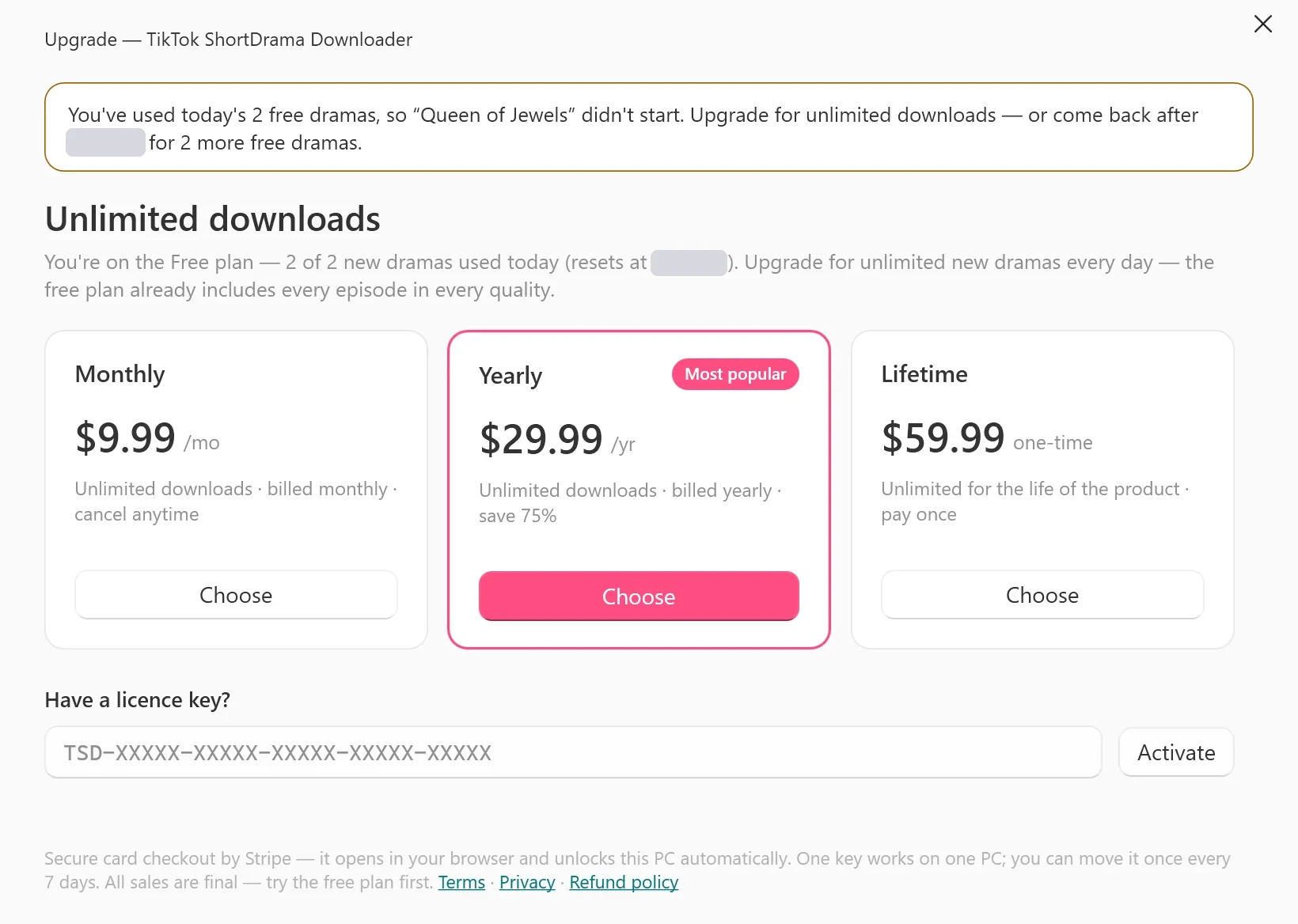
Go deeper: Manage your licence covers finding and activating your key, moving it to a new PC, and renewing, upgrading or cancelling a plan.
Help and support
- The app has no Help menu. Messages about your licence or billing name our support address when it helps.
- Email support@shortdramadownloader.com, or write to @M4st3r0 on Telegram. The support section of our website has both.
- For a failed download, attach the episode’s log from the
logsfolder in%LOCALAPPDATA%\TikTok ShortDrama Downloader. If the app ever showsSomething went wrong (logged):, the details are incrash.login the same folder. Logs contain file paths from your PC, so send them by email rather than posting them anywhere. - The Guides cover single tasks in depth, and the product facts page lists what the app does and doesn’t do in one place.
- Before you save anything, read Saving short dramas responsibly.
Keyboard shortcuts
| Where | Keys | What happens |
|---|---|---|
| Download box | Enter | Go |
| Download box | Shift+Enter | A new line |
| Browse | Ctrl+F | Jumps to Search dramas |
| Browse | Ctrl+A | Selects every poster loaded so far |
| Browse | Ctrl + click | Selects a poster |
| Browse | Esc | Clears the selection, then leaves a search or More like this, then closes Filters |
| Picker, series window, preview, Upgrade window | Esc | Closes the window |
| Licence key box | Enter | Activate |
Troubleshooting
Log in to TikTok first — see Settings ▸ Account.
The app has no TikTok session: sign in as described in Sign in with TikTok. If you were signed in before, TikTok may have ended the session, so sign in again.
Couldn't find a drama from that link — is it a short-drama link?
The link opened but doesn’t lead to a short drama: an ordinary video, a sound or a profile with no dramas, for example. Copy the share link of one of the drama’s episodes, or search for its title.
A card shows ERROR
Click Retry. If episodes keep failing, lower Parallel series or Parallel episodes in Settings and retry. The log of each failed episode is in the logs folder described above.
An episode won’t play, or Windows asks for a codec
Episodes are HEVC unless you chose H.264 at 540p. Install Microsoft’s HEVC Video Extensions from the Microsoft Store, use a player with its own HEVC support, or make copies with Convert to H.264 in the Library.
Get the downloader tools first (Queue tab).
The tools the app downloads with are missing from its folder. Open the Queue, where a banner names them, and click Get tools, or run the installer again.
FAQ
Is PineDrama Downloader a different app?
No. It’s the same app with the same installer, plans and licence keys, which is why its window says TikTok ShortDrama Downloader. It saves TikTok short dramas, and PineDrama episodes from their links.
Do I need a TikTok account?
Yes, your own. You sign in once inside the app, and PineDrama users sign in with the same TikTok account. You don’t need an account with us.
Can it save ordinary TikTok videos?
No. It saves short-drama episodes only; ordinary videos, photo posts, sounds, collections, playlists and likes aren’t supported. A video link works only when that video is an episode of a short drama.
Does the Library fetch new episodes when they come out?
Only when you ask: open the series and click Update, and it queues every episode you don’t have yet.
Can I try it before I buy?
Yes. The Free plan lets you start 2 new dramas per PC per day, each with every available episode, and needs no card. All sales are final, except where the law requires a refund.